In case you missed this recent article, note how the comments of Philip Rosedale can actually apply to the future of the AEC industry:

“If the technology changes to make it easier for negotiating and knowing what the work product is, and knowing how people are performing, and it becomes easier to do things in smaller and smaller chunks and with more granularity and with less hassle, the nature of firms and the structure of firms will probably change,” he said. “Obviously, they will go down in size and the relationships will become much more transactional. So,” Rosedale said, “my belief became that the future of work will be some sort of a situation in which many more people will contribute to projects in much smaller chunks,” he said.  

“I was struck by the thought that we’re reaching a point where the scale and complexity of the things we’re building exceeds our capability as individuals to do planning around them,” he said.

Read more:
Peter Diamandis: Creating a Company Without Employees: Philip Rosedale on Coffee and Power and the Future of Entrepreneurship

Revit 2013 is not officially supported on Windows 8 – though maybe you have been able to get it to install and run correctly?  Have you tried updating Revit to the latest version?  Did you have to disable Hardware Acceleration?  Share your experience in the comments…

One support blog tells us of a “customer who reported that he was trying to install Revit Structure 2013 on his new computer with Windows 8 operating system and it would not open.  The customer then installed update 2 and their Revit Structure opened.”
via
Revit 2013: Cannot install Revit 2013 on Windows 8 – IMAGINiT Technologies Support Blog

Martí Broquetas list of BIM standards has been updated:
He “turned the list into a table that can be sorted clicking on the headers. THis way it is easy to sort the standards by country,or date or name, etc. 
via
CAD addict: List of Existing BIM Standards

Also, syou may or may not be aware that before OpenRevitStandards got shut down, I copied the List of Revit content page.  You can find it here:
https://wrw.is/p/this-is-temporary-content-table-link.html

From the About page:
We don’t want to re-invent the wheel. We’re fully aware that many groups / professional bodies / organisations are already out there doing their bit to assist the general direction and goals of the industry.  We differ from these groups in that we wish to present an holistic and unified representation of the AEC industry without attachment to any particular discipline or professional body by using practicing industry professionals to produce meaningful, unbiased recommendations.  We will provide advice to those producing documents and guidelines for BIM / IPD as well as clients that wish to know more about BIM; both what it can do for them and what they can realistically expect from the industry.

To find out more, check out http://collaborate-anz.com, and request to join by filling out the form at:
collaborate (ANZ)

Boost Your BIM has been posting some awesome stuff.  One older post shows you how to quickly purge your Revit model of Imports:
a FilteredElementCollector, a bit of LINQ, a transaction, and Document.Delete to get the imports (but not the links) out of the model.

Check out the code at:
Delete Imported DWGs and Other CAD files � Boost Your BIM – making Revit even better

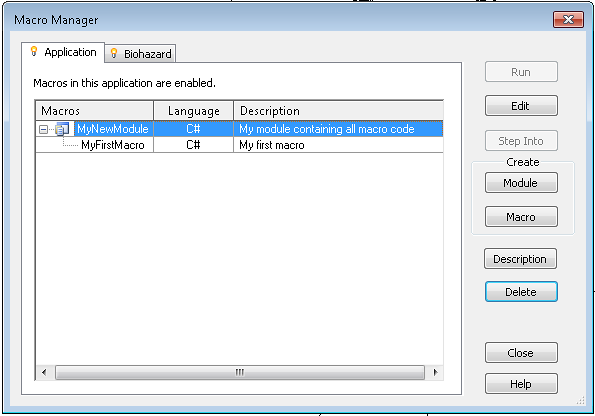
If you want to learn how to set-up and use macros in Revit, check out:
Setting up your Revit project for inputting macro codes – Benjamin Malone

His detailed post covers:

  • Revit Macro Manager
  • Module creation and choosing a language
  • SharpDevelop
  • Building and running the macro
38ogak1it668sk4c-4346272

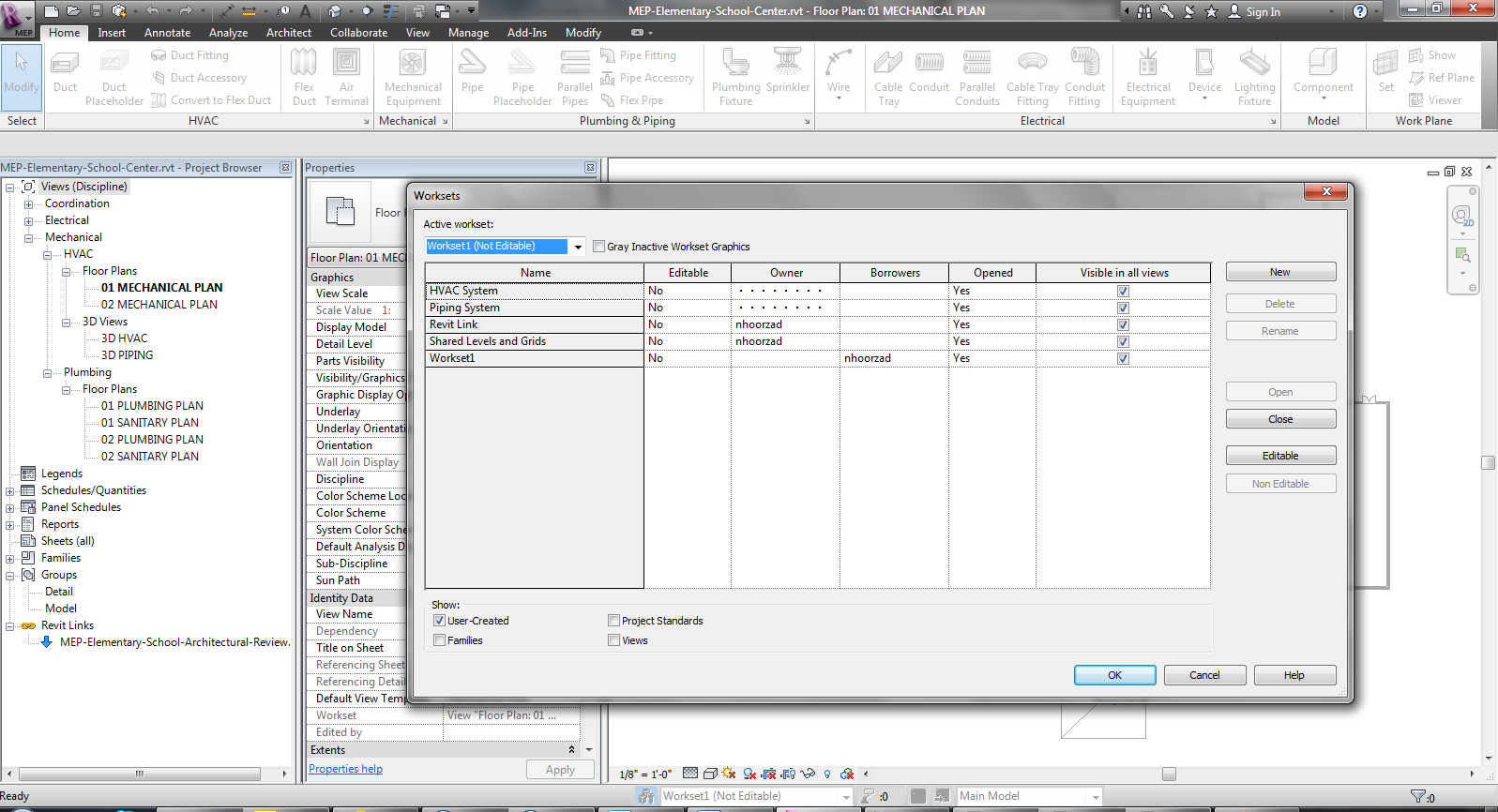
Until Revit comes up with some kind of advanced and granular permissions management for workshared files, we are left with a situation that requires best-practice Revit use combined with 100% obedient staff.  If you would like to take matters into your own hands in the meantime, you can use this somewhat scary hack to check out worksets using a concealed user name.  As with many posts on What Revit Wants – use at your own risk!

In short:

  1. Copy the username into Microsoft Word and change it to a different font in this example the font called AIGDT. (which is just associate symbols to letters).
  2. Copy the username (AIGDT font) back into Revit and as you can see Revit just shows it as bullets.
  3. Worksets checked out to that user will appear to others like this:

 
Image and idea by Navid at:
Locking WorkSet with a hidden user name!

Scenario – you have a TV that only has a LAN port (not wireless), a Netbook that sits in the corner (has been replaced by a tablet), and you want to share Internet to your TV.  You can use the Netbook as a wireless repeater … but not if it is running Windows 7 Starter.

Instead, just use JoliCloud OS Express. You can install it from within Windows (which will create an additional Linux based OS to boot your netbook into), and once installed it is incredibly easy to share internet.

To share your Internet connection, whether cellular or otherwise, 

  • right-click on the same Network Manager icon and select “Edit Connections…”.  
  • Click the “Add” button on either the Wired or Wireless tab, depending on which way you plan to share your Internet connection.  Give the new connection a descriptive name like “Shared Internet Connection”.  
  • On the IPv4 tab, select “Shared to other computers” as the Method.  Click “Apply”.

Reboot your netbook.  After you sign in, activate the Internet connection in the Network Manager menu if it is not automatically activated.  It might also be necessary to manually activate your “Shared Internet Connection” by clicking on the corresponding Network Manager menu entry.
You should now be actively sharing your Internet connection with your home network.

via
Netbook Internet Connection Sharing — Despite Windows 7 Starter � Van’s Hardware Journal

In essence, you are turning a netbook into universal wireless adapter – I’m sure some of you will find this useful.


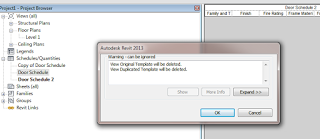
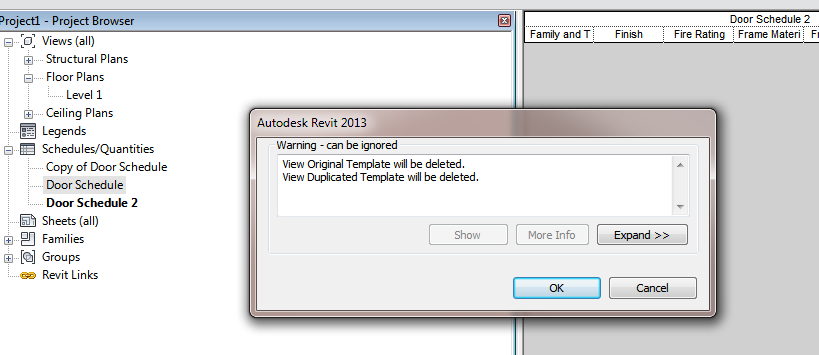
Nasty little bug picked up by Jason Kunkel.  Basically, you make View Template based on a Schedule View.  Then, when you go to delete that original Schedule View, Revit will prompt you with a “View:ViewTemplateName will be deleted” message.  Pressing OK deletes the View Template and therefore leaves any Schedule views with the Template orphaned

I also discovered that if you Duplicate the Template you made as discussed above, and then delete the original Schedule View, it will prompt to delete BOTH the original Template and the duplicated Template!

I tested this using latest update of Revit 2013.

From Jason’s blog:
When you go to delete it, Revit tells you that it is going to delete them.  And then it does.  Poof.  Gone.  Any schedule that had that View Template assigned is now set to NONE.  On top of that, any View Template that was copied from the prior ones are “linked” as well, so this could be pretty disruptive to your schedule View Templates.

Read more / via
View Template and Schedule Hiccup | RVIT – Revit rants, tips, and junk

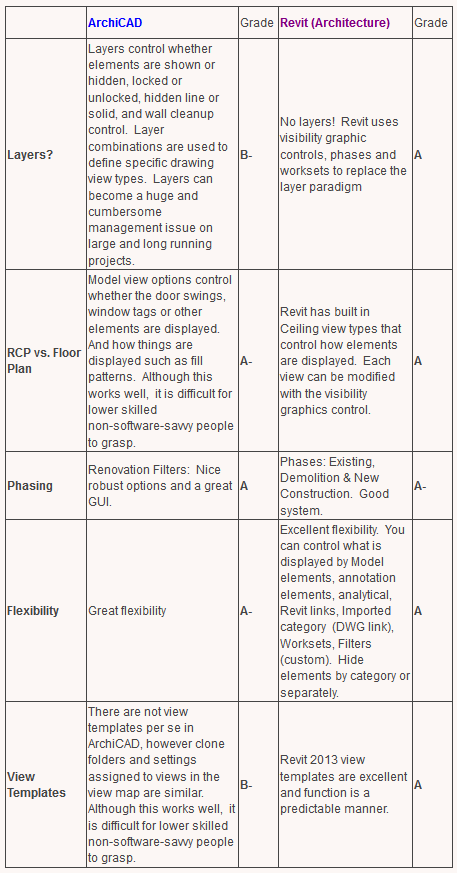
Its hard to find an unbiased comparison of Revit and ArchiCAD.  Ranting flame wars rage continually on LinkedIn…

That’s why it is refreshing to see a logical, itemised comparison of the two softwares.  Check it out at:
Scott H MacKenzie: ArchiCAD vs. Revit (part 1)
Life in a Virtual Building: ArchiCAD vs. Revit – 2D & 3D Modification Tools (part 2)

Heads-up via Shoegnome (find him on Twitter here)

Interesting aberration that you could use to your advantage – reposted from SARUG:

I had Sam override the visibility setting for the masked region and make it transparent, in the linked file, and then update the link.  For some baffling reason the ceiling could now be seen and the ACAD file was properly masked where the ceiling was.
The only thing I can figure is that the override to transparency was carried through to the active project revealing the ceiling but the masked region was still seen as a masking element as it related to the ACAD file.

via
AutoCAD in Revit – A Bizarre Linked File Approach | Southern Arizona Revit User Group