BIM breeds information. In many cases, we probably generate too much Bimformation. It can become difficult to manage and analyse all of it. When it comes to content specifically, Unifi have already provided a brilliant solution for storing, distributing and accessing your Revit and BIM content, and it comes with lots of nice features.
But what about Reporting and Analysis? What is the point of a cloud content repository, without a cloud web app? Why can’t we manage our content outside of Revit, and make it useful and accessible to everyone in our company?
Happily, Unifi have developed a new portal web app that aims to do all of those things. And, it looks really really nice so far 🙂
But what is it, how does it work, and how can it help you manage your content more efficiently? Steve Germano, Chief Development Officer at INVIEW labs, has given me a sneak Alpha peek, prior to its imminent release next week at AU2015. The word is that it will be going live to Beta next Monday… shhhh 🙂
When it launches officially, you should be able to find it here:
https://app.discoverunifi.com
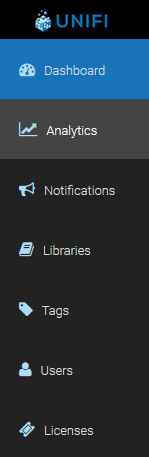
So, what can the Unifi app do? After logging in, the left sidebar provides links to a number of main screens:
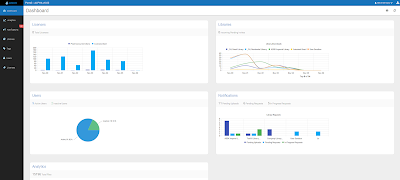
Dashboard
This is a one-page summary of all of the other portal pages. It gives you a quick overview of Unifi and general content use in your firm. Keep in mind that this portal is gathering live data from all of the users of Unifi across your entire firm. You may have hundreds of users in many offices worldwide, and all of the interesting information comes together here, in one place. Also, there are lots more data visualizations coming in 2016…
Analytics
Here you can see recent popular searches across your company content, along with a Top 10 of recent downloads. These metrics are invaluable for being able to determine what content is most utilised by those working at your firm. What’s your Most Popular Family? This type of information has previously been a matter of rumour, but now we have real data to back it up.
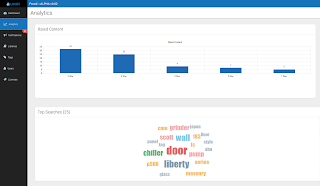

Analytics – Reports: This piece isn’t quite ready for the wild yet, but specific reports will be able to be generated and accessed from the web app in coming updates.
Notifications
On this page, you can see what content has been requested and the recent uploads that have occurred:
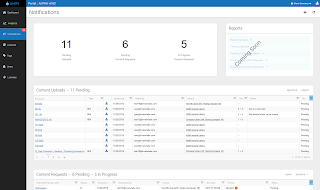
Also, it allows you to manage content requests and submissions, such as:
- Batch and Single file upload review and
- Approve / Reject
- Content Request review process workflow
Libraries
This area of the site is still under construction, but a recent ‘leak’ from Unifi has already revealed that they are going to allow inter-company sharing of Libraries. This is a huge deal! Rather than hoarding content in our individual silos, we could establish a more open approach. And maybe this provides a new way for professional content creators to deliver good content to a large audience of consumers. I noticed that Aaron Maller already expressed interest… this could provide a way for guys like him to share and maintain a quality set of content for small-medium offices, possibly with a reasonable price tag attached?
This Library sharing has been born out of real-world demand, and here is what Steve has to say about it:
This is completely new to our industry, the ability to share a library of BIM content with a partner/consultant for a project use can raise the consistency of data in BIM models across the world. One of our biggest beneficiaries of this feature is building owners directly, who will take their inhouse libraries and share them with consultants across the globe who are working on delivering designs for their properties. This enhances the total usable data across their portfolio, seamlessly, efficiently, and at global scale.
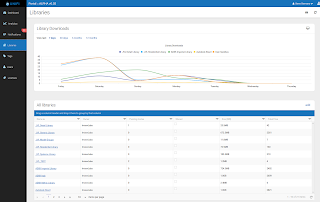
You will also be able to move content from library to library.
Tags
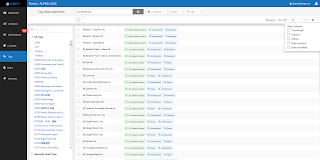
I have to admit, this seemingly simple feature is to me one of the most powerful things we have seen in Revit content management in recent years. It essentially allows you to manage and add intelligence to your content without having to be in the Revit environment. It also allows you to browse your content using all of the nice, intelligent tags that Unifi has automatically added for you. Imagine spending some of your time directly adding tags to content, which is in effect making your entire content database more intelligent, with benefits to all downstream users.
Available functions:
- Search across tags
- Batch apply tags
- Edit tags
- Remove tags
- Merge tags
- Rename tags etc.
Consider this scenario:
… you could be sitting on a bus or train wondering if your firm has a specific piece of content. You start browsing using the Unifi Portal, and you click through a few tags trying to find the content that you want. Then, you decide to check out the Notifications to see if anyone else has requested this piece of content recently – perhaps it is already under construction by one of the professional family creators at your firm? You can see that a similar piece of content has almost reached completion, so you go home happy, knowing that the exact family you need should be built and ready in the morning for you…
So, here is my current Favourite Features in the Unifi web app:
- Ability to view a one page snapshot of the content utilization in your entire firm
- Ability to share content libraries between companies (more details at AU2015…)
- Batch edit tags for your Revit library from anywhere in a web browser!
Also, some more cool stuff coming in 2016:
- User Management (batch utility) – adding in the ability to add/remove users from user groups with the same intuitive interface
- Licensing – New payment portal and processing
- Project Data!
Personally, I have enjoyed working along with Unifi for a while now, so sometimes I take for granted that people know who Unifi is and what they are about. If you are new to Unifi, and if you want to know more about recent developments, this little Q and A provided by Unifi may help…
____
Unifi mission statement: The essential platform to organize, analyze, and distribute the worlds Revit data.
Why did we build the Unifi web app?
To provide a web app that would be globally accessible from any device. Our customers have consistently requested to have instant access to workflow task alerts and other realtime analytics that may need their attention. The Unifi web app provides a home for an abundance of analytics, reports, and batch utilities.
What type of analytics and reports are available in the Unifi web app?
At the time of launching the beta we are providing usage analytics on every piece of content, by every user, in every library, across your entire firm. You will be able to visualize not only usage, but user ratings on your content which is one of the key indicators to quality across your library. On almost every page there is a “Reports” section with a list of various reports you can view. The intent is to provide slices of commonly requested data analytics that will be useful to firms. Want to know which content is rated the lowest across a particular library, or see which employees are actively rating and providing feedback on content, or which library of content is being used most, there is a report for it.
Each report can be easily customized in the web app so you can drill down to see just the exact data you would like to. Interoperability is also important to our customers and is why we have provided formatted exporting and printing capabilities for reports.
We currently have around 40 premade reports planned to roll out early 2016 to all customers, and will be taking requests during the beta period.
Who can access the Unifi web app?
Currently the app is limited to only the Company Administrators in a firm. As the Beta period progresses access for Library Admins and normal Users will be added. We have plans to add value for normal level users around the areas of content discovery and other project related data and analytics.
How does the Library Sharing feature work?
“Collaborative” Library sharing is the ability for two Unifi companies to share a library amongst their teams. This feature has been a high request from various customers who would like to collaborate for specific projects with their partner design firms. We also have building owners who want to own their own core library of content to maintain consistency in the data they will receive from their various building designs. Library sharing allows them to share their library of core Revit content with various design teams for easy access and use amongst their design projects. Unifi provides them the ability to maintain consistent data from their portfolio of properties which can be mined and used for the operational phases of the building. There are many use cases for this sharing type and we are currently exploring the value of this feature with several various stakeholders within the BIM lifecycle.
There are two other Library sharing types coming to the portal soon. In addition to “Collaborative”, firms will be able to share a library as “Patron/Client which has a limited permission set, and also a “Public” library where any firm can discover and subscribe to a published Public library. Lots more about this coming in 2016!
What else is planned for the Unifi web app?
A library analysis tool – We need to provide better tools for our customers during the initial setup phase of a firm implementing Unifi. The first thing every customer wants to do is “purge” their existing library by manually going through and evaluating thousands of families. This is a lengthy time consuming process. We believe we can assist this process by providing an automated QA tool directly in our cloud.
More batch tools – Batch file renaming utility, Batch moving content from library to library, and a batch user management utility. We understand that in order to properly manage dozens of offices, personnel, and their access to tens of thousands of pieces of content you need the right tools to do so and we plan to make those tools intuitive and a joy to use.
The “stage 2” of our platform maturation includes several other large scale value adds for our existing customer, and new markets which will all in some form or fashion be integrated into the Unifi web app. There’s a lot of exciting projects planned!
To summarize, the Unifi team is very excited to start providing the necessary tools, analytics, and access for design firms to organize, analyze and distribute their Revit content globally in an effort to make Unifi an essential tool for every Revit user.
____
Learn more soon at AU2015…