Let’s say you have installed Revit 2013 but you want to use Revit 2012 as your default Revit for the time being (and I don’t blame you).

Here are the steps from RevitForum (thanks Menschmal).

Instructions to set the correct revit.exe file as default for opening Revit files from the file browser in Windows 7
(e.g. I am testing Revit Architecture 2012, but I want 2011 to be my default for now)


Open the Registry Editor (type regedit in the command line in Windows). If you are concerned about messing something up, back up the registry before making any changes.


In the Registry Editor browse the tree to the branch below:


HKEY_LOCAL_MACHINESOFTWAREClassesRevit.Project shellopencommand


In the right pane you will see:


Name: (Default)
Type: REG_SZ
Data: “C:Program FilesAutodeskRevit Architecture 2011ProgramRevit.exe” /dde


Double-click on (Default) and the Edit String dialog box will open.


Edit the Value data field for the correct location for the version of Revit you want to use. For example, I changed 2012 to 2011.


Close the Registry Editor and you are good to go. This change seems to be the universal default for all extensions that open with the Revit.Project application (.rvt, .rfa, etc.).

Thanks to Menschmal at:
http://www.revitforum.org/architecture-general-revit-questions/548-default-revit-version-4.html#post15485

importing IFC2x4.  Thanks to Geometry Gym, and Jon Mirtschin in particular, an IFC importer add-on for Revit 2012 is under development that aims to support IFC2x4 with nurbs profile / perimeter exchange.

Jon says:
I’m developing the Revit addon to import these files as the functionality is not available in the native importers. I haven’t built for Revit 2013 yet, but if you have Revit 2012 and want to try, the installer is available from http://www.geometrygym.com/downloads
via the comments at:
Geometry Gym: NURBS GH to Revit

And here is the link to the current build of the IFC 2×4 importer for Revit 2012:
ggRevitIFCx64 v0.0.11.msi (24th April 2012)
Note, Revit 2012 64 bit Addon to import IFC files.
This is an early public release for initial feedback and comment. Addon undergoing rapid development. Please use with care and send suggestions and observations.

(from http://ssi.wikidot.com/downloads)

Image from Geometry Gym

Here is an excerpt showing how IFC2X4 RC2 improves geometry capability:

Geometry
Additional entities are added to the geometry resources. (1) The definition of manifold boundary representation has been enhanced to include advanced B-reps, based on NURBS. Therefore b-spline surfaces and b-spline curves are added. (2) The curve bounded surface based on bounding p-curves (curves defined in the parametric space of a surface) is added to allow any surface to be bound; it was restricted to only planar surfaces before. (3) Tapered solid of extrusion and tapered solid of revolution are now included to define simple taper, restricted to one section and to topological similarity of the start and end profile. (4) A fixed reference swept area solid is added to define an advance sweep along a directrix with a fixed orientation of the profile. The swept disk solid has been simplified by implicit start and end points on the directrix. (5) Elementary surfaces have been enhanced by incorporation or cylindrical surfaces. 

From http://buildingsmart-tech.org/ifc/IFC2x4/rc2/html/annex/annex-e/IFC2x4-RC2_whats-new.htm

Double Click Middle Button in a view = Zoom to Fit
Double Click on a component Family = Edit the Family (open in the family editor)

Some people like the new Stairs functionality?
http://blogs.rand.com/architectural/2012/03/what-really-matters-for-2013.html

Sketch stairs can be added to an Assembly, but Component Stairs can’t…

Multi-segmented grids:
To create a multi-segmented grid, select the Multi-segment tool in the Draw panel of the Modify|Place Grid context tab.  This will enable sketch mode for you to draw the grid line.  This will work on linear and radial grids or a combination of lines and arcs in the sketch, but must be a continuous segment.
http://blogs.rand.com/support/2012/03/revit-2013-miscellaneous-improvements.html

Arc grids are also available:

Sometimes you have a bunch of model objects of different categories and you want to quickly change the Phase Created of all of them at once.  And sometimes, I find that the persistent Properties in Revit doesn’t always reveal ‘Phase Created’ when objects of different categories are selected (this is in Revit 2013 – more investigation required).

In any case, to quickly change the phase of lots of model objects:

  1. Go to a Plan View
  2. Group the objects you want to re-phase
  3. Duplicate the active plan view.  Change the phase of the new view to the ‘target phase’ of the objects (the phase you want to change them to)
  4. Go back to the original Plan View (from step 1)
  5. Ctrl-X or Cut
  6. Go to the new Plan View (from step 3)
  7. Paste Aligned – Same Place
  8. All of the objects have now adopted the Phase Created value from the duplicated Plan View


Together with our new colleagues at Trimble, we plan to continue making our tools for the building professions as innovative, intuitive and (dare I say) fun to use as we always have.
Read more at http://sketchupdate.blogspot.com.au/2012/04/new-home-for-sketchup.html

I have previously posted about Trimble at these links:
What Revit Wants: Trimble Acquires Tekla

What Revit Wants: Trimble develops point creator plug-ins for Revit and other BIM software

Steve made a few interesting points today about Revit and DWG (Import) extents.  I previously posted about Revit accuracy and precision here.

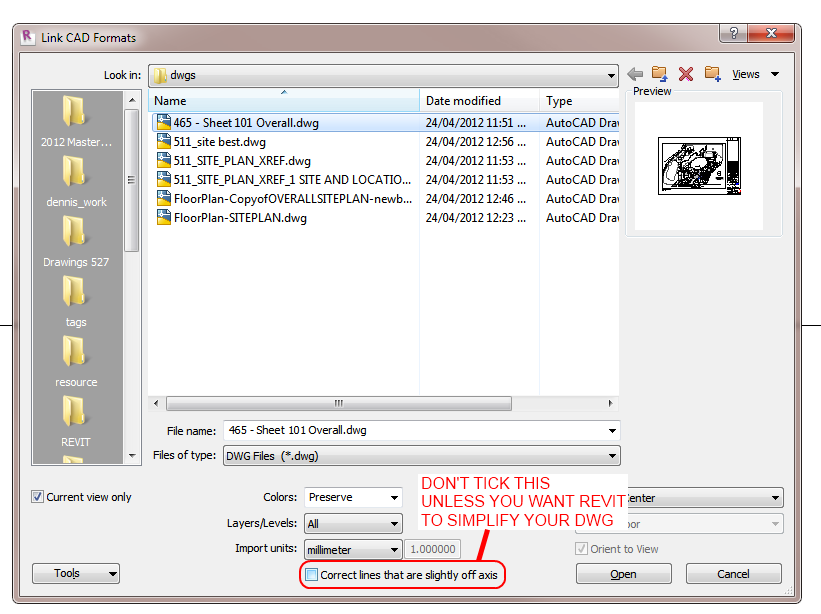
However, did you notice this new setting when importing a DWG in Revit 2013?

If you UNtick the box that says Correct lines that are slightly off axis, then Revit 2013 will bring in the DWG as-is.  It won’t try to straighten things up to make the DWG more Revit-friendly.

Obviously, use this with care.  But for me, 9 times out of 10 I want the DWG to come in EXACTLY as it was drawn.

Please RT.  Last year, I attended the Revit Technology Conference in Australia.  It was an absolutely awesome experience.  While the information was of a very high standard, I personally loved the opportunity I had to meet some of the top Revit users and professionals in the world.

This year, something new and exciting is happening.  Its called Visday (vizz-day).  It is the premier forum on advances in computer generated visualisation for the architecture, engineering and construction industries, and is collocated to the renowned RTC event. The powerful line-up of speakers includes Lon Grohs the Vice President of Chaos Group from Bulgaria, SHW group, HKS and VEO from the United States and local talent from Flood Slicer and Atomic 3D.

What Revit Wants is pleased to offer you the opportunity to win a free ticket to VisDay 2012 Australasia.  All you need to do is send an email to secretary@rtcevents.com in answer to the question in 25 words or less… What aspect of VisDay are you most interested in?”.  Be sure to include the fact that you are heard about this from What Revit Wants (see full rules below)

VisDay will be held on Wednesday 23 May at Novotel Wollongong Northbeach, NSW, Australia. Further details can be found on the website
 
Here are the full competition rules:

“We would like to offer your readers a single complimentary general admission ticket to VisDay, in exchange for feedback on attending VisDay. i.e.
Tell us in 25 words or less… What aspect of VisDay are you most interested in?

Prize includes registration to VisDay 2012 Australasia on Wednesday 23 May at Novotel Wollongong Northbeach. Complimentary scheduled transfers are available from Sydney city and Sydney Domestic Airport. Prize does not include other travel or accommodation.

All submissions are required by Monday 30 April, the winning entry will be decided by the VisDay Committee and will be notified on Wednesday 2 May.

Please email your submission to secretary@rtcevents.com noting the source blog. Please ensure you check back onto the blog after 2 May to see if you are a winner. Winning comments will be posted on the blog site along with the winners name.”

First off, a couple of links to Exporter add-ins for Revit 2013:
IFC Exporter on Sourceforge
Autodesk Exchange Apps – IFC Exporter for Revit

There have also been a few quite a few posts on other blogs about IFC recently.  Here is a selection:
Using two different versions
I alternate a bit between 2012 and Revit 2013 for optimal import results. Have not quite decided yet on what is best. 13 works faster, but I’ve seen a bug on windows which I love. Right now I use the 2012 imports, and so do I upgrade the file to 13 afterwards. 
Using ADT as a middle-man
If an item … Certainly will not be exported correctly, you can isolate it in a view, export view’et to 3D DWG for ADT and send it to the IFC from ADT. Boring… but it works. I’ve done this on an entire parking garage with a fall in all directions and had to realize that the correct 3D geometry, after all, it is very important.
via Google Translate of http://revitnorge.blogspot.com/2012/04/revit-2013-og-ifc.html

Improved ArchiCAD Connection Add-In for Revit ApplicationsFree Add-In developed for use by Autodesk Revit programs in the  Structure and MEP disciplines. This application is recommended for use  with IFC-based model exchange between GRAPHISOFT ArchiCAD and Revit  applications.  The Add-In for Revit  applications variously enables  direct import of ArchiCAD IFC models and IFC model export to ArchiCAD,  or serves to optimize Revit’s standard IFC import and export functions  used to exchange data with ArchiCAD.
http://www.graphisoft.com/support/archicad/downloads/interoperability/

via
Revit Add-Ons: GRAPHISOFT Interoperability Downloads

DP stuff: IFC Export – Revit 2012 (describes various problems with 2012 IFC)
DP stuff: Update – IFC Export -Revit 2013 (issues improved in 2013)

All Things BIM: IFC Export from Revit: Reply
I’ve been monitoring the discussions in the Industry Foundation Classes (IFC) group on LinkedIn for some time now and recently saw a post criticizing IFC export from Revit 2012. I saw a few discrepancies in the methods described in the blog post, so I decided to run through the same tests myself. …

Geometry Gym – Revit import Grasshopper IFC addon
You can test for yourself.  Here‘s the grasshopper files used in the demonstration and some example IFC output..  You need to download the latest plugins from http://www.geometrygym.com/downloads

via
http://geometrygym.blogspot.com.au/2012/04/geomgym-revit-addon-importing-ifc.html

There is one thing about Revit 2013 that I love above all the others – View Templates.

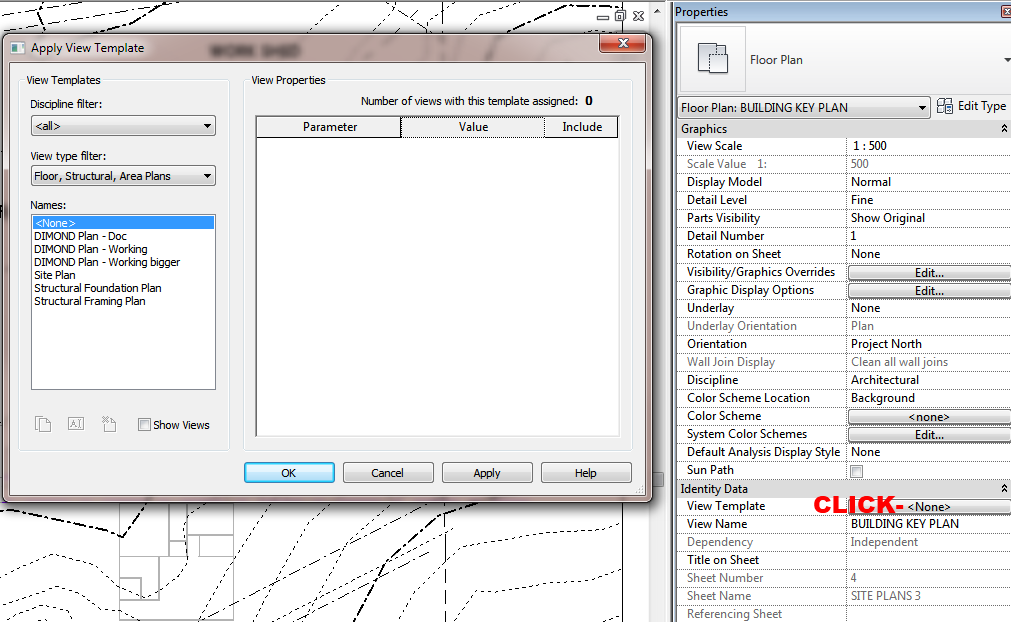
They are now truly powerful and useful, and they should improve our project management and documentation consistency.  And by ‘our’ I mean all Revit users.  If you haven’t picked up on it yet, there is a difference between ‘Assigning’ a View Template, and ‘Applying’ one:
Assigning – creates a link between the View and the View Template definition (when you change the Template, all views with that template assigned update to match the template)
Applying – is a one-off, drive-by application of the template settings to the view.  No link is created.

The key step in Assigning a View Template is clicking on the View Template property of the view (see image below)

You can read more at:
Assigning a View Template – WikiHelp

Even more powerful is the fact that you can create Types from all the different kinds of views – even Floor Plans can now have multiple Types.  You can watch a video on this at:
View Type Creation – WikiHelp

There is a bit of a bug in Revit 2013 at the moment when trying to apply the settings from one View to another – you can’t press OK to get out of the dialog!  I expect this will be fixed in an upcoming Web Update for Revit 2013.

Revit Knowz also loves View Templates:
Features I love:
– Hide at scales coarser than
– Re-align origin
– Propegate Extents
– Apply Default view template 

via
Revit Knowz: Features I love