Thanks to Michael Priestman, over at this link:

Hiya,

The problem is actually a bit deeper than that. In 2014 release, we added an optimisation whereby we only stored GUIDs when required in order to perform some internal path-matching operations.

However, this broke functionality in some models where GUIDs were re-generated each export. So, we attempted to fix this in the 2014 Service Pack. So whilst we fixed it, we also introduced serious performance problems and a memory leak. Some of those problems were addressed in the hotfix we released, but this didn’t address everything.
The other complicating factor was that when we released 2014 Service Pack, we changed what data was stored in the NWD files, which meant that files saved with 2014 Service Pack would not load properly in vanilla 2014 release. This was mentioned in the release notes for the Service Pack.

We hope to address all the issues around this area for our upcoming release.

I hope this helps to explain the issue a little.

Michael
Stewart Millar has contributed to the parameter naming debate / dialogue by providing a set of files from CESABIM.

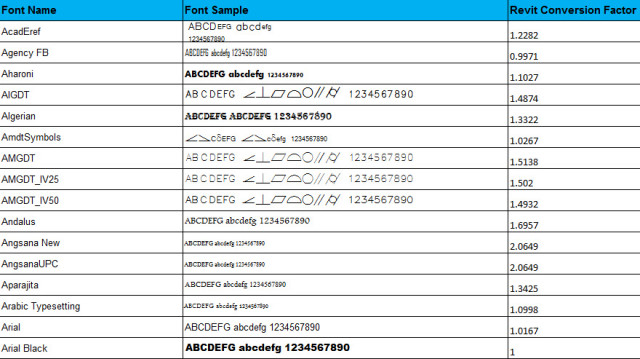
 The development of the CESABIM Database has been principally based on the FCSI North American standards for shared parameters. CESABIM currently exists in this format with slight adjustments of metrication.

Files for Download here

via
http://lnkd.in/dGwHfJH

To get a Free trial of Autodesk ReCap Pro click on the following link: ReCap Free Trial

You can use Autodesk ReCap 360 now for free if you have a Autodesk 360 account. If you don’t have an account, you can sign up for free by clicking on the following link: Autodesk ReCap 360

Read more:
http://www.cadlinecommunity.co.uk/Blogs/Blog.aspx?ScoId=f542a2ef-8a1f-4223-af91-6d52aea299b0

From Geometry Gym downloads page:
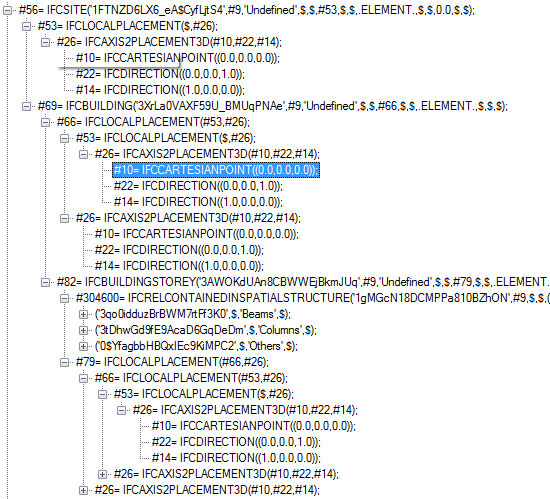
Geometry Gym IFC text tree viewer, Unblock zip (right click Properties) and then unzip into a folder of your choice.

ggIFCTreeViewer.zip (4th February 2014) 
via https://twitter.com/owensharp/status/430502199429300224

EDIT Updated link as of 26 March 2014
http://geometrygym.wdfiles.com/local–files/downloads/ggIFCTreeViewer.zip

You can also view the embedded coordinate information in the IFC, for example:

Check your render mode in Tools panel of Home ribbon:
“Change your render mode to “Presenter” and you can switch back and forth between “Perspective” and “Orthographic”.”

Original post:
http://enceptia.com/orthographic-mode-navisworks-gone/#more-2981

via
https://twitter.com/MattDillon78247/status/431192923971923969

“on a building project that is made more efficient by VDC it is the subcontractors that have most to gain particularly when you also recognise that subcontract margins are up to seven times that of a head contractor. It makes sense really because it is the subcontractor that is actually doing the construction work.” 

Read more at https://twitter.com/Navisworks/status/428542311572987905

Sometimes the differences between using various Autodesk softwares can be very subtle.  For instance, selection in Navisworks – I have already posted about the unfortunate lack of a “Revit Tab selection / AutoCAD Ctrl+Space” substitute in Navisworks.

Happily, Daniel Gijsbers describes some handy crossing window selection tips for Navisworks:

  • Hold down Spacebar and click-drag to activate the normal inclusive Selection Box tool (the same as the split button on the ribbon).  This only selects objects inside the box.
  • Hold down Shift and Spacebar and click-drag to activate the “crossing” window, selecting objects that are within and those that touch the window boundary!

via
danielgijsbers.blogspot.in/2013/01/navisworks-selections-methodes.html?m=1

Interesting comment:
Autodesk Remote is another option, at least for Autodesk Subscription customers. I’ve used it in conjunction with Dropbox / Google Drive to remote and transfer files

Posted by: Aurbis 

at
http://worldcadaccess.typepad.com/blog/2014/01/free-replacements-for-logmein-now-that-its-100-a-year.html?cid=6a00d8341c19df53ef01a51139c92f970c#comment-6a00d8341c19df53ef01a51139c92f970c

Along similar lines – Using Autodesk 360 for file sharing, including an embedded viewer:
http://www.cad-notes.com/sharing-files-and-designs-with-autodesk-360/