Here is a good guide on how to install the Google Earth Extension in AutoCAD.

There is a workflow which allows the topography from Google to be placed into Revit. You could try:
AutoCAD with Google Earth Extension – Export DWG – Import/Link into Revit
OR
Sketchup – Save SKP – Import/Link into Revit

Installing the Google Earth Extension for AutoCAD-based products – It is Alive in the Lab

Updating AutoCAD and Revit can be difficult for a few reasons.  If you are not on subscription, there can be tension between the users and the purchasers of the software – when do we outlay $$$ to do the upgrade?

In that situation, there is often lengthy discussion related to the cost vs benefits of any particular upgrade.

After that discussion is resolved, the next question is – can our current hardware run this new software?

The following comic from Architexts draws on these themes…

http://architexts.us/2011/01/14/updating-autocad/

There is a plethora of information available on the internet for Revit users and Revit instructors.  However, sometimes you really just want to have training data stored locally.

To save web pages and videos from the Internet, I use Firefox with UnMHT, DownloadHelper and DownThemAll!

Rather than read about how to use all these tools, check out the video below:

PS – Please note that there may be copyright applicable to the use of some data.

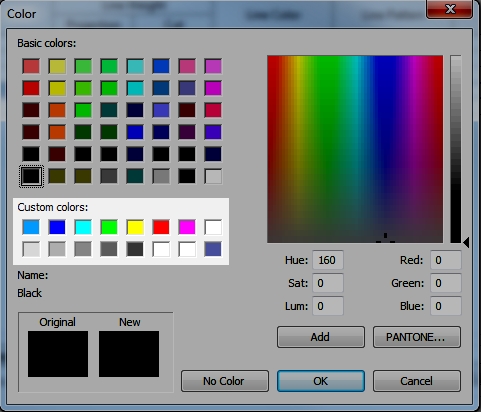
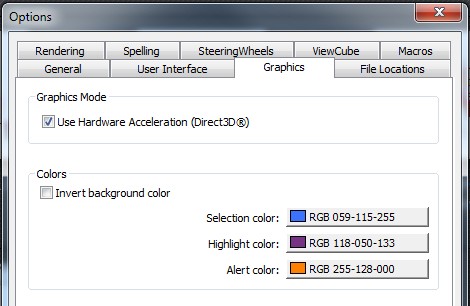
If you have just installed a fresh version of Revit, you may have noticed that you have lost your Custom Colors.  There are 16 ‘slots’ available for Custom Colors in the Revit Color Palette.

To transfer the colors from one installation to another, just copy the [Colors] subsection from the Revit.ini file from the old installation location to the new one.  For example, if you previously had Revit installed on drive Y: in Vista, and you now have a new installation on drive C: with a new OS, do this:

  1. Close Revit.
  2. Open Revit.ini from “Y:Program FilesAutodeskRevit Architecture 2011ProgramRevit.ini
  3. Open Revit.ini from “C:Program FilesAutodeskRevit Architecture 2011ProgramRevit.ini”
  4. Copy the [Colors] section from the older / original Revit.ini to the new, fresh  Revit.ini
  5. Save and close the file.

Here is some other information about the [Colors] section –
The first three entries in the [Colors] section defines the user interface colors from the Options dialog, Graphics tab:

A default installation will look something like this under [Colors]:
HiliteColor=16741179
PreHiliteColor=8729206
ErrorColor=33023
CustomColor1=e2e2e2
CustomColor2=0000ff
CustomColor3=00ffff
CustomColor4=00ff00
CustomColor5=ffff00
CustomColor6=ff0000
CustomColor7=ff00ff
CustomColor8=ffffff
CustomColor9=ffffff
CustomColor10=ffffff
CustomColor11=ffffff
CustomColor12=ffffff
CustomColor13=ffffff
CustomColor14=ffffff
CustomColor15=ffffff
CustomColor16=ffffff

It seems the AUGI forum data situation is still up in the air – will all that user generated content ever become available again?

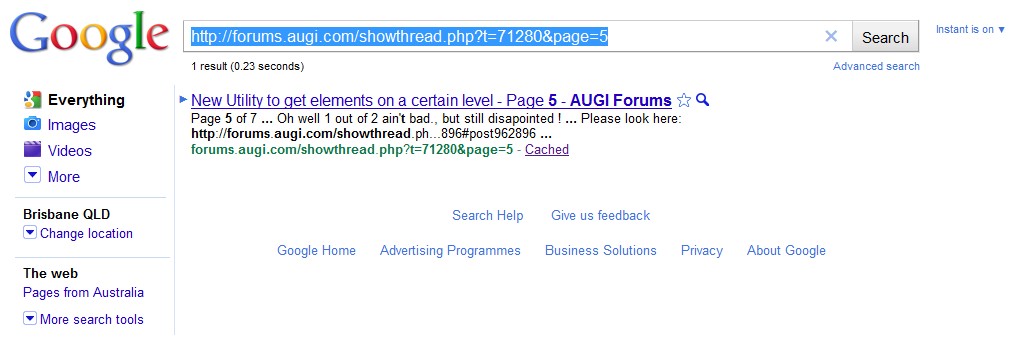
In the meantime *some* of the AUGI data can be accessed using the Google Cache.  For instance, if you want to find the Google Cache of an old AUGI page:

  1. Open Google.
  2. Get the old address of the AUGI page ( for example http://forums.augi.com/showthread.php?t=71280&page=5 )
  3. Paste the address into Google and Search.
  4. When the result comes up, click on the ‘Cached’ link.  The actual link will look something like http://www.google.com.au/url?sa=t&source=web&cd=1&ved=0CCUQIDAA&url=http%3A%2F%2Fwebcache.googleusercontent.com%2Fsearch%3Fq%3Dcache%3A1yS0KRA-4woJ%3Aforums.augi.com%2Fshowthread.php%253Ft%253D71280%2Bgetlevel%2Brevit%26cd%3D1%26hl%3Den%26ct%3Dclnk%26gl%3Dau%26client%3Dfirefox-a&rct=j&q=getlevel%20revit&ei=AG4BTZStF8HqrAfPqv2QDw&usg=AFQjCNEMUW1ouZzNr6ZVj2py2M6ZanqXig&sig2=BcJo4z9C6M5iCTRATFY00A&cad=rja

This won’t last forever…

Have you ever spent ages typing into a web form, only to press submit and be served a message like “Error=remote_computer_lost_your_hard_work” or even just a blank page? 

If this has just happened to you, and before you do ANYTHING else, try this:

  1. Download HxD Hex Editor (here is a link to a portable version)
  2. Open the HxD program.
  3. Click Extras – Open RAM…
  4. Choose the browser your are currently using (such as firefox.exe).  The program now ‘reads’ the RAM stores associated with this program.
  5. Click Search – Find.
  6. Type part of a phrase of what you just typed – and click OK.
  7. This will find the place in the RAM where your form data is stored.
  8. Now just select the text you want to recover, use Ctrl+C for copy, and then paste into Word or Notepad for additional formatting.

Step 3 image

Step 4 image


Step 6 image

 
These types of errors do happen, and there is are some very poorly coded websites out there.

Hopefully this has helped you recover some work!