I just became aware of an issue that I wanted to pass on to you all right away. Workset1 is special. It should never be renamed, because it can lead to fairly serious problems down the track, including the This action has caused deletion of non-editable workset: issue.
So you should make it part of your Revit standard that no one can rename Workset1 – ever.
As usual, this is something that Steve already knew, and already told us. Thanks Steve!
One other habit I have is to never rename Workset 1 because Revit won’t let us delete it. It’s the “original” workset and Revit just doesn’t let us delete it. via Revit OpEd: Delete a Workset’s Contents?
An old discussion on AUGI also touches on the issue:
sweiser
2009-04-16, 12:27 PM
I just followed Shruti’s instructions and got the same error. For me it says I am deleting “non-editable Workset ‘Workset1’ ” Any other ideas?
It is currently not possible to evaluate a text string in a conditional statement. You can have a conditional statement report a text string, but not check text and base a condition on it. via RevitCity.com | Help with If then statement
Good post over at Andekan on Revit Materials in 2013 – I have reposted three things I found particularly insightful below.
First of all – a slight correction. The Andekan post states that: You can’t open the asset browser unless you open a project material in the material editor.
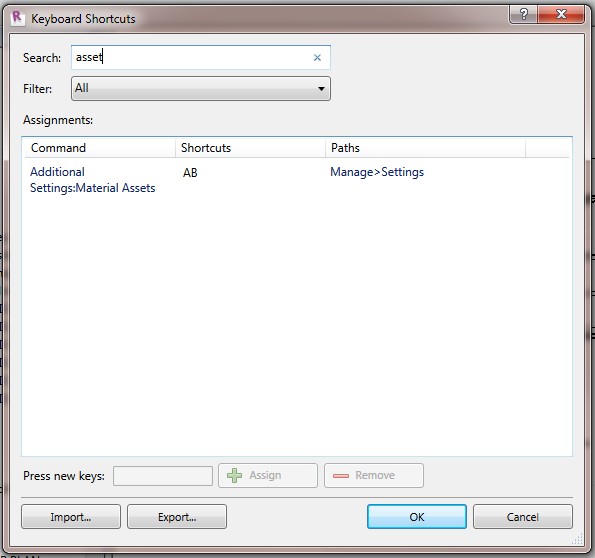
This is actually not true. You can open the Asset Editor and the Asset Browser without opening Materials. Just set a Keyboard Shortcut to Additional Settings:Material Assets. This will open the Asset Editor. Then click the ‘lines’ icon to open the Asset Browser. Its kinda messed up, but you can do it.
Now, on to some good stuff from the post:
Entire Materials can live in .adsklib files: you can take a whole material from inside your project (called “In Document” materials), including all of its different property sets (now called “Assets”), and add it to any number of external libraries that you create. You can also add materials from one library to another. Libraries that you create are stored as standalone .adsklib files, just like the “materials” libraries (read “appearance properties”) of prior versions, so they can be ported and shared between installations with ease.
.adsklibs can contain Assets AND Materials
Libraries These are groups of materials and/or assets that exist outside of any particular project or family. They are saved as standalone .adsklib files, and it’s important to note that a single library can contain both materials and assets. This makes perfect sense: if materials are made up of different assets, then a “materials” library must somehow contain appearance, physical, and thermal assets as well.
How to update and maintain .adsklib Libraries 5. You can only edit materials and assets that are inside of a project. In a library, you are limited to viewing the names of materials and assets, and to performing basic functions like Rename or Delete. If you want to edit a material or asset that’s in one of your libraries, you have to: 1) bring it into a project, 2) make your edits, then 3) add it back into the library to overwrite the original version, and finally 4) remove the copy that’s inside the project (if you don’t want it there).
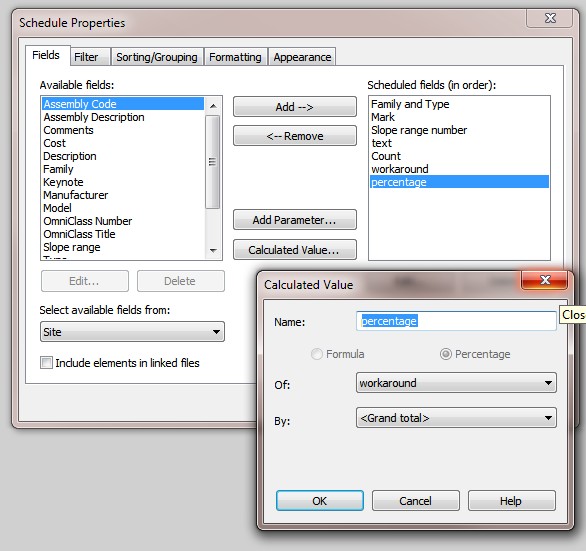
Let’s say you have a number of different Door families in your project, and you want to determine the percentage of the total number of Doors that are Family 1, Family 2 etc, and then you want to show this in your Door Schedule. First, sort by Family and untick ‘Itemize every instance…’, then use the process shown below.
In this workaround, a Calculated Value is added to be used as a ‘constant’ (it doesn’t really matter what number is used here). Then, another Percentage calculated value is created against that constant…
Count to grand total ratio in a schedule Here is how you can do it. 1. Define a formula calculated value: Name – Workaround, Type – Number, Formula – 1.0; Hide the column showing this value 2. Define a percentage calculated value for Workaround.Leonid Raiz
Many of you already know about the asterisk workaround for sorting new Revit parameters when you add them to a family. If you don’t know about it, please read on…
First of all, the limitations of this method:
can not sort existing, only set the location of a ‘new’ parameter.
does not work with Shared Parameters
How-to, Text version: How to Order Revit Parameters Let’s say we are starting with the following parameters and we want to add a “Zebras”parameter above the Bananas parameter
Step 1 – Rename the parameter that is directly below where you want to add your parameter. Add an asterisks at the beginning of its name. Hit the Apply button. Step 2 – Add your new parameter naming it exactly the same name as the one you just renamed but with a number appended to the end it. Hit the Apply button. Step 3 – Rename the new parameter to anything you like. Step 4 – Take the asterisks off of the end of the first parameter. Hit the Apply button.
If you are working on a family in which you haven’t renamed any of the parameters since you originally created them, then you can dispense with adding the asterisks in Step 1 above. However, once you have renamed a parameter or two, the ordering of new parameters becomes somewhat unpredictable. Adding the asterisks in Step 1 works like a skeleton key opening up space in between the parameters above and below. Enjoy! Scott Hopkins Architect
Most of you know what computational, parametric and associative design IS and what it MEANS. Previously, Bentley had a strong product in Generative Components, and we all know about Grasshopper / Rhino. But it appears that Autodesk is coming to the party – with a solution called DesignScript.
They have employed the man behind GenerativeComponents – Dr Robert Aish. Apparently, this programmatic design solution has been in the works for Four Years!
It will be very interesting to see if Autodesk can capture the imagination of designers in the same way that Grasshopper has, or if they can offer some sort of realistic BIM integration quickly (like GC).
Some big claims here: While Bentley and McNeel have managed to capture the imagination of many a young architect with their generative products, DesignScript will bring computational design to a much larger audience, one which previously embraced end-user languages like AutoLISP. It will be interesting to see how aggressively Autodesk addresses this niche market when the product finally gets unleashed later this year. Being the godfather of both GenerativeComponents and DesignScript, Dr Aish has a pretty good idea of the capabilities of the competition and, having had carte blanche at Autodesk to start a new tool will aim to improve on what GC is capable of.
So, what is DesignScript? Dr Aish describes DesignScript as a language which sits at the intersection of design and programming. It allows parametric and associative programmes to be easily written allowing experimentation with AutoCAD’s geometric entities. DesignScript is intended to be used by novices and professional programmers as a production modelling tool to evaluate complex geometric models and to help design professionals make the transition to understanding programming concepts and in turn, learn more about the designs.
There is even an AU class! This class will be the first presentation of “DesignScript”, a new Parametric and Computational Design application within AutoCAD. This application allows creative designers and engineers to directly express their design logic and use this logic to build complex design models. This class will introduce the conceptual foundations of associative, parametric, and computational design, and demonstrate how these have been incorporated as features within the DesignScript system. DesignScript takes a radical user-oriented approach to help designers and engineers make the transition from conventional direct manipulation modeling to the point where they can accurately express and execute their own design logic. http://au.autodesk.com/?nd=class&session_id=7636
2009 video uploaded by Autodesk University:
The heads up for this post came from: Newly forthcoming tool for creating these types of parametric models is a graphical programming language Autodesk DesignScript. Its development is in charge of Autodesk’s Dr. Robert Aish, the original author of the concept GenerativeComponents (GC).
DesignScript is easy to use, visual, parametric, associative tool on the border of programming and designing. The first will be given on AutoCAD, but is expected to extend it to other Autodesk applications, such as the Revit which will complement the existing possibilities of parametric and organic elements.
From another site: With AutoCAD and Revit both belonging to Autodesk, they must be thinking about compiling DesignScript into Revit Families. Queue jokes about Revit stealing another feature ArchiCAD has had for 20 years. But unlike ArchiCAD’s GDL language, which is this badly neglected Visual Basic like language, DesignScript is being developed at the forefront of Autodesk’s research efforts. Compiling scripts into Revit families would eliminate the current practice of baking Grasshopper or Digital Project models and importing them as static geometry to be sliced and diced by Revit. Instead you will be able to open the DesignScript model in Revit and associate it directly with the geometry in Revit, if you make a change in Revit you don’t need to go back and rebake the geometry, the DesignScript model (and the meta data) updates automatically – or so I hope. Read more at: http://www.nzarchitecture.com/blog/index.php/2011/06/27/designscript-autodesk/