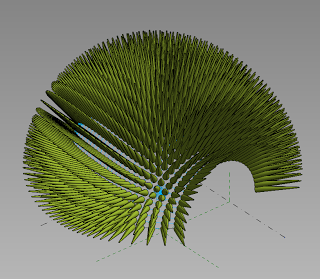
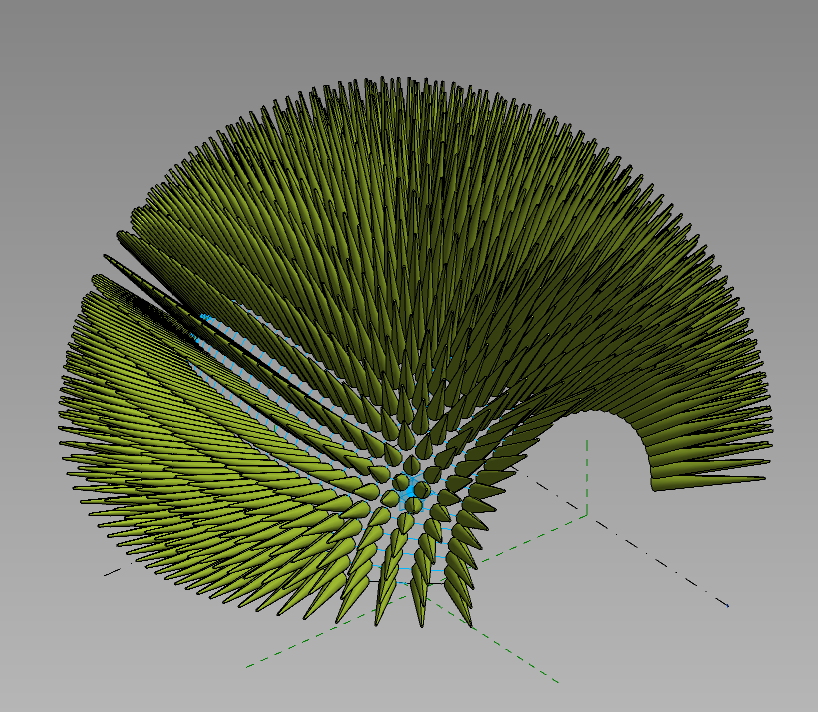
After reviewing Andy’s and Tim’s recent posts surrounding trees and reaction, I would like to contribute this little idea.

Its a very simple setup – just a 2pt Adaptive with an “extension” (created by controlling the host reference planes of a couple of points), that has been loaded in and repeated across a treetop form.  As you move the centre adaptive point up and down, the surrounding spines react to maintain a perpendicular relationship to the main form.

I have added parameters for the extension length, and top and base radius of the spines.  You can adjust these in the Project Browser by modifying the Type Properties of the 2pt family.

Here’s the family for download.

In previous versions of Revit, Key Schedules were often used for generic data, general notes and the like.  However, Key Schedules have limitations – one of which is that you cannot insert an image in a Data Row.

Are you ready to see a more powerful version of generic, custom schedules in Revit?  Do this:

  1. Make a Schedule that finds no elements (you can use a Filter), and turn off “Show Headers” but leave “Show Title” checked
  2. Click in the Title
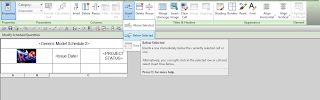
  3. Insert Row Below Selected, as per image:

You can also insert columns (these are not “aligned” to actual Schedule parameters).

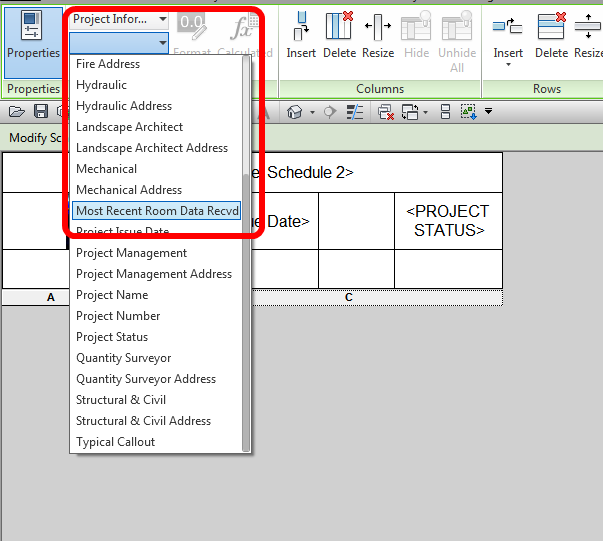
And guess what?  You can insert images into these cells, AND you can insert Fields / Parameters by using the drop down list:

Interestingly, this is a somewhat un-Revit workflow – we have a sandbox here for creating a custom Schedule, perhaps for Title Sheets (including Consultant Logos).  But you cannot really enter or leverage new data here – it is reading data from the Project or View (Schedule) parameters.  However, you can enter “dumb” text in any of these fields.

Idea via this comment:
David Conant (yep, that guy)
Principal User Experience Designer

In 2014, create a schedule that finds no elements (use an unused category or filter out the elements). Go to the header and add rows and columns. Voila, a generic table into which you can add text, project parameters, view parameters, or images. You can modify cell shading, borders, font properties etc. The table will appear in the project browser schedule section.
link: Revit Users | LinkedIn

Full thread:
I know Revit schedules are very versatile and can be used many other ways than simply scheduling items in a model. What are some of the more creative ways you have found to use Revit schedules? | LinkedIn
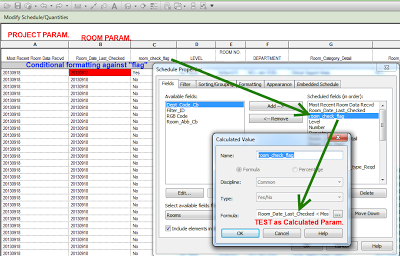
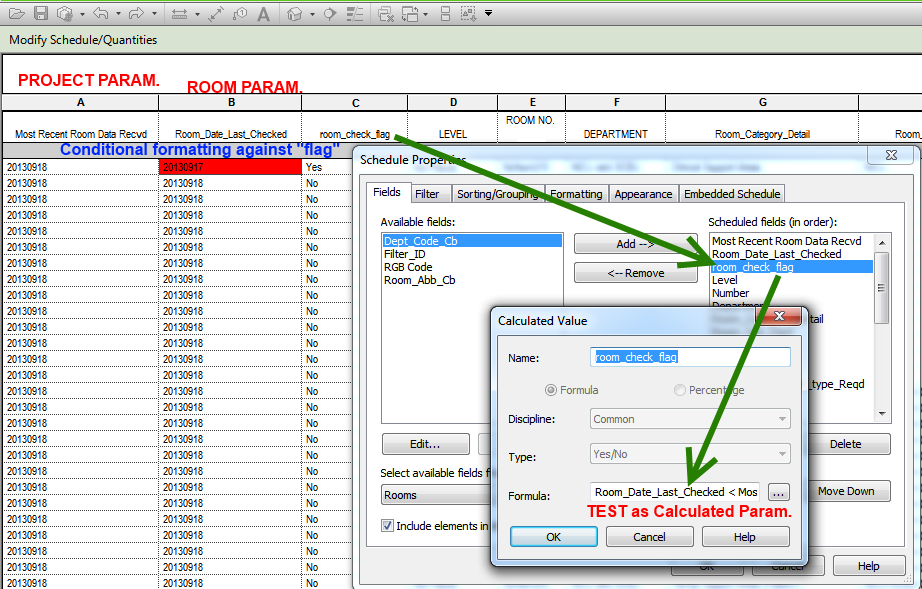
You can do a logical test between a Project Parameter (in essence, a global constant for this Revit file) and an element parameter in most schedules.  If we leverage this for Rooms, we can check if the current Room Data has been checked against the most recent set of briefing documents from the Client.

To reveal Project Information as a possible parameter in a Room Schedule, just tick the “Include elements in linked files” box.

Both the Project Parameter and the SP parameter applied to the Room in the image above are Number type, meaning we can do the “greater than” test.

You can colour a given column field using Conditional Formatting, but did you know you can base the conditional formatting test on any of the fields in the Schedule (not just the target field for the formatting?)

From the github page:
uses a python script to automatically generate Revit journal files. When run, these journal files handle opening a specified model, instigating the testing plugin, and running the specified test. This document outlines the components of the Dynamo Revit Test Framework and provides examples of how to run NUnit tests against Revit from the command line.

results file is a proper nunit results file and should be able to be parsed as such by continuous integration systems like Jenkins, etc.

via

Is anyone using this?  Seems to be a competitor to BIM360 / Glue / Revizto?  These “collaboration” tools are starting to pile up quickly…

This can be downloaded if you login to SlideShare:

via

More info: Collaborative BIM | Corporate Collaboration in the cloud – asite.com

Typically, large point clouds are stored on local hard drives.  Revit allows for this with the Options – “Root path for point clouds” setting.
Here is an easy way to copy them:
Use Robocopy. (Should be located in C:WindowsSystem32)
Make a BAT file that looks something like this:
robocopy C:ProjectsPointClouds OTHER_PC_NAMEPointClouds(shared folder) *.RCS *.RCP /MIR /COPY:DAT /DCOPY:T /ZB /LOG:C:TEMPlogfile.log /R:2 /xn
This script was used to copy only RCP and RCS files from my local hd to a shared drive on another users PC, so that we could both work with large point cloud files without clogging up the server with like 50gb of point data. Keep in mind you need to put these files in the same place relative to your Revit Options – Root Path for Point Clouds.

Additionally, if you have not previously been using the root folder for all your point clouds, you may have to re-link them to create the appropriate path associativity.

When working with Revit, Excel and even coding, sometimes we want to paste text without formatting.  There are various ways to do this, but I think this is the easiest…

Download and unzip the appropriate version:
PureText 3.0 [32-bit] (Windows 95 – Windows 8) [13k]

PureText 3.0 [64-bit] (Windows XP – Windows 8) [14k]

Run PureText.exe

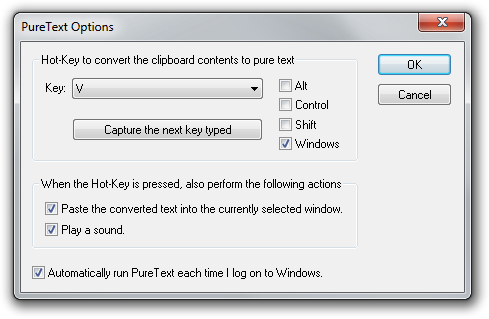
Next time you have something in the Clipboard and you want to paste without formatting, just use WindowsKey+V

More info:
PureText Home Page

In some ways, vanilla Revit is like the base model option package of a new vehicle – no shiny wheels, 20 speaker sound system, or sports handling package.  But some add-ins can make you feel like you are driving the top of the range, fully optioned model …

Here are just a few of the things the KiwiCodes Bonus Tools lets you do:

  • determine the “source” file path to RFAs of loaded Families and re-path family files
  • replace Groups with Families
  • create Floor elements from Room boundaries
  • duplicate Sheets and the Views that reside on them
  • add points to a Topo from a selected Family
  • create an outline edge of a Topo element (these can be 2D or 3D lines!)
  • Export Template and Import Room Data from Excel (including adding Room Placeholders) – bit timesaver
  • Convert a Navisworks XML report into clash points and 3D views placed on sheet(s)
  • and there is much, much more…

For the sheer amount of timesaving and productivity tools included, the low price represents good value for money.

To download a trial of KiwiCodes Bonus Tools, go to:
http://www.kiwicodes.com/30-bonus-tools.html

For more details on the tools included:
Bonus Tools Details

Revit Keyboard Shortcuts don’t work too well in Schedules, because Revit thinks you are trying to input data.

However, you can use the alternative key entry method – basically, it starts by pressing Alt, then following the onscreen text options that show up.

In some cases, this will be all you need.  But I wanted to make a quick way to Insert Data Row in a Room Schedule, and unfortunately it is buried under a drop down list on the contextual ribbon.

Here is part of the solution – add the Insert dropdown to the Quick Access Toolbar.  Now, when you press Alt, Revit will assign a shortcut to that position.  In my case, to trigger the insert data row command, I had to press this key sequence:
Alt
0
2
downarrow
downarrow
downarrow
Enter

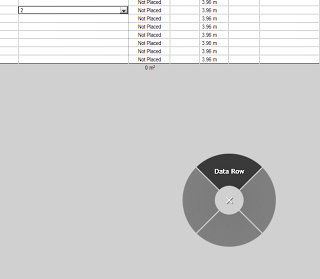
So, still a pain.  But what if we could assign this as a macro to some smart shortcut system.  That’s where the new Radial Menus on the SpacePilot Pro come in.  I created the above key sequence and added it to a Radial Menu.  Now I just press a button on my 3D mouse, select the Data Row shortcut that I created, and there it is…

See the top right banner on this page for an affordable way to enter the 3D mouse world…

It can be difficult to stop Demolished items from occluding New items in Revit.  There is no easy way to say “make everything Demolished wireframe, but leave other elements as-is” in a Hidden Line view.

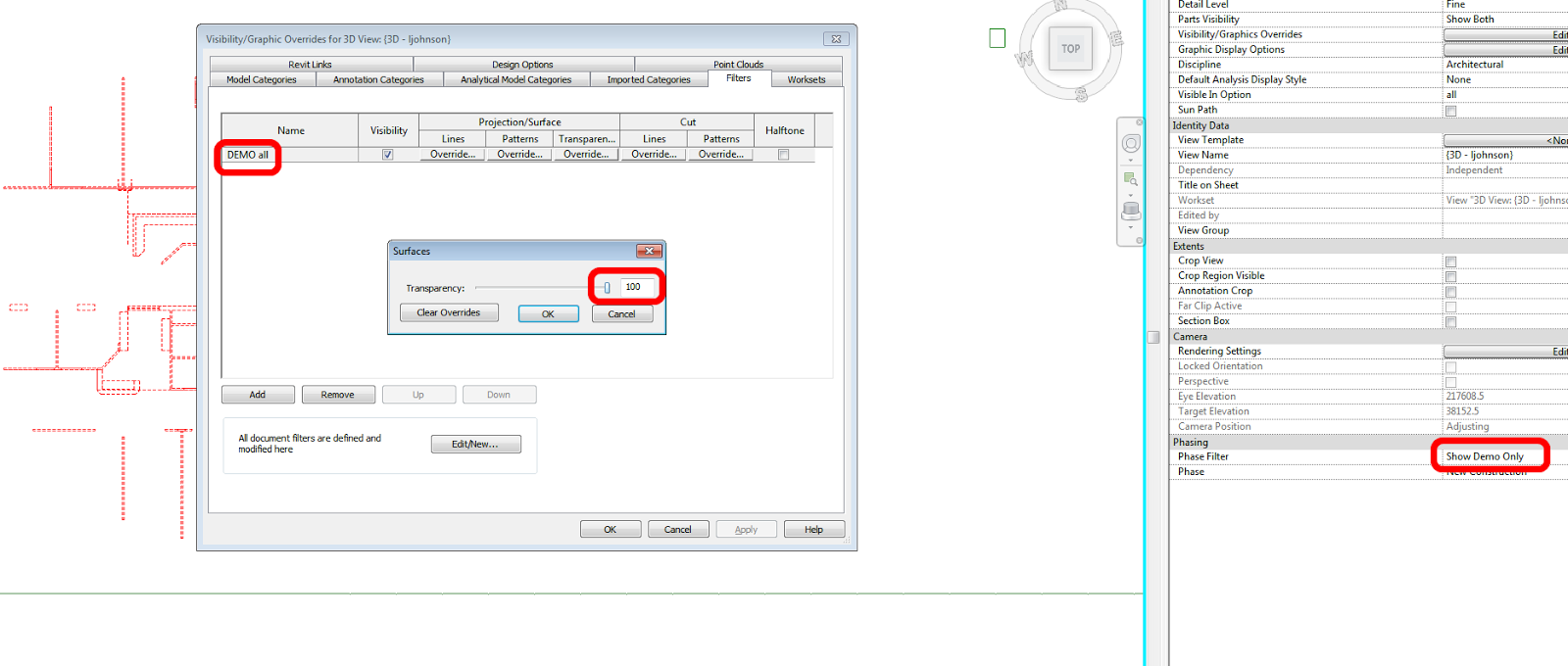
However, you can use a normal Filter to “override” the Phase Filter.  This works because normal VG Filters operate at a higher level than Phase Filters.  Just create a Saved Selection Set, add it to a View or applicable View Template as a Filter, and set the Transparency for that Filter to be 100%.

You could do this by making a Filter that operates on a Shared Parameter that is added to all Categories likely to include Demolished items – meaning you would have to set this property manually.  However, it may be easier to manage if you just graphically create the Saved Selection Set and use that instead:

  1. Make a new Phase Filter that shows only Demolished items (all the rest “Not Shown”)
  2. Go to a 3D view, enable this Phase Filter, select all the Demo items and Save them as a New Selection Set (Manage tab — Selection)
  3. Add the filter to a View or applicable View Template as Filter, and set the Transparency for that Filter to be 100%.

If you need to add or remove items to the Demo set:
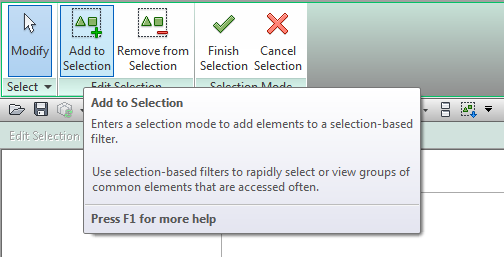
You can use the Edit option under Selection on the Manage tab to enter a Selection Edit mode, where new items can easily be added.  Or you can just select the whole lot again, use the same Selection Set name, and you will be prompted to overwrite the existing DEMO set.