If you didn’t like my Random Trees in Revit post (which actually exposes the opportunity for randomizing and scaling any form or import in Revit), then maybe you will enjoy some of these other random landscape generation methods.  Read on below:

Landscaping from Dynamo (Julien Benoit):
Revit landscape: My first function in Dynamo 0.5 – Autodesk Vasari
via
Twitter / Jbenoit44: @BenPMalone @GeorgeMokhtar …

Paid plugin for 3dsMax:
TREE STORM – plugin for 3ds Max – animates tree on the wind
via
Twitter / GeorgeMokhtar: @BenPMalone @Jbenoit44 …

2003 / 2007, using NK2 file from %appdata%MicrosoftOutlook:
How to Back up or Copy Your Outlook Auto-Complete List – About Email

2010, using MFCMAPI:
Information about the Outlook 2010 Auto-Complete list

If you have customized settings, such as toolbar settings and Favorites, that you want to replicate on another computer or restore to your computer, you might want to include the following files in your backup:

  • Outcmd.dat: This file stores toolbar and menu settings.
  • ProfileName.fav: This is your Favorites file, which includes the settings for the Outlook bar (only applies to Outlook 2002 and older versions).
  • ProfileName.xml: This file stores the Navigation Pane preferences (only applies to Outlook 2003 and newer versions).
  • ProfileName.nk2: This file stores the Nicknames for AutoComplete.
  • Signature files: Each signature has its own file and uses the same name as the signature that you used when you created it. For example, if you create a signature named MySig, the following files are created in the Signatures folder:
    • MySig.htm: This file stores the HTML Auto signature.
    • MySig.rtf: This file stores the Microsoft Outlook Rich Text Format (RTF) Auto signature.
    • MySig.txt: This file stores the plain text format Auto signature.

    The location of the signature files depends on the version of Windows that you are running. Use this list to find the appropriate location:

    • Windows Vista or Windows 7: DriveusersUsernameappdata, where Drive represents the drive that Outlook was installed to and Username represents the user name that Outlook was installed under.
    • Windows XP or Windows 2000: DriveDocuments and SettingsUsernameLocal SettingsApplication DataMicrosoftOutlook, where Drive represents the drive that Outlook was installed to and Username represents the user name that Outlook was installed under.
    • Windows 98 or Windows Me: DriveWindowsLocal SettingsApplication Data, where Drive represents the drive that Outlook was installed to.
via

Hear more about Autodesk® Navisworks® and the Glue Connection, including answers to these important questions:

How do Navisworks and Autodesk® BIM 360™ Glue® work together?
How can BIM 360 Glue bring value to my project?
How does BIM 360 Glue integrate with other applications?
Where does mobile app access fit into the workflow?

To watch this on-demand webcast,
fill out form at link below:
Autodesk – On Demand Webcast: Navisworks and the Glue Connection

or

Use this link

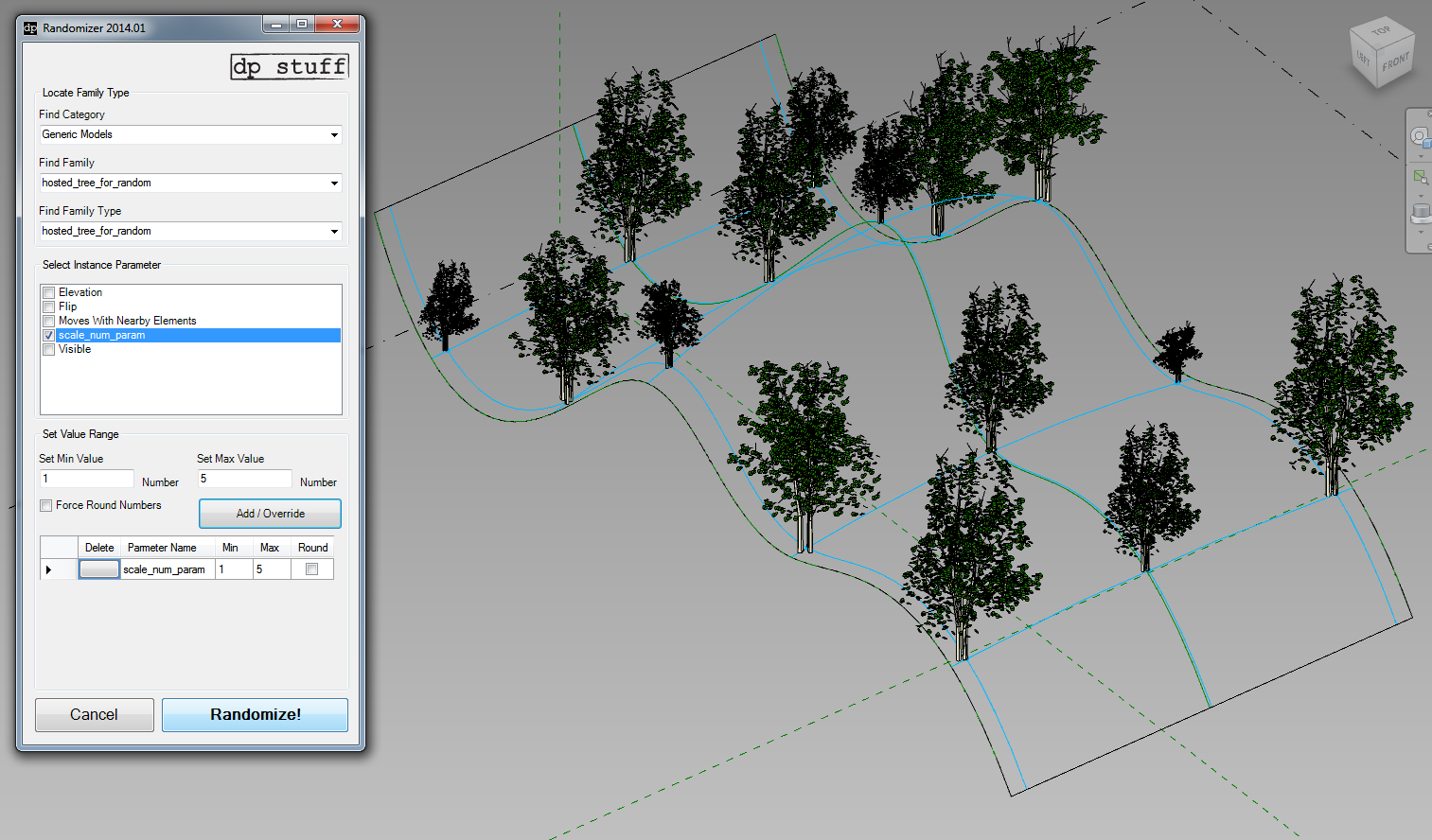
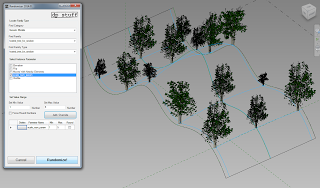
After spending some time trying to make a workable, geometrically driven random reactor, I decided that it was far easier to use dp Stuff Randomizer (get 2014 version for free from here or older 2013 one on Exchange here).  This is a great little addin that just drives random instance number parameters into family instances.  You pick the parameter to drive, give it a max and min “bracket”, click Add and then Randomize.

I set up an Adaptive tree family that used the scaling method, linked through some parameters, Repeated it on a Divided Surface, and then used Randomizer – this random forest is so easy 🙂  With the scaling method working, we can even just drop some imported Sketchup trees into the most deeply nested family (the one that gets scaled), reload it through the hosts back to the project, and even these imported CAD files will scale correctly.

This is the simple tree randomizer (height only):

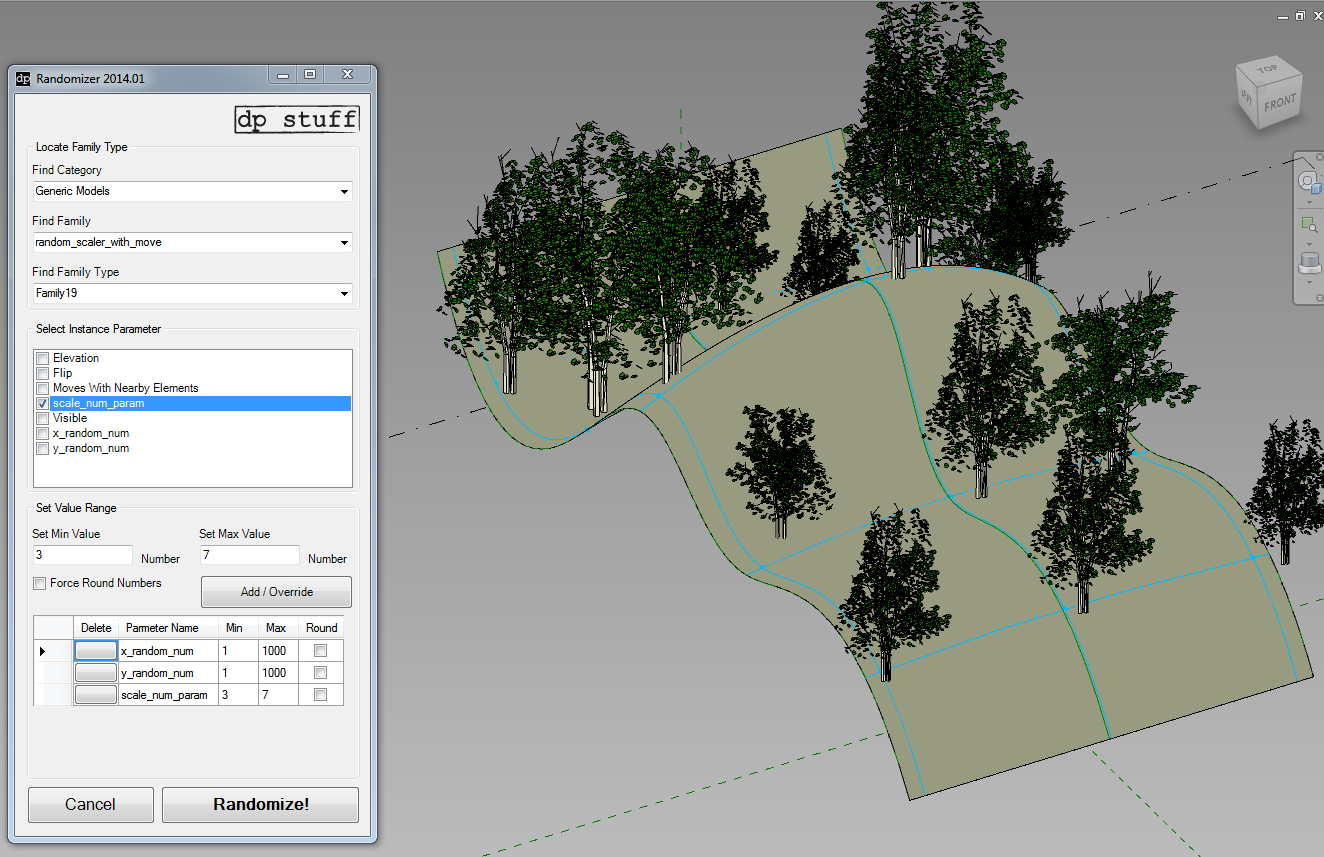
Next, I added an X and Y offset so I could randomize the position from the grid slightly, resulting in this…

Tree randomizer with move parameter:

Here are the sample files for download.  Enjoy!

(this is the Sketchup tree that I used for the example above)
The RIBA Plan of Work Toolbox corresponds directly with the supporting publication, Assembling a Collaborative Project Team. Contains a customisable Project Roles Table, Design Responsibility Matrix and Multidisciplinary Schedules of Services.

Toolbox (XLSX file) download page:
here

Main download page:
RIBA Plan of Work 2013

Read about the task bars:
RIBA Plan of Work 2013

Download Project Miller from Autodesk – It basically gives you a visual demo of what the 3d printing process will look like for a given model.  You can animate, cut sections, re-surface and re-mesh your model.

Video:

Whole article:
Stop Wasting Filament! Autodesk’s ‘Project Miller’ Utility Offers 3D Print Simulation and Previews

Heads-up:

Download the add-in:
Topo From Lines | Autodesk Revit | Autodesk Exchange Apps

Update it:
Use this files in this ZIP to replace the files installed in C:ProgramDataAutodeskApplicationPluginsTopo From Lines.bundle
http://gdurl.com/i2vu

Read the post:
Topo From Lines now available on the Autodesk App Store | Boost Your BIM – making Revit even better

Heads-up thanks to Belinda Thompson

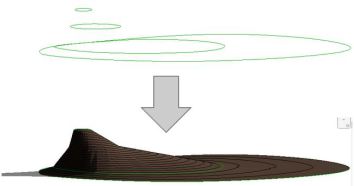
Oh, but if you want a super high resolution contour import, check out:
What Revit Wants: Using Civil3D to increase your Topography resolution in Revit

No one has created the FBX importer that I requested for Revit, but hey, maybe one day.  In the meantime, here are some other importer / exporters of interest…

Read the whole past:
The Building Coder: Graphics Pipeline Custom Exporter

Quote:
“Philippe Leefsma recently presented an online 3D WebGL viewer for both mobile and desktop devices implemented using JavaScript, WebGL and the threejs library.
It displays graphics stored in the same custom JSON format that Philippe already defined for his initial cloud based viewer and for which Adam Nagy in turn implemented a Revit 2013 exporter.
I would love to create a Revit exporter for this format based on the new custom exporter API, for fun and comparison.”

Have you noticed that (typically) Revit 2014 will only show Import Categories for those imports that actually exist in a view?

I think this is a great feature that makes things a bit cleaner when navigating Visibility / Graphics and looking for Imports etc.

Short post, but you know, there is always more to come 🙂  Over 250 draft posts, and about 100 more in my ‘to blog’ email folder…

You may want to know how to set up access to the public macro repository.  Here is a bit of a step by step:

  1. Install SourceTree
  2. Follow prompts to install additional packages
  3. Login to the BitBucket Page in a web browser (register if you haven’t already)
  4. Click on the arrow and Check out in SourceTree
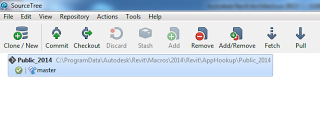
  5. Clone New — Make sure the path is set exactly to this (make folders if you have to):
    C:ProgramDataAutodeskRevitMacros2014RevitAppHookupPublic_2014
  6. After fetching, restart Revit.

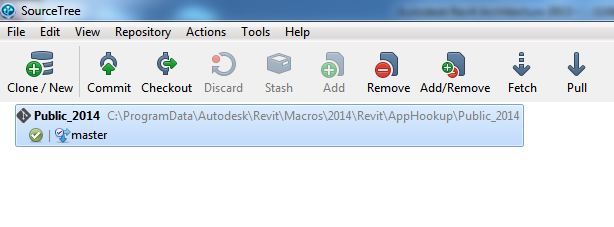
Its important that it looks like this in SourceTree:

Upon restart, you should see the Public_2014 tree in your Macro Manager.

To ensure you have the latest version:

  1. Do a Fetch and Pull in SourceTree
  2. Edit one of the macros
  3. Do a Rebuild by hitting F8 – any new code or extra macros should now show up

(thanks to Troy Gates for above tip)

Note:  Make a sample macro and it will populate files and folders in:
C:ProgramDataAutodeskRevitMacros2014

You can also carefully follow the images at :
A public Git repository for sharing Revit Macros at BitBucket | Boost Your BIM – making Revit even better