Link:
IFC Exporter for Revit – at SourceForge.net

2013 UI – This contains the IFC alternate Exporter UI for Revit installer compatible with the Revit 2013 series of products. There is no Revit 2012 version of this UI. This replaces the default IFC Export UI in Revit, and adds new functionality such as saving export configurations, and new export options such as saving to ifcXML and ifcZIP file formats. 

2013 – This contains the IFC Exporter for Revit installer compatible with the Revit 2013 series of products. For more information on the difference between 2012 and 2013, check out the [What’s new in 2013] section of the Wiki accessible from this site.

Looking for the latest version? Download IFC Export UI for Autodesk Revit 2013 v1.1.0.msi (561.7 kB)

Heads-up:
Revit Norge: Ny open source IFC-exporter til Revit 2013

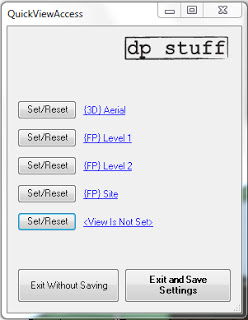
a Revit plug-in that you can assign 5 of your most often used views.
It is super simple in operation. When you run it for a very first time none of the views are set and you have to set those that you want to be able to access by clicking on the “Set/Reset” button


 download page to get the installation files or download them directly from here.

via
DP stuff: QuickViewAccess for Revit 2012, Access Your Most Often Used Views

I requested a 2013 version from Dima Chiriacov in the comments – he replied that one will be available ‘very soon’…


QuickViewAcces 2013 Revit Addin – dp Stuff

QuickViewAccess 2014 Revit Addin – dp Stuff

EDIT:  The free content at vyonyx has been moved to http://www.gobotree.com/

Are you getting tired of using the same RPC people and trees in all your Revit renders?  Maybe you should try adding some of these free trees and people in your render post-editing program (such as Photoshop):

Cutout People | VYONYX

Cutout Trees | VYONYX

From their Disclaimer: All the contents in our download section are absolutely free of any charge and there is no limitation on their personal or commercial use! …

Along similar lines, I previously posted about Immediate Entourage here.

vyonyx also host:
Textures | VYONYX
 and
References | VYONYX (think water, grass, backgrounds etc)

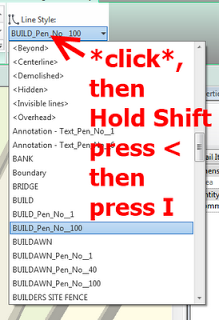
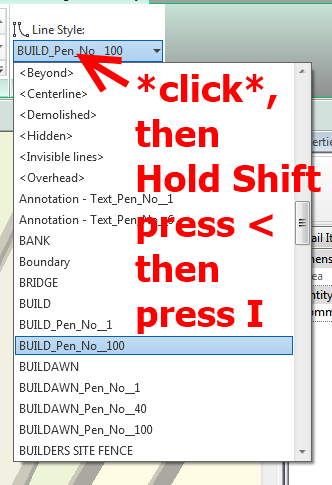
Sometimes you may have to deal with a very long list of Line Styles in Revit.  Unfortunately, there is no ‘Recently Used’ list in Line Styles!  The keyboard can be used to scroll in the Line Style selector by pressing the first character of the Line Style name.  However, to select , you have to:

  1. Click in the Line Style selector
  2. Hold down Shift, and press < and then I
  3. Press Enter

If you actually want to do it completely on the keyboard:

  1. Start a straight line command
  2. Hit Alt
  3. Then M
  4. Then LS
  5. Hold down Shift, and press < and then I
  6. Press Enter

In case you haven’t realised yet – pressing Alt once reveals a level of keyboard shortcuts, then after you type one of those options – another level is revealed.  It appears that some of these are not actually accessible using the Keyboard Shortcuts dialog…

Is the future of BIM to become IBM?

BIM is not just about creating more detailed and accurate models; it can bring about a lot more intelligence into the design process, where it is not necessary to painstakingly model every single detail of the building, but where the application needs only high-level ideas and can then rely on inference to model most of the building details by itself. Admittedly, no BIM application currently offers this capability,  …

via
Revit Architecture 2013: AECbytes Product Review

Doug Bowers posted a very informative how-to recently about Autodesk Material Libraries.  He shows you how to create a material library, add materials to it, and then share it with other users.

A couple of points I found particularly interesting:

  • Depending on the security permissions on the library file or folder containing the file, users may be able to add additional materials to the company standard or only be able to utilize materials contained in the library.
  • Materials placed in the company folder are no longer linked to the original material and may be modified, resulting in a different definition of the material in the company library than the material in the folder from which it was originally copied.

Read more at:
Sharing Autodesk Materials Throughout An Organization | Applying Technology to Architecture

Along similar lines, check out:
Upgrading Revit 2012 Material Libraries in Revit 2013
and 
Materials in Revit 2013 – the saga continues


Download RevitAddinWizard/RevitAddinCoder/RevitAddinWidget 

More API wizards at http://spiderinnet.typepad.com/blog/2011/05/revit-addin-wizardscoders-and-revit-api-widgets.html

via
RevitAddinWizard Build 0.9.2.1 Been Rolled Out – RevitAddinWizard & More

Read about similar at:
http://thebuildingcoder.typepad.com/blog/2012/04/add-in-wizard-for-revit-2013.html

EDIT via MLD in the comments:
In a 3D view;
1 Ensure Section box covers all elements by,Unchecking then rechecking ‘Section Box’
2 Select some objects and the section box
3 Temporary isolate elements
4 Uncheck then recheck ‘Section Box’ again
5 Reset Temporary Hide/Isolate

Another way – is the COINS Auto-Section Box add-in available on Autodesk Exchange.  Install the add-in, restart Revit, select a few objects then click the button.  It will create a section box around those objects in the selected 3D view – very easy!

Download at:
Autodesk Exchange Apps

A third way – is through a nice tip posted by Trey at Wikihelp.  Here are the basic steps:

  1. In a plan or elevation view, create a Callout (View tab > Create panel > Callout).
  2. Open a default 3D view.
  3. Right-click on the View Cube.
  4. Select Orient to View > Floor Plans, and choose the Callout view you just made. Your 3D view will automatically have a Section Box that matches the Crop Region of the Callout!

via
Small 3D View – WikiHelp