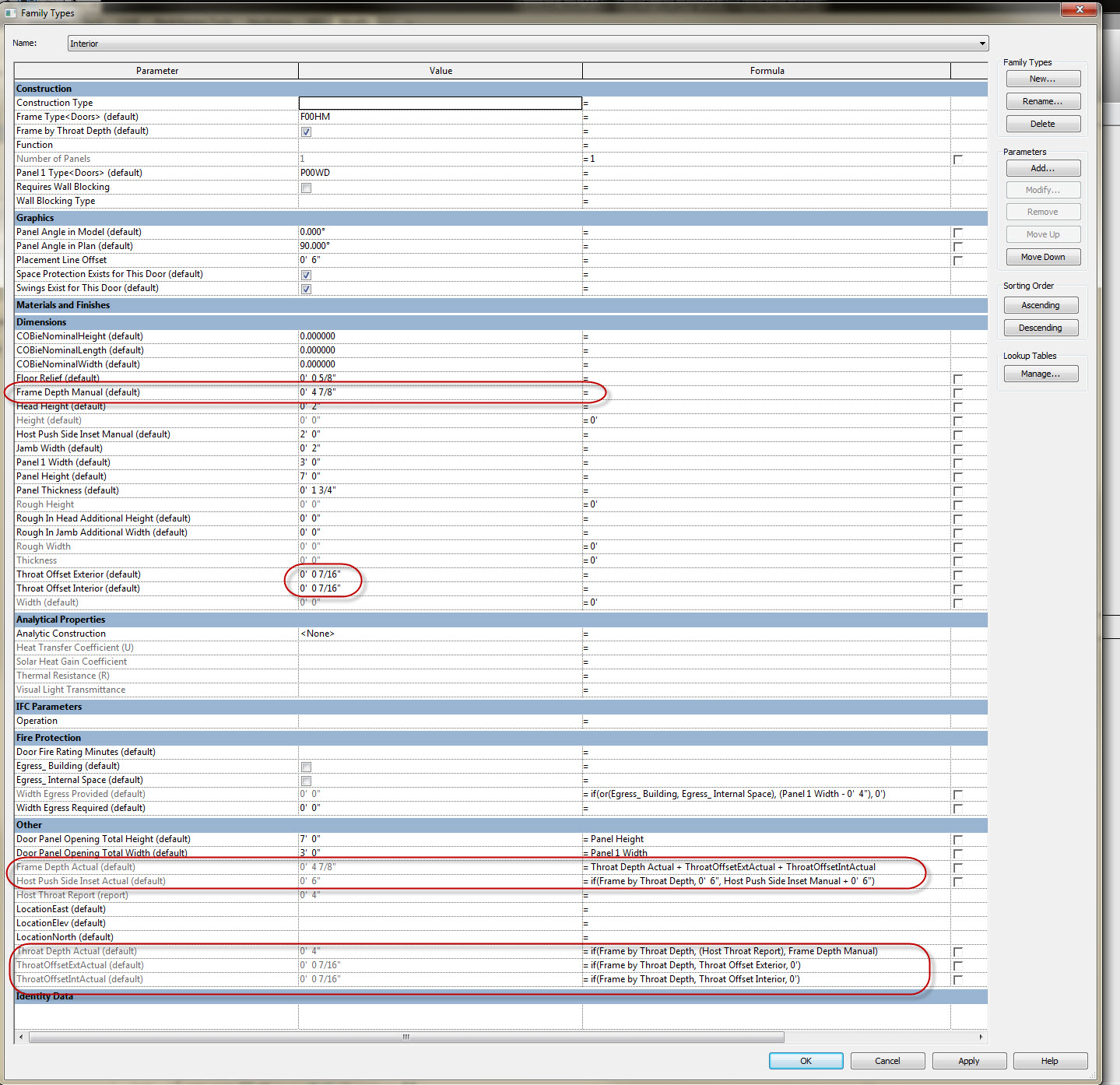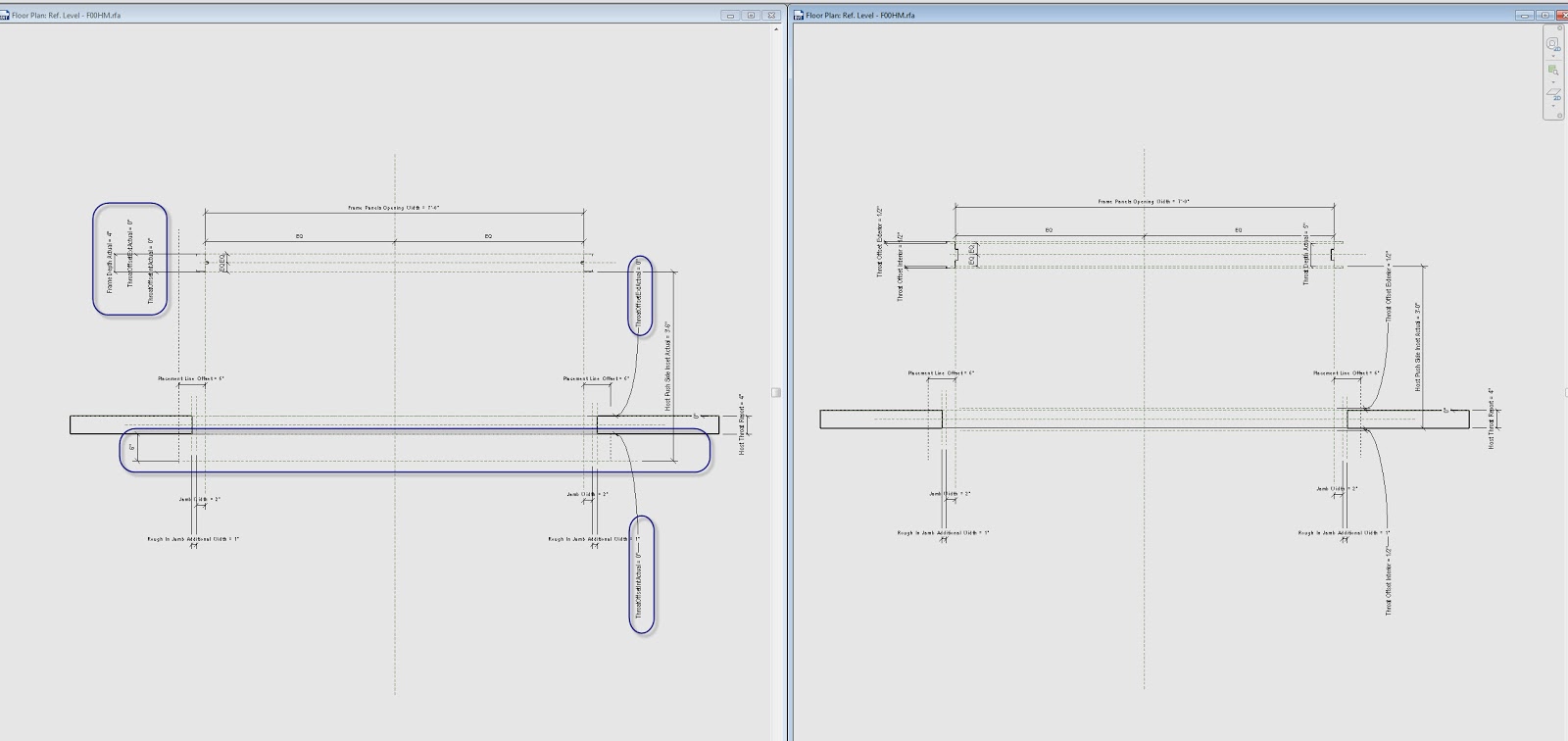
Aaron Maller, aka twiceroadsfool, has been sharing his Revit door family package on RevitForum for the past few years. If you haven’t seen it yet, you can check out his post in the thread here:
http://www.revitforum.org/architecture-family-creation/1242-doors-download-nested-panels-nested-frames.html

In the thread, he gives instructions on how the door families work, and a link to download the 179mb zip package:
First important part. The way they work is you only place the ones that say DOOR at the beginning of their name, obviously.

Download Link for the v4 Doors, a sample file with the doors in them, and the Door Schedule accompanying them, is here:
 https://www.dropbox.com/s/lcr5gobpuv…015v4.zip?dl=0

Thanks for sharing Aaron!

Older posts:
Doors for download, Nested Panels and Nested Frames..

Heads-up via http://notanotherrevit.blogspot.com.au/

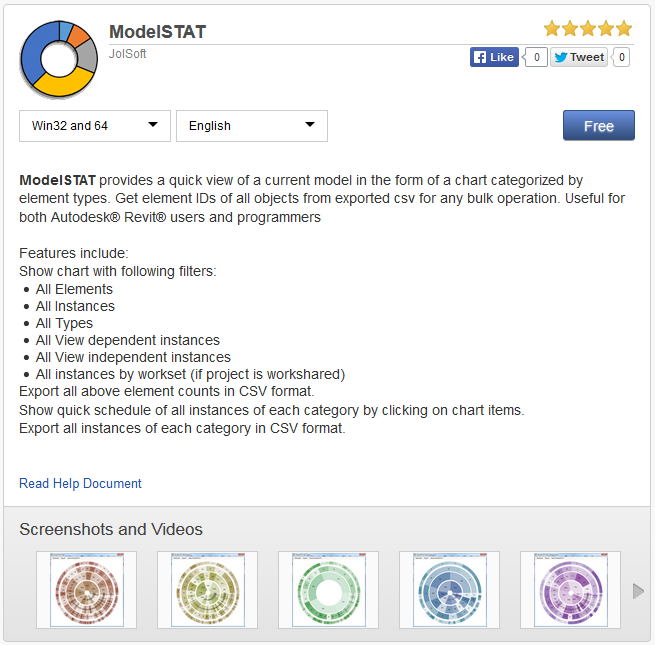
With this free addin, you can view a graphical representation or summary of all the elements in your Revit model, based on various different filters. You can then also export a CSV of that data.

We can use this for workset validation, like “are any elements are on the wrong workset?”

Here’s how:

  1. Start Jolsoft ModelSTAT
  2. Click Elements – Workset
  3. The resulting graph will show you how many elements on each workset
  4. Click Export – CSV
  5. Open the CSV
  6. You will see a list of workset names, along with a count of how many items exist on each workset

Now, if you actually want to do more specific model interrogation, like finding those elements on the wrong workset, you can use one of these methods:

  1.  My Copy Workset Name to Target Parameter node in Bakery Dynamo package. Copy Workset name to a target parameter and then view it in a Revit Schedule
  2. Use Kiwicodes Bonus Tools, 3d Views for Worksets tool. If you double click on a workset row, it will show a list of elements on that workset
  3. Make your own Dynamo node to get the answer you want

Download modelSTAT at:
ModelSTAT | Autodesk Revit | Autodesk Exchange Apps

Let’s say you have a set of Excel files and you want to feed that information into one Excel file, to allow you to do summaries or produce Charts. How would you go about it? Here is one way:

Install Power Query from:
https://www.microsoft.com/en-us/download/details.aspx?id=39379&CorrelationId=85f847dd-369e-4417-b604-6a2f3c673084

Use this function (copied from link below) to import multiple XLSX to one sheet.

 //Define function parameters  
(#"Directory containing Excel files to combine" as text,
optional #"Name of each Excel object to combine" as text,
optional #"Use first rows as headers" as logical) =>
let
//If the optional Excel object name parameter is not set, then default to Sheet1
ExcelName = if #"Name of each Excel object to combine" = null
then "Sheet1"
else #"Name of each Excel object to combine",
//If the optional Use first rows as headers parameter is not set, then default to true
UseFirstRowsAsHeaders = if #"Use first rows as headers"= null
then true
else #"Use first rows as headers",
//Get a list of all the files in the folder specified
Source = Folder.Files(#"Directory containing Excel files to combine"),
//Filter these to only get Excel files
OnlyGetExcelFiles = Table.SelectRows(Source,
each ([Extension] = ".xlsx")
or ([Extension] = ".xls")),
//Find the full path of each file
FullPath = Table.CombineColumns(
OnlyGetExcelFiles ,
{"Folder Path", "Name"},
Combiner.CombineTextByDelimiter("", QuoteStyle.None),"Merged"),
//Get a list containing each file path
ExcelFiles = Table.Column(FullPath, "Merged"),
//Define a function to get the data from the specified name in each Excel workbook
GetExcelContents = (FileName as text) =>
let
//Connect to the workbook
Source = Excel.Workbook(File.Contents(FileName), UseFirstRowsAsHeaders),
//Get a table of data from the name specified
//If the name doesn't exist catch the error and return null
ExcelData = try Source{[Item=ExcelName]}[Data]
otherwise try Source{[Name=ExcelName]}[Data]
otherwise null
in
ExcelData,
//Call the above function for each Excel file
ReadAllWorkbooks = List.Transform(ExcelFiles, each GetExcelContents(_)),
//Remove any null values resulting from errors
IgnoreNulls = List.RemoveNulls(ReadAllWorkbooks),
//Combine the data from each workbook into a single table
CombineData = Table.Combine(IgnoreNulls)
in
CombineData

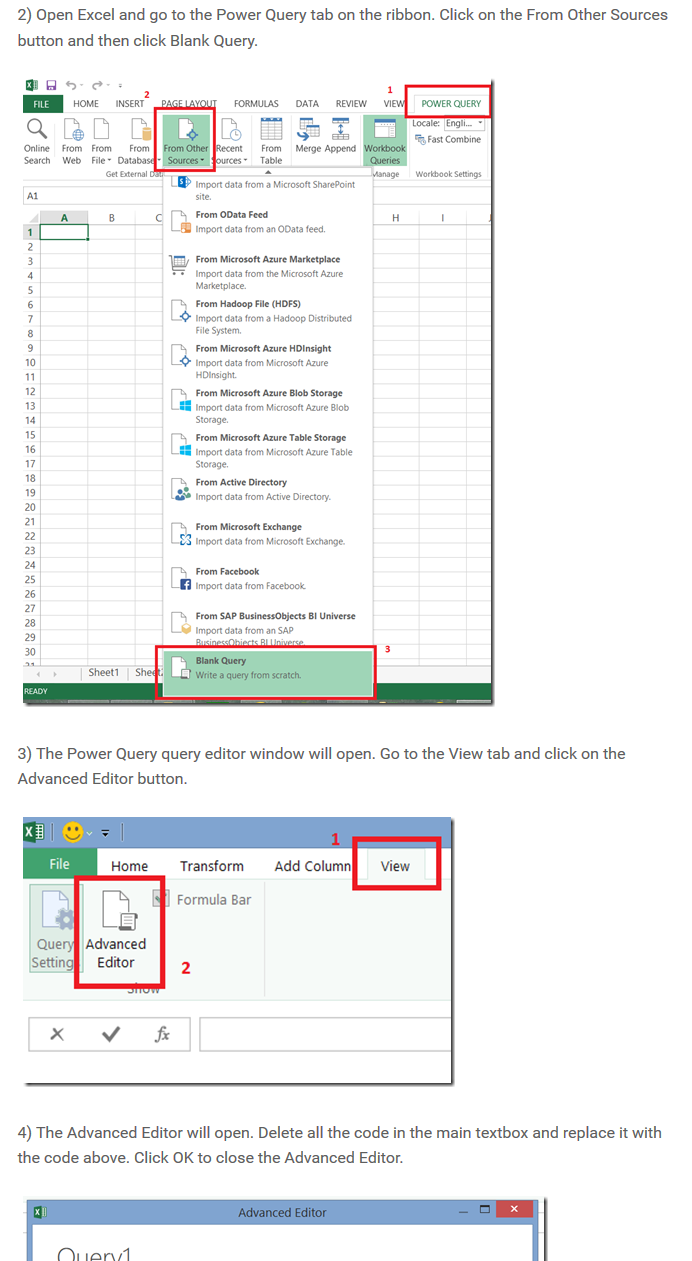
Here are some of the steps to get the function into Excel:

Read more at:
Combining Data From Multiple Excel Workbooks With Power Query–The Easy Way! | Chris Webb’s BI Blog

I recently had the pleasure of presenting at the 1st Build SA event of the year. Overall, it was a very informative event that packed heaps of useful content into a half-day of presentations, labs and discussions of real world case studies.

You can get tickets for BuildSA Event 02 – Documentation and Deliverables Part 1 here at this link.

And… here are the downloads from my session on IFC interoperability and conversions:
Slideshow
Speaker Handout
Hands on resources for Lab

(The one missing piece that you don’t get access to is the larger resource download package. If you want to get hold of some of these extra goodies, may I suggest that you attend Build SA Session 2 as per link above? )

Embedded slides:

Embedded handout:

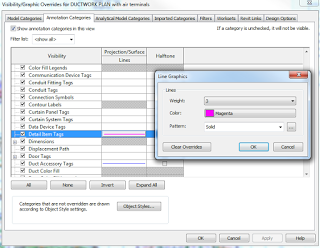
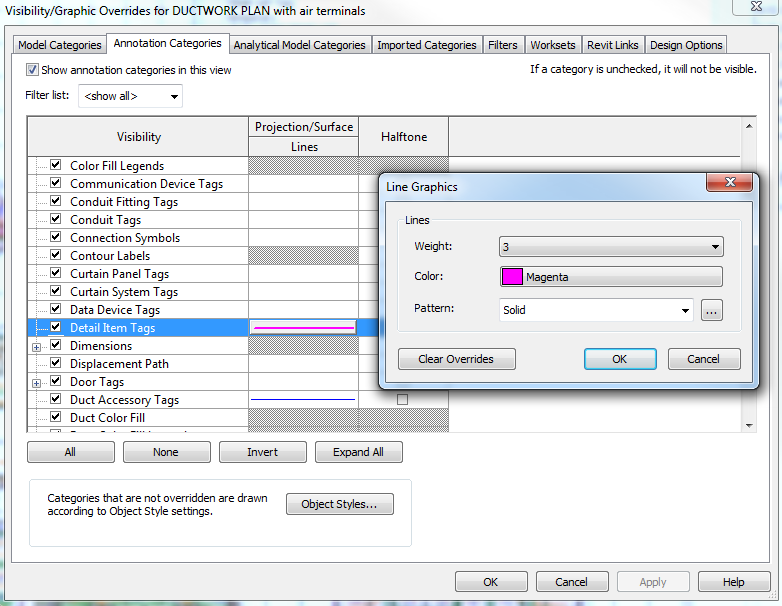
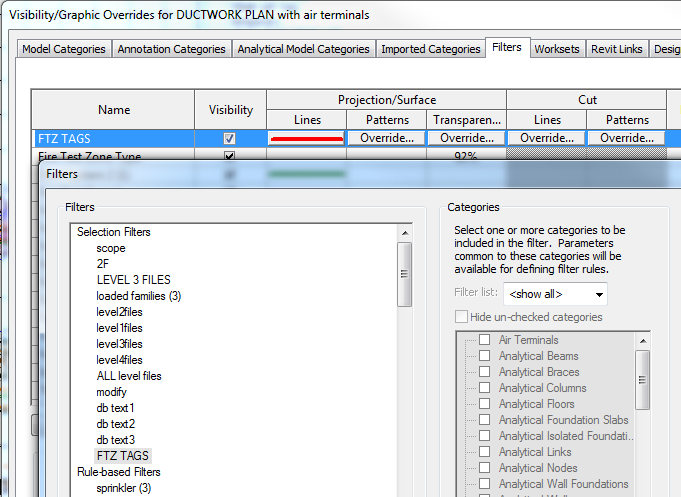
Did you know you can override the lineweights and colors of a Generic Annotation or Tag and its Leaders in Revit? You can use Visibility / Graphics annotation tab like this:

But what if you have two Tags that are of the same category, say Detail Item Tags, but you want to override them differently? You can’t use a normal model-based filter, as these generally do not act on annotations. However, you can use a selection-based filter…

Just:

  1. Ensure you are using a unique Type of Tag, then right-click, Select All Instances, In Entire Project
  2. Save Selection, and choose an obvious name
  3. Go to your view filters (in the relevant View Template if necessary) and add the Filter you named in step 2
  4. You can now freely override those Tag elements separately to any existing overrides

Now, keep in mind that you need to manually update this selection-based filter. You might make it part of your printing workflow to do steps 1 and 2 above immediately prior to printing, thus updating the saved selection set to be in line with the current status of your model.

Cool! My Lumia 930 and Surface Pro 3 will be all happy now 🙂

The 123D family recently expanded to include 123D Catch and 123D Sculpt+ for the Windows Store. 123D Catch is also now available for Windows Phone through the Windows Phone Store. 

   
This breaks new ground on the Windows mobile platforms for 123D and broadens the availability of these powerful, free apps for anyone with a Windows device. 

For those new to the apps, 123D Catch uses the camera on your phone or tablet to shoot photographs around something, then upload the photos to the cloud where they are turned into a realistic 3D model. 

123D Sculpt+ is a digital sculpting application for tablets, allowing beginners to get into digital 3D sculpting and professionals to do their work on the go.

Read more / via:
123D Captures Windows Phones and Tablets – 123D Blog

2015 may be remembered as ‘the year the BIM podcast became a reality’ (among other things, I’m sure 🙂

Here is a list of recently established but active podcasts related to BIM and the Built Environment. I have provided RSS links, and will update this list as more become available:

BIMThoughts – BIMThoughts is podcast about BIM technology and techniques.
RSS: http://bimthoughts.com/feed/podcast/

Podcast | Designalyze
RSS: http://www.designalyze.com/taxonomy/term/120/all/feed

Autodesk Launches Podcast Channel to Explore the Future of the Built Environment
RSS: http://feeds.soundcloud.com/users/soundcloud:users:149177069/sounds.rss
Episode with Adam Sheather: link
The Architech Show
RSS: http://www.thearchitechshow.com/feed/

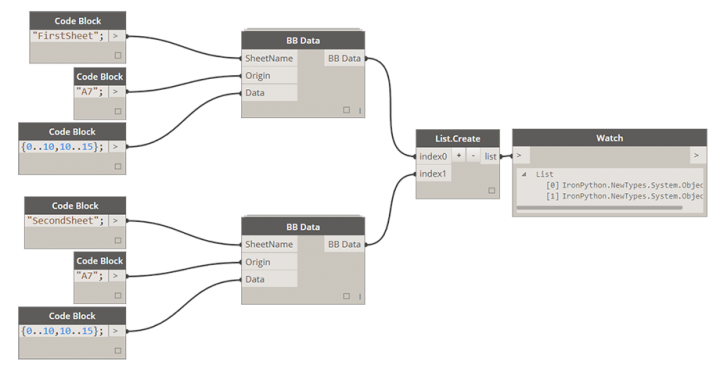
Konrad Sobon has released a very cool and powerful new node package for Dynamo called Bumblebee. I did some very basic beta testing on some of his code a while back, and it looked promising then. It has some more polish now and it will certainly help us get the Revit to Excel connection “buzzzzzing” nicely through Dynamo 🙂

It supports some nice things like writing to multiple sheets at once, offset to specific Cell entries, and writing to multiple locations in the same sheet. Most of this is accomplished through the BB Data node:

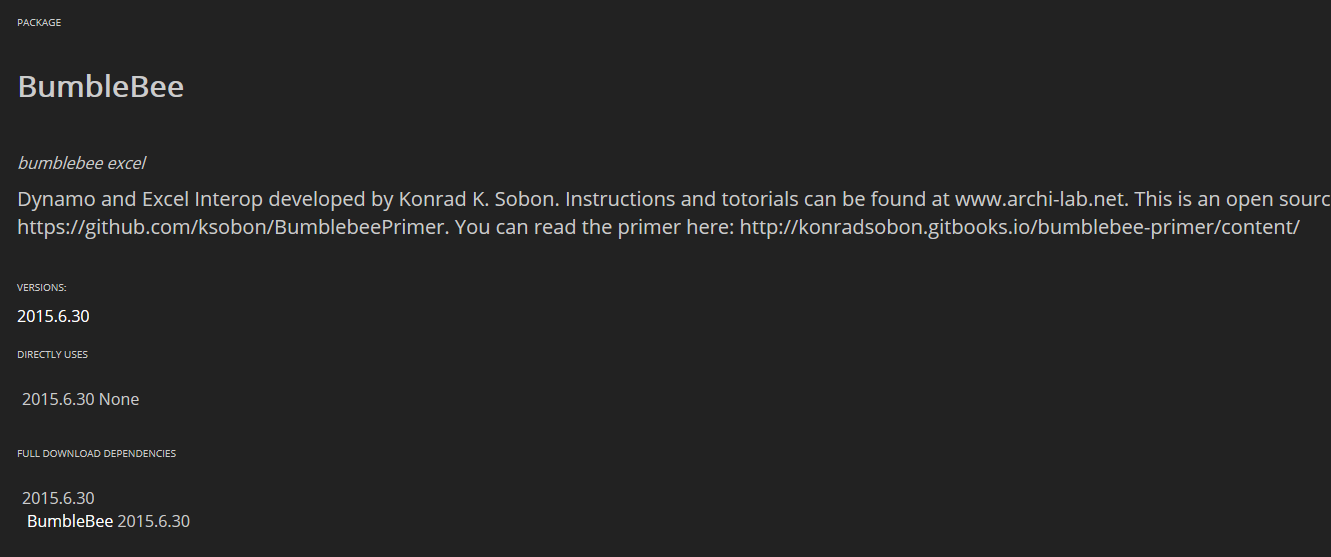
There is even some handy documentation already in place:
For specific instructions on how to use each one of the components and what is possible to achieve with each one of them you can refer to Bumblebee Primer: BB Primer

Read more at Konrad’s post:
bumblebee – dynamo and excel interop | archi-lab