I love it when an idea just works 🙂  Let’s say you have 100 view templates in a project, and you make a new one.  You want to transfer only that new template to another project (not the other 100 View Templates).  If you use Transfer Project Standards (on View Templates and Filters), you will get the lot.  How can we transfer just one of them?

Well, you need to think through the problem.  Everything in Revit has an Element ID.  View Templates are a special kind of view… So we need to get the Element ID of the View Template.  Then we should be able to Copy / Paste it.

Here’s how I did it:

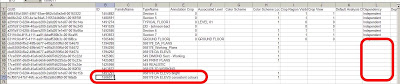
  1. Using Whitefeet Tools, (Utility Tools — Schedule Tools), Write Category to Excel, and select Views.  (Make sure you press the ‘All Elements in Model’ radio button)
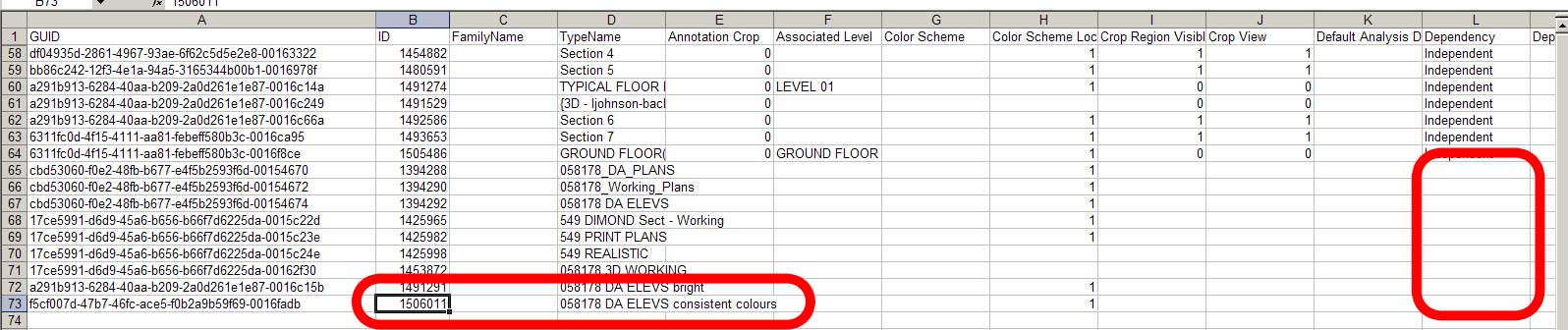
  2. Excel will open with all Views listed, including their Element IDs
  3. If you Sort Data in Excel by the ‘Dependency’ column, all of the View Templates will be grouped together as they do not have any data in this column
  4. Select the Cell containing the Element ID of the View Template you want to transfer
  5. In the source project — Select by ID, Paste that Element ID.  Once selected, Copy to Clipboard (Ctrl+C)
  6. In the target project — Modify ribbon, Paste, Aligned to Selected Levels, just pick a level at random
  7. The new View Template is now available in the target project.  Apply it to any view you like…
Note:  At step 6, a simple Ctrl+V would not work
You could also adapt this to copy a selected set of View Templates – just grab their element IDs at step 4, and create a list of them separated by commas.  Use this in the Copy / Paste operations at step 5 and 6.
This is a classic What Revit Wants scenario – if you know how the program works, you can think through the problem and devise a solution that is not readily apparent to the casual user.
PS – it would be nice to figure out a way to get the Element ID of a View Template without using any addins … does anyone have a good way of doing this?

EDIT2 For the add-in free method, use the macro provided by Harry Mattison at:
Transferring view templates, not in 2014 | Boost Your BIM – making Revit even better

EDIT1 I also posted a method using the free RevitLookup add-in at https://wrw.is/2013/07/compiling-and-using-revitlookup-for.html
You want to be able to network and directly reference material libraries and resources.  You can do this using symbolic links in Windows 7 / 8, where the OS and applications think they are dealing with a local resource, when in fact it can be on the network.

Disclaimer:  I’m sure that there will still be some quirks and issues with this method – I doubt that it is the perfect solution.

This is the essential command:
To create a symbolic link type into the Command Prompt box
mklink /D
: This need to be exactly as per the location of the local machine path
e.g. “c:Program FilesCommon FilesAutodesk SharedMaterialsTexturesbluescope Lysaght”
*Don’t forget to use the double quotes, if it is not identical the library wont work.
: This is the location of your network files
e.g. “s:bluescope Lysaght
*blueScope lysaght is the folder name

Check out this PDF for a more detailed description:
http://www.steelselect.com/download_centre/file.php?id=5039
(accessible via SteelSelect page here)

This method is also discussed at:
http://www.revitforum.org/third-party-add-ins-api-r-d/2883-colorbond%AE-steel-texture-library-revit-lysaght-content-beta-version-6.html#post87933
(but guess what, XP can’t handle these symbolic links)

In the past, having multiple instances of a Linked RVT was quite problematic if you wanted to apply different materials to each instance.  Parts have mostly solved that problem (thanks to Steve for reminding us).

Here is a quick how-to:

  1. Place a Wall with multiple layers into one RVT file
  2. Link that into another RVT (the host)
  3. Make 3 copies of the linked RVT in the host project
  4. Tab select a Wall that resides in one of the links while working in the host file
  5. Click Divide Parts
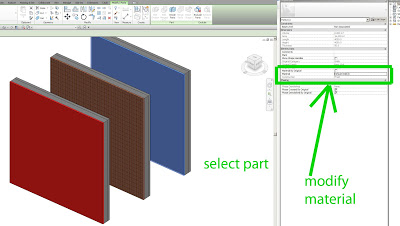
  6. Select one layer of the wall (the Part)
  7. In Properties Palette, untick Material by Original
  8. Set Material as desired using Properties
  9. Rinse and repeat steps 4 to 9 for each layer / material option you want to explore

2013:

IFC Exporter for Revit 2013 (v2.12):
http://apps.exchange.autodesk.com/RVT/Detail/Index?id=appstore.exchange.autodesk.com%3aifcexporterforrevit%3aen

IFC Export Alternate UI for Revit 2013 (v1.12):
http://apps.exchange.autodesk.com/RVT/Detail/Index?id=appstore.exchange.autodesk.com%3arevitifcexportalternateui%3aen

2014:

IFC Exporter for Revit 2014 (v3.4):
http://apps.exchange.autodesk.com/RVT/Detail/Index?id=appstore.exchange.autodesk.com%3aifcexporterforrevit2014%3aen

IFC Export Alternate UI for Revit 2014 (v2.4):
http://apps.exchange.autodesk.com/RVT/Detail/Index?id=appstore.exchange.autodesk.com%3arevitifcexportalternateui2014%3aen

What’s new for IFC Exporter for Revit v2.12/v3.4:
General (Revit 2014 UR1 Only):
– Added basic support for IFC4 export, corresponding to the Coordination View 2.0 MVD. Please see the Wiki for more details. This requires Revit 2014 Update Release 1 to be installed. Note that currently the ifcXML format for IFC4 is not supported.

Its an interesting read, as it provides a basic overview of Autodesk’s Vasari / Dynamo + DesignScript combo (including some of the history of its development), as well as considering the offerings of competitors (Bentley / Generative Components and Rhino / Grasshopper, and even formZ).  It closes with a decidedly Mac-centric prediction of where Revit may be headed in the future (you can be the judge of how realistic this prediction may be).

Here’s a juicy quote:
We think Autodesk is working on Revit for the Cloud. Indeed, we think it will run entirely through a Web browser. You may be thinking “no way, can’t be done.” Well, we think that is not far off. Today we have WebGL (Web Graphics Library) which derives from OpenGL ES 2.0.

At AIA Denver we saw a new “labs oriented” beta application by Gehry Technology that was doing modeling through a browser using WebGL. And while the shapes were basic it was fast. It ran on Chrome on a MacBook Pro. WebGL and what is possible today and in the future is a topic we need to conquerer here at Architosh because we believe it is going to change the landscape of CAD and 3D in the next few years.
Read the whole article:
AIA: Autodesk introduces computational modeling tool Dynamo for its BIM workflow | Architosh

There is apparently over “20000 pages of documentation” that will be released, along with videos and 3D asset files.

It could be interesting to see how this release intersects with the development of Revit standards and Revit content globally…

The Autodesk Creative Commons “Area”:
AREA | creativecommons

“The group adopted the Creative Commons licensing which means 20,000 pages of documentation, 70 videos and 140 downloadable 3D asset files are now ready to be modified, remixed and shared globally.”

via / heads-up:
Autodesk makes huge trove of docs, training materials and 3D asset files available under Creative Commons – Boing Boing

As per the above Autodesk page, “More content to come soon…”

Pretty simple really – I want to be able to select an element in Revit, and then trigger the “Select in Project Browser” command, which will scroll the Browser, select the appropriate entry and expand any plus signs as necessary.

I’m thinking:
Sections / Elevations / Callouts – selects the View in the Browser (if it is not hidden by Browser org.)
Component Families – selects family type
Links – selects the link
Groups – selects the group

I’m sure there is more granularity that could be added to the above list…

Anyone out there think this is possible?  Want to take it on?

Dave Light gives the very concise version:
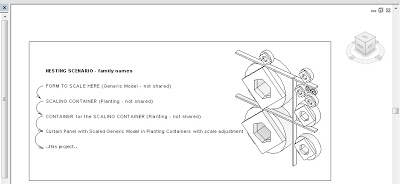
So as others have shown, I have various nested generic model families, dropped them into a plant family template. This family is then nested into another plant family. This is then placed into a project. Using the height parameter in the family, changing this, scales the family.
via
Revit : Scaling families – #empirebim

In brilliant form, he then describes how you can use an instance reporting parameter in a Curtain Wall Panel family to drive the Height value in a nested Planting family, making a Curtain Panel that can scale its nested geometry to any panel size.

To save you some time and trouble, I have created a template for this scenario.  Basically, it is a Revit project file that contains the Curtain Wall Panel family with the fully nested setup already in place.  I also added a Scale Override type parameter in the Curtain Panel family that allows you to globally adjust the scale of the resident geometry.

Download the project and family files here
(the project RVT is Family Scaling Template – GM to Planting to Planting to Curtain Wall Panel.rvt)

Note:  using a shared Generic Model family will not work (it breaks the automatic scaling ability of Planting families)

EDIT:
Looks like original credit actually goes to Kelvin Tam.

Original credit for this general idea goes to Marcello (I think), and partly to Dave.  It is definitely one of those hacks that is getting re-interpreted and expanded upon as it gets blogged and reblogged…