Dunn Edwards have provided an adsklib file for download that matches their paint colours to Revit materials.

I previously posted about Lysaght adsklib way back in 2011:
What Revit Wants: Lysaght Bluescope Colorbond Autodesk Material Library

I look forward to the day when all manufacturer materials come in adsklib format – would save us all some work 🙂

Here are the Dunn Edwards links:

Revit Materials 
‘adsklib’ file (20mb)
  D.E. 5000 – 5093 colors

(dropbox access request)
http://www.arch-intel.info/revit-dunn-edwards-paint.html

They also provide some informative videos —

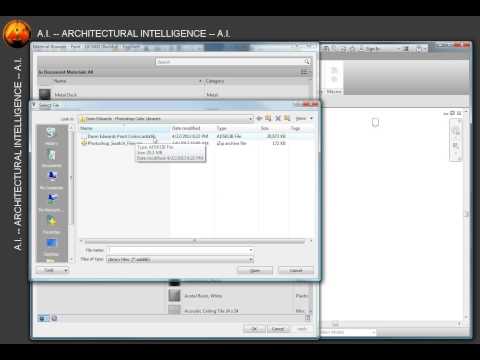
Getting the adsklib into Revit:
Setting up corresponding colours:

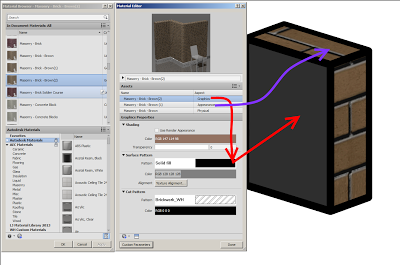
Ever noticed how the Graphic Surface Pattern of a Material will override a Walls surface in a Realistic (ie. materiality / render check) view, but not the edges?

Firstly, I don’t think Graphics values should affect Realistic view at all.  Secondly, it should at least be consistent: either override wall faces and edges, or don’t override at all, yeah?

Anyone know if this was fixed in 2014?

I thought I got in a loop today:

  1. Export DWG
  2. Expand All
  3. Select all rows
  4. Try to delete the number in the Color ID box
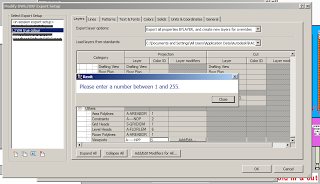
  5. This warning will come up:

You have to press Close for every selected row (could be hundreds) – quickest way is to hold down the Enter key until the warning goes away.

Originally I thought this was a looping bug, but it is just Revit being overly thorough 🙂

Ever pressed Cancel or No when prompted to save an Excel spreadsheet?  Lost your work?  How about this backup task… it basically copies Excel backup files to another location so that Excel can’t delete them when it closes.

  1. Open Task Scheduler (tap Windows Key; start typing “task scheduler”, press enter/click on it when result is at top of Start Menu).
  2. Click Action – Create Basic Task
  3. Give it a name and click Next
  4. Select “When I log on” as the Trigger
  5. Select “Start a Program” and click Next
  6. Type “Powershell” in the Program Name, then
  7. in the “Add arguments (optional):” box, type “% {Copy-Item -path C:UsersusernameAppDataRoamingMicrosoftExcel -recurse -force -destination D:BackupExcelAutosave}” (changing the username to your username obviously, and also modify the destination directory if you want), then click Next
  8. Then tick the box “Open the Properties dialog for this task when I click Finish”, then click Finish.
  9. Under the “Triggers” tab, double click the “At log on” trigger, then tick the box “Repeat task every:” select an interval (i have 1 hour) and duration (i have 12 hours), make sure “Enabled” is selected, then click OK, then OK on the properties box.

via
microsoft office – Recovering Excel documents that were closed without saving – Super User

The path on Windows XP is something like:
C:Documents and SettingsUSERNAMEApplication DataMicrosoftExcel

… the future of BIM in the globalized world of broad adoption, emerging cloud and reality capture technologies, innovative delivery approaches and opportunities for industry professionals to deliver more value to clients and collaborators.

LEARNING OBJECTIVES:
•Understand the current state of BIM technologies for representation and analysis.
•Understand how emerging technologies like cloud computing, social networking, mobile platforms and reality capture will affect BIM process and outcomes.
•Learn about how project delivery models and the roles and responsibilities of architects, engineers and builders will change as new technologies change the face of BIM.
•Explore new business opportunities offered by BIM-based processes.

SPEAKER:

Phillip G. Bernstein is a Vice President at Autodesk

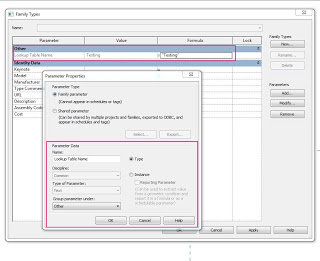
The BIM Data is a new blog by Mohammed Mahboob.  In a recent post, he describes using a Pipe Fittings family template and switching it to Generic Model to enable (retain) the Lookup Table CSV support.

Read the whole post at http://thebimdata.blogspot.ae/2013/08/loop-in-lookup-table-name-parameter.html

    Good workaround!

    Check the blog out at:
    The BIM Data

    In a recent project, we received a DWG file and a number of point clouds, all on the same coordinate system (MGA).

    To setup project initially, I followed these steps:

    1. New Project
    2. Link the survey DWG by Auto, Origin to Origin
    3. Acquire Coordinates from the DWG in Revit
    4. Link the Point Cloud (in this case, a Revit 2013 friendly PCG) by Auto, By Shared Coordinates
      Note – this 6gb came in very quickly, and worked acceptably for viewing
    5. Rinse and repeat for as many point clouds as you have.

    Q.  Can you acquire the coordinate system from a basic point cloud?
    No, Revit 2013 does not recognize a PCG point cloud as a valid source for Acquire Coordinates.  You can only place a point cloud by Shared Coordinates where these are already set up.

    Great post on initial point cloud coordinate setup:
    Point Clouds in Revit – BIM Toolbox

    Interesting that centre-to-centre is often recommended as the best initial import method for a Point Cloud:
    Point Cloud Processing for Revit Use

    Further, you can move one point cloud and use those transforms to modify the next link:
    7) Move the cloud in the X, Y & Z to align it where you want it.
    8) Once you have it aligned well, repeat steps 1-4 for each cloud except Set “Positioning” pull-down to Auto – Origin to Last Placed
    Laser Scanning Forum Ltd • View topic – Shared coordinate and scale in Revit

    Also, some users recommended putting all point clouds in their own RVT link for easy unloading / overriding etc.  I’m unsure of the impact of snapping to such a cloud in the host project?

    Further reading:
    One of my team recognised that the point pattern was very similar to an error that occured in Geomagic. very similar to how Revit has issues with things being too far from project base point so does geomagic. It turns out that even though I dropped the cloud very close to the project base point for some reason Revit 2014 must be still reading the old real world coordinates and sees it as if it is still 100s of miles from origin, which is what seems to be causing the resolution problems. Hence we went back into the original registered data in cyclone and made the project arbitrary (moved it close to 0,0,0), we then re-exported to .pts bought into Revit and the results are as per the attachment, loads better than before and deffinately possible to work with now!via RevitCity.com | Revit 2014 Point Cloud Benefits/limitations?

    Isolate this the selected element and then use the zoom to fit option. Now you should be able to see your point cloud / import in the center of the screen.
    via Point cloud or linked file not appearing in Revit – Shared coordinates | BIMopedia

    If you are working with point clouds, you are probably aware that setting up the points to be re-modeled properly within Revit is essential. When you import your point cloud by shared coordinates, you are left with a 3D model of your points.
    via Setting up your Revit project to model point cloud data | BIMopedia

    On Revit 2014:
    The new point cloud engine uses RCP/RCS formats. The RCP format is a project file while an RCS file is a scan file. A RCP file is a group of multiple RCS scan files. If you have raw data in other acceptable formats Revit will index it in the background and let you know when the indexing is complete.

    They enhanced Revit’s sensitivity to points and planes within the point cloud data. This should make it easier to sketch model elements using the underlying cloud data. Revit will detect planes that are perpendicular to the current work plane and very close to the cursor.

    via Revit OpEd: Point Clouds in Revit 2014