I hinted that this was coming a few weeks back, but now here it is! A massive Subscription Release, along with a giveaway of the Siteworks addin package to Subscription users.

Download the update at: Autodesk Revit 2015 R2
Download the Siteworks package at: Autodesk Site Designer Extension for Revit 2015, or on Exchange here
(Note: you will need to login to your subscription account to access these) 

A few quick tips…
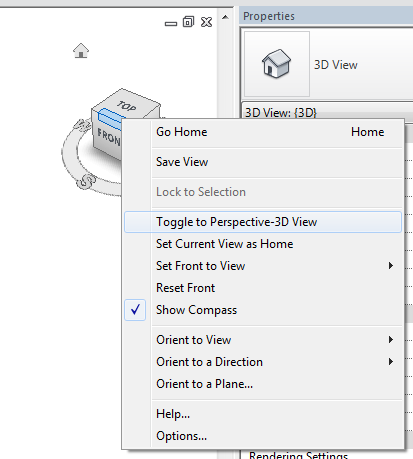
To toggle between Perspective and Orthographic view:

  1. Go to a 3D view
  2. Turn on Crop View
  3. Turn on Show Crop Region
  4. Right-click Viewcube
  5. Select Toggle to… and this will show Perspective or Parallel depending on your current mode

If you are wondering what ‘quick adjustments’ you can do in Perspective views:
Basically, you can use some simple commands like Align and Move, that were previously grayed out in Perspective mode.

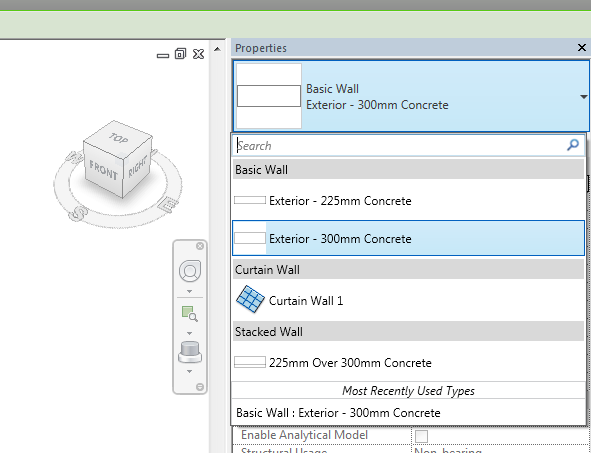
To search in the Type Selector:

  1. Turn on Properties pane
  2. Click in the top of the Type Selector
  3. The search box is the top row

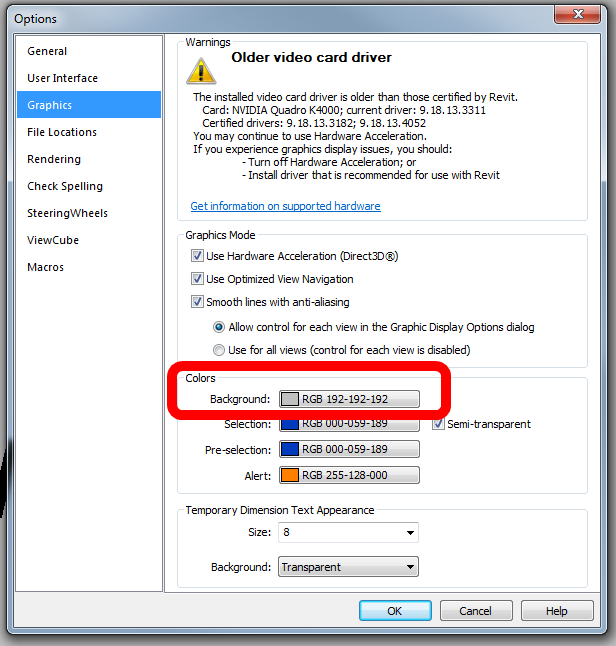
You can now also set a custom background colour (that means ‘color’ to U.S. folks):
 
Enhancements list:
http://revit.downloads.autodesk.com/download/2015RVT_RTM/R2/Enhancements_List_RVT_2015_R2.pdf

Readme (Interesting point: The install of Autodesk Revit 2015 Release 2 will also install Autodesk Dynamo (0.7.1) and required component IronPython.)

My top 3 features in Revit 2015 R2:

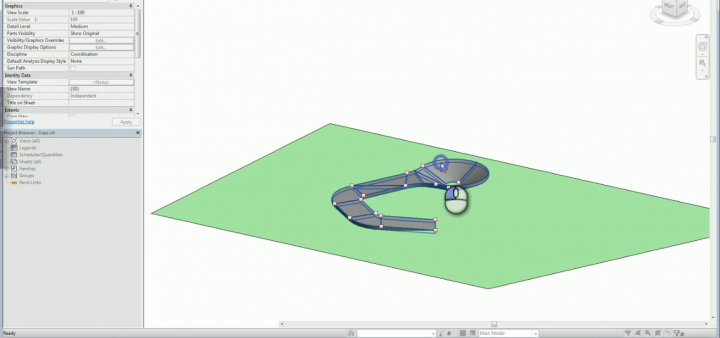
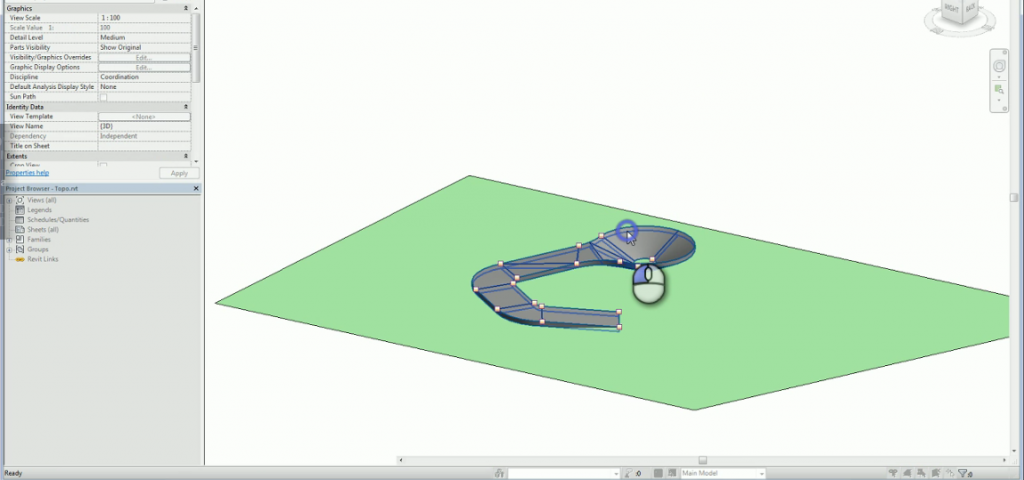
  • Work in perspective views, making quick adjustments without having to change views with some modeling capabilities now available in perspective views.
  • Find content more quickly with Search capabilities in the Type Selector and all drop-down lists.
  • Navigate PDFs exported from Revit more quickly with hyperlinked views.

My top 3 features in Autodesk Site Designer (previously Eagle Point Siteworks):

  • More quickly add design elements to your site such as berms and drainage swales, minimizing the time required to mass grade a site and to try alternatives at the design development stage.
  • Special terrain families within Site Designer provide you with parameters that control widths, cut and fill slopes and other projection settings.
  • Locate hardscape components such as streets, intersections, sidewalks, curbs and walls that can follow the existing terrain and have controlled elevations and slopes – all while the toposurface is automatically maintained.

More info:
Autodesk Revit 2015 Subscribers Get Slew of New Capabilities with “R2” Update

Heads-up:
Revit 2015 R2 Release | Applying Technology to Architecture

A few notes on installation versions from the Readme:
This update requires either the initial release of Autodesk Revit 2015 (build: 20140223_1515) or Autodesk Revit 2015 Update Release 3 (build: 20140606_1530) . Autodesk Revit 2015 Update Release 3 will need to be applied to any installed Revit 2015 which has either Autodesk Revit 2015 Update Release 1 (build: 20140322_1515) or Autodesk Revit 2015 Update Release 2 (build: 20140323_1530) applied. Installation will also be blocked if Autodesk Revit 2015 Update Release 4 (build: 20140903_1530)) has been applied, a full uninstall followed by a new install of Autodesk Revit 2015 will be needed in order to apply Release 2.  
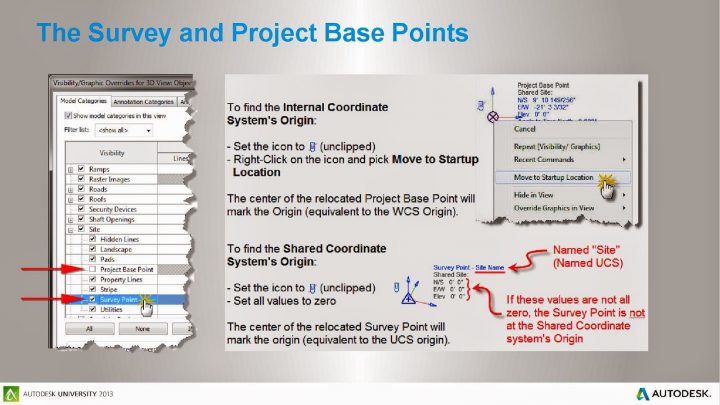
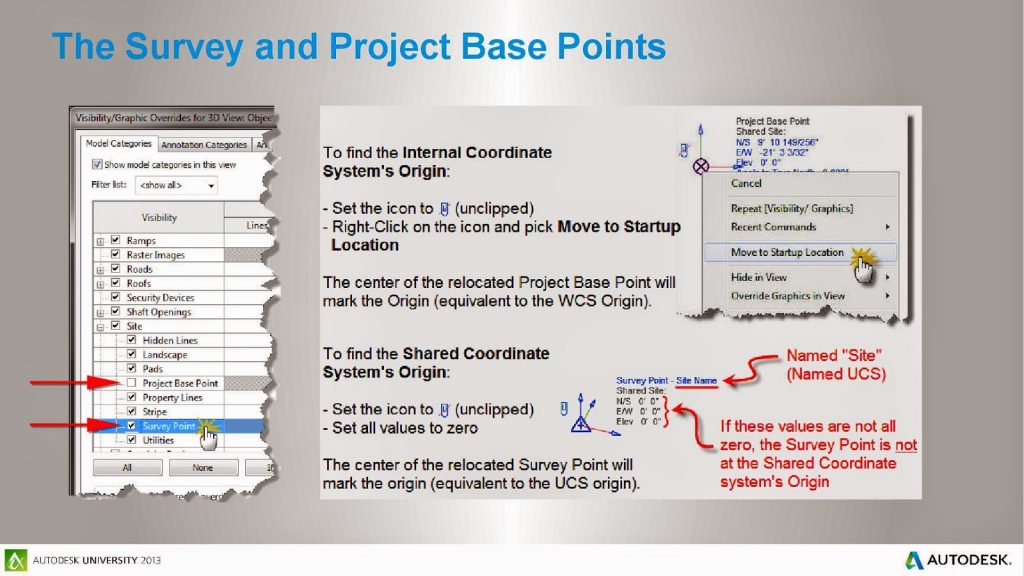
Video: Matthew Miller recently gave high praise to this class, when he posted that David Baldacchino’s class AB412 Navigating Through the Storm Using Coordinate Systems in Revit “has been the best explanation of shared coordinates, that has helped me understand them.”

Matthew also provides these useful links:
Blogs Talking about Survey point in Revit
Understanding Shared Positioning in Revit

Shared Coordinates

Project Base Point Manipulation

Revit 2013 – Project Points, Survey Points, Revit Coordinates

via

Revittize: Set the Revit Survey Point

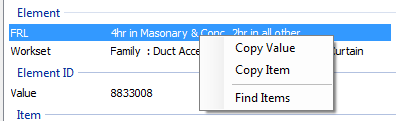
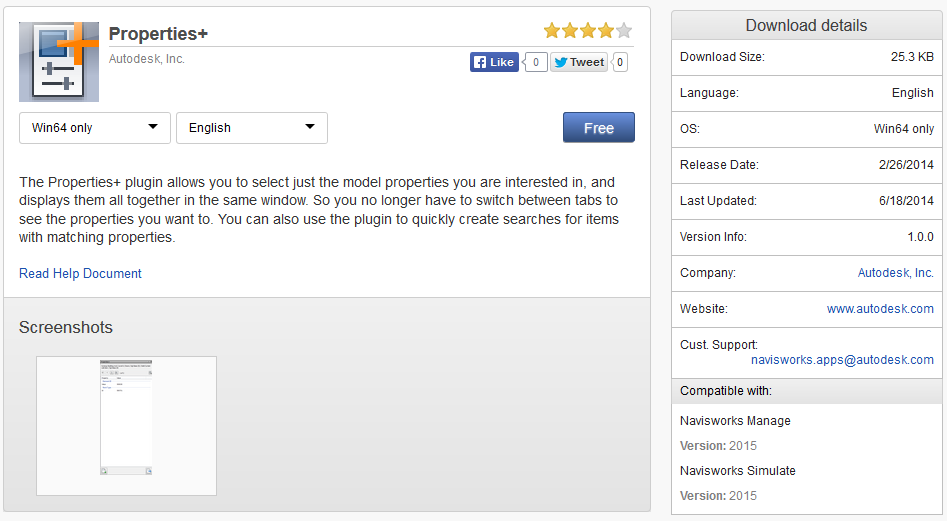
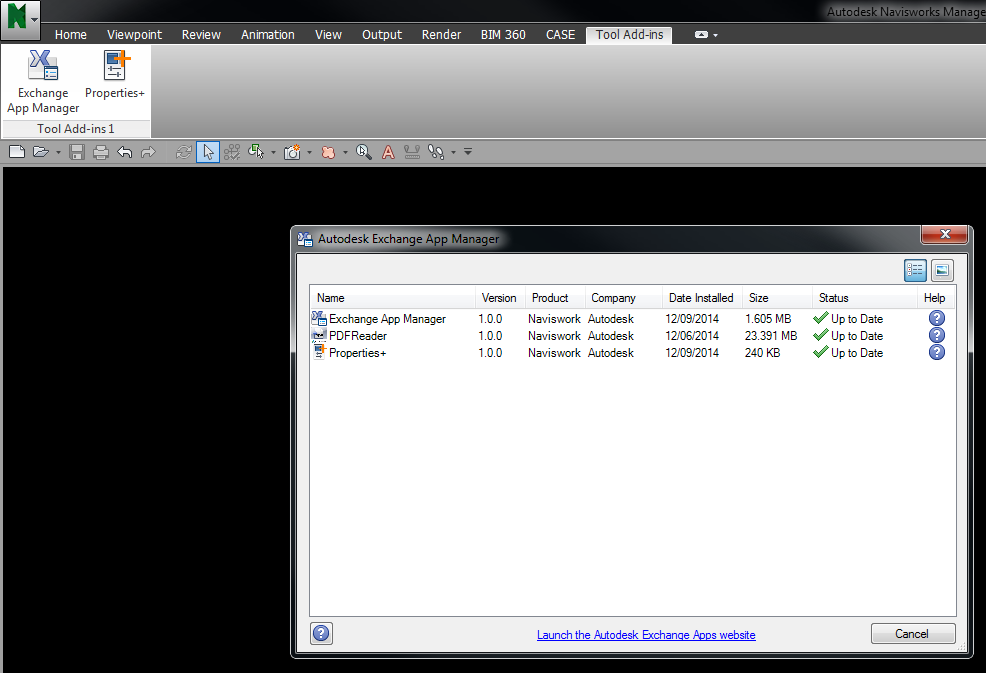
This great tip comes via Kate Buckle, one of my colleagues here on the nRAH. Basically, when using the Properties pane in Navisworks, you often have to switch between many Tabs to find the Property that you want to view. This addin (or app) allows you to create a custom Properties view that can be docked and used instead of the built-in Navisworks properties pane.

Once installed, you can copy values, and even convert straight to a Search Set via the Find Items option:

Download at:
Properties+ | Autodesk Navisworks | Autodesk Exchange Apps

Help at:
Properties+ | Autodesk Navisworks | Autodesk Exchange Apps

Screencast at:
 

While you are at it, get the Navisworks App Manager, so you can easily check for updates to Navisworks plugins:

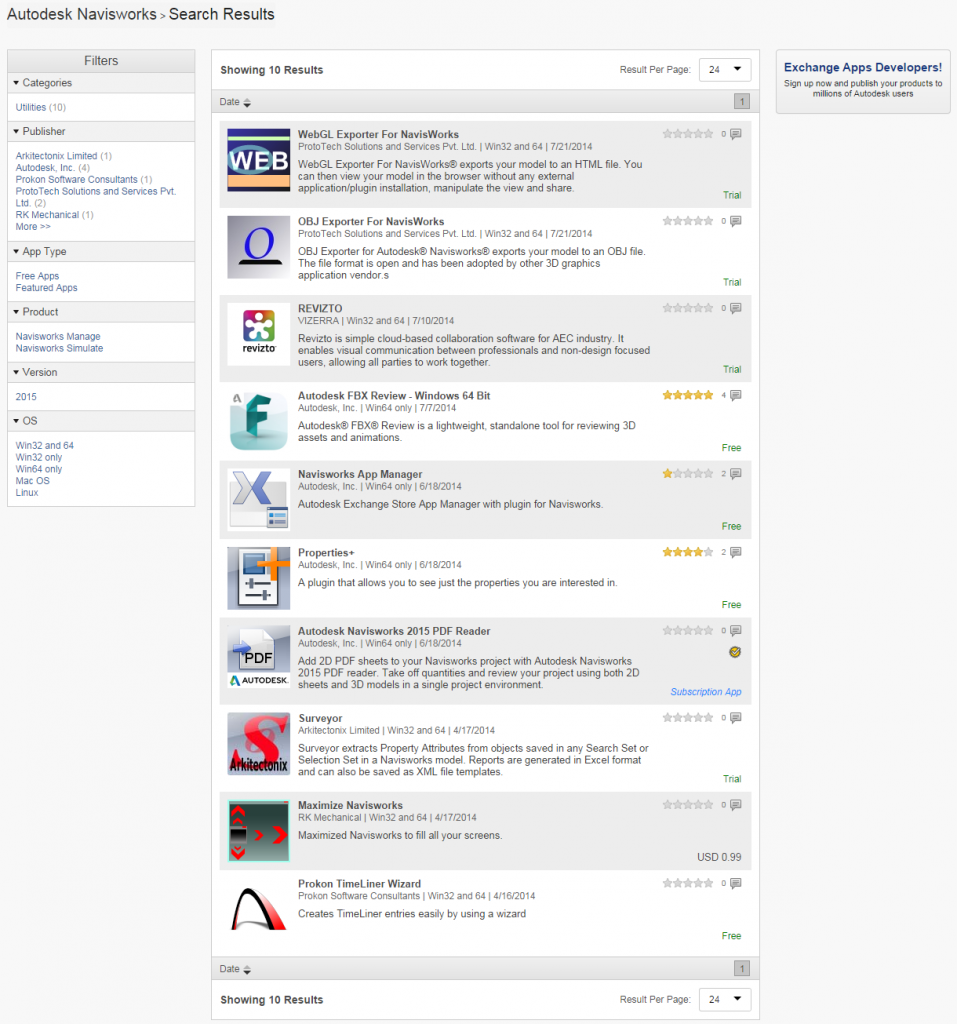
And for historical purposes, there are only 10 apps currently on the Navisworks App store – this is certain to change!

Aaron Maller provided some useful insight about how he paths RPC on a network location in the comments:
“The .rpc library we have is 12.3 GB of stuff. Admittedly, thats not THAT much space, but i cant justify having it on the hard drives. Since our Material JPG’s are on the network as well (Additional render appearance paths) if someone is trying to render at home we have issues anyway, unless their machine has configured Offline Files, which we do with the libraries when people have to work off site. Then its local, but still pathed to the network. :)”

Note: one of the nice things about the recent updates to Archvision Dashboard is that it supports license login / logout, meaning you can logout of Dashboard in the office, then go home and login again without using an extra license. This would give you access to the cloud library of RPCs, which could be downloaded and used wherever you are.

via
https://wrw.is/2014/08/thumbnail-images-for-entourage-families.html?showComment=1408037235781#c8556667987637110547

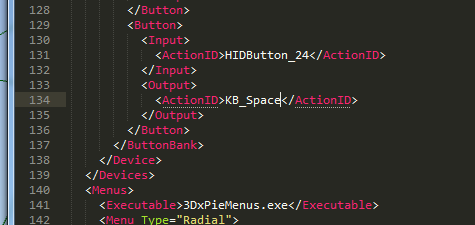
If you use a 3Dconnexion mouse with Navisworks, and you have installed the latest drivers (which I highly recommend), you may struggle to find out how to map a Spacebar to a button on your Spacemouse. Obviously, in Navis it is important to be able to hold down the Space key for selection purposes. If you try to record a macro for Spacebar in the 3Dconnexion management menu, you will find that it has both a ‘press’ and ‘release’ action.

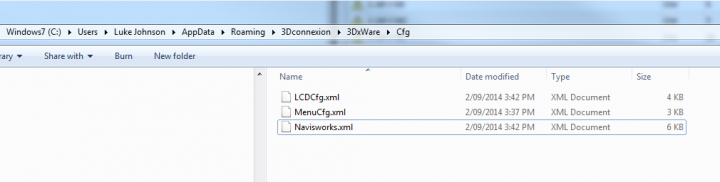
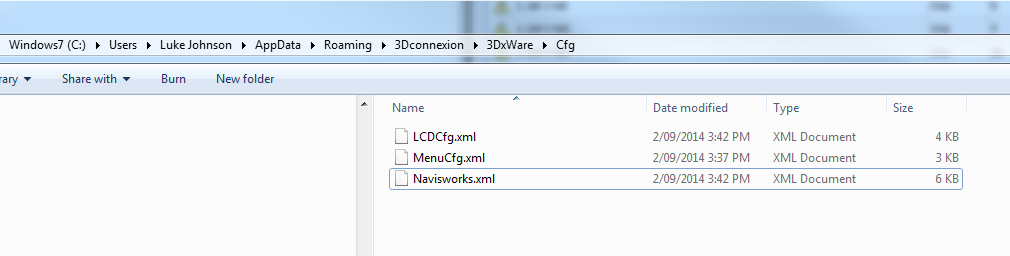
You need to use the Keyboard list to map a key press correctly. However, Spacebar does not appear in the default menu… Happily, you can directly modify your profile XML to map the KB_Space action to a button on your 3d mouse. The images below show where to find this file, and how to edit it:

This method will fix the ‘press and release’ nature of macros, meaning you can “hold” the 3d mouse button for a Spacebar or Shift+Spacebar multiselection in Navisworks.

EDIT Good discussion about using a 3D mouse with Navisworks on LinkedIn

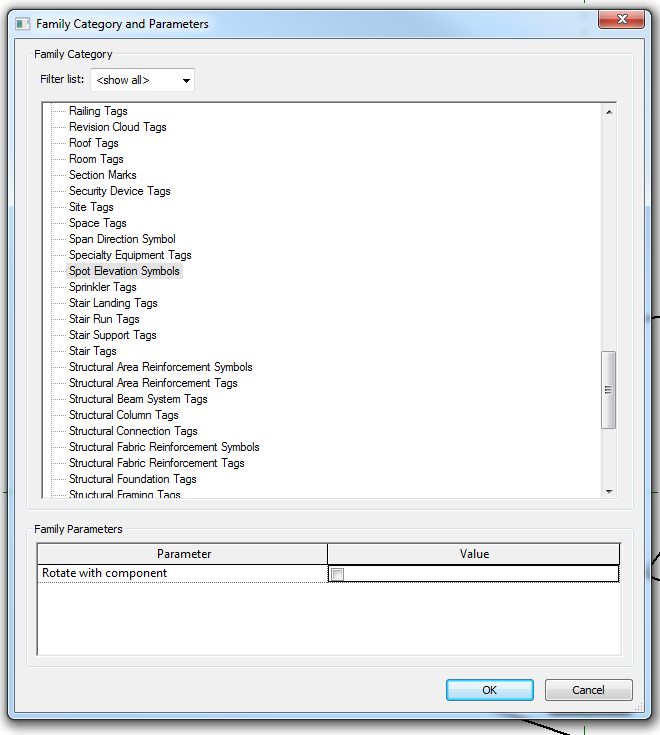
This workaround idea is quite simple – just use a Spot Coordinate or Spot Elevation with an applied Symbol family to use Symbols in locked 3D views.

You will need to start the symbol with a Spot Elevation Symbol family template…

You can also nest Generic Annotations into Tags, like a Wall or Keynote Tag. Unfortunately, all of the above will disappear if the hosting item is deleted. So, what about a View Reference Tag?

If we make a View Reference to a Drafting View called DO NOT DELETE, then nest our Symbol into the View Reference, it all works very nicely. The only thing that will break this is if someone deletes the ‘do not delete’ view 🙂

Here is a download with the whole thing already set up. And if you want to see me playing around in Revit figuring a few things out, here is a Screencast:

Paolo has posted an interesting bit of code that basically allows you to pick a floor element, and it will add points to a topography so that the topo follows the “points” on the Floor.

A very interesting solution to a common problem, namely, the (currently) limited functionality of topo tools in vanilla Revit.

Download here
“Anyway here you can find the code I’ve used
via original post http://puntorevit.blogspot.com/2014/08/align-topo-macro-attempt.html