EDIT via MLD in the comments:
In a 3D view;
1 Ensure Section box covers all elements by,Unchecking then rechecking ‘Section Box’
2 Select some objects and the section box
3 Temporary isolate elements
4 Uncheck then recheck ‘Section Box’ again
5 Reset Temporary Hide/Isolate

Another way – is the COINS Auto-Section Box add-in available on Autodesk Exchange.  Install the add-in, restart Revit, select a few objects then click the button.  It will create a section box around those objects in the selected 3D view – very easy!

Download at:
Autodesk Exchange Apps

A third way – is through a nice tip posted by Trey at Wikihelp.  Here are the basic steps:

  1. In a plan or elevation view, create a Callout (View tab > Create panel > Callout).
  2. Open a default 3D view.
  3. Right-click on the View Cube.
  4. Select Orient to View > Floor Plans, and choose the Callout view you just made. Your 3D view will automatically have a Section Box that matches the Crop Region of the Callout!

via
Small 3D View – WikiHelp

I have spent hours trying to figure out how to take actual camera locations from 123D (Photofly) and get them into Revit as ‘real’ cameras (3D views).  I thought it would be cool to be able to use a real-life camera location in Revit, because then you would already have the existing scenery as a background image (because 123D Catch would have used it in processing the model).  This was partly in response to this comment.

Its easy to export an FBX from 123D Catch, and open that in 3ds Max – you get cameras, yay.  You can use FBXIMPORT in AutoCAD and you get the named views (cameras), yay.

However, I have not been able to find an equivalent process for Revit.  At this point, I have to admit defeat.

My big idea was to convert the FBX into IFC with view information in the schema, and then open that IFC in Revit.  Sadly, I kept coming up against problems.  AutoCAD Architecture can import FBX and then export IFC, but the 3D views do not seem to come through.

One possible workaround would to compose your presentation in Showcase – you can export from Revit to Showcase, and you can also export an FBX from 123D and bring that into Showcase too.  But I want a purely Revit way.

If you have any thoughts on how to make this happen, PLEASE comment 🙂

Here is a list of links and notes that you may find useful.  There are some really cool resources on IFC available now – read on below:

NOTES on FBX and IFC
Autodesk sign in is required on 123D Catch to actually activate the Export feature to allow exporting of FBX.

Explanation of the export formats available from 123D (formerly Photofly):

Menu Command Format Contents
saveas .3dp The 3D photo scene contains cameras, reference points, 3D mesh, reference lines, and distance measures. This is the native format for Project Photofly.
export .dwg The drawing contains reference points and reference lines.
.fbx The Autodesk FBX asset exchange file contains the 3D cameras, the photo textured 3D mesh, reference points, reference lines, and reference labels.
.rzi The ImageModeler file is a subset of the 3dp file based on what was selected at the time the photo scene was exported.
.obj The OBJect file contains the photo textured 3D mesh.
.ipm The Inventor Publisher Mobile file contains the photo textured 3D mesh and can be viewed with the free Inventor Publisher Viewer available in the Apple iTunes App Store.
.las The binary LASer file contains the 3D point cloud that was automatically extracted from the pixels of the source photographs. The LAS file format version is 1.2.

via
http://labs.blogs.com/its_alive_in_the_lab/2011/09/viewing-ipm-files-generated-by-project-photofly.html

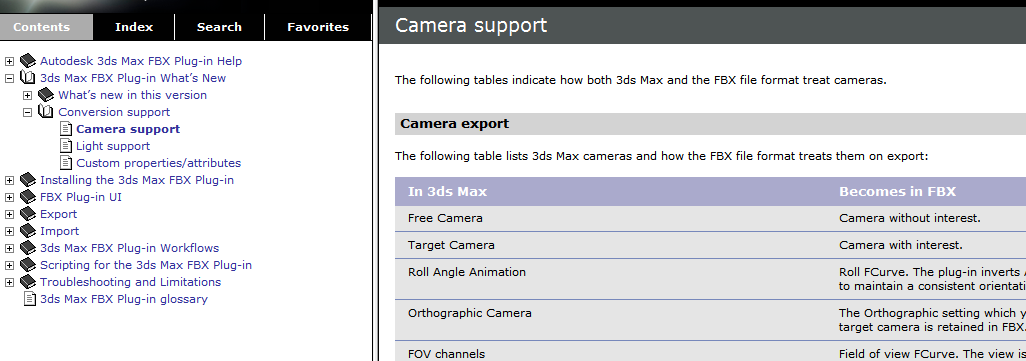
Camera Support – 3ds max and FBX

http://download.autodesk.com/us/fbx/20112/3dsmax/files/WS1a9193826455f5ff6026605b1181237e94650be.htm

AutoCAD Architecture IFC export information
http://exchange.autodesk.com/autocadarchitecture/enu/online-help/browse#WS73099cc142f4875510b13df10ec0b2c48a-7a62.htm

3D views can be export FROM Revit TO AutoCAD Architecture
http://wikihelp.autodesk.com/Revit/enu/2013/Help/00001-Revit_He0/1468-Document1468/2171-Print_Ex2171/2172-Export2172/2245-Structur2245/2251-Exportin2251

List of IFC softwares, tools and viewers
http://www.buildingsmart-tech.org/implementation/get-started/ifc-toolboxes/ifc-toolboxes-summary

IFC schema information for views (plans, sections, 3d views etc)
Context
http://www.buildingsmart-tech.org/ifc/IFC2x4/rc2/html/schema/ifcrepresentationresource/lexical/ifcgeometricrepresentationcontext.htm
Subcontext
http://www.buildingsmart-tech.org/ifc/IFC2x4/rc2/html/schema/ifcrepresentationresource/lexical/ifcgeometricrepresentationsubcontext.htm

DDSViewer – can view DWG and IFC

  • also a very easy way to open DWG and save as PDF!

http://www.dds-cad.net/132x2x0.xhtml
To get a free version of the DDS Viewer, visit the ftp server and download DDSViewer.exe
IfcWebViewer – online web viewer for IFC using WebGL
http://code.google.com/p/ifcwebserver/wiki/IfcWebViewer


Exporting cameras as .3ds files using Flame
http://wikihelp.autodesk.com/Flame_Premium/enu/2013/Help/01_Flame_Premium_–_Flame/2037-3D_Compo2037/2267-Action%3A_2267/2274-Importin2274/2276-3ds_Max_2276

Vectorworks and 3ds
http://www.scribd.com/doc/34074946/128/Importing-and-Exporting-in-3ds-Format

Showcase can import views from FBX files
http://download.autodesk.com/global/docs/showcase2013/en_us/index.html?url=files/Help_ImportSettings.htm,topicNumber=d30e2896

IFC to OBJ:
IfcOpenShell

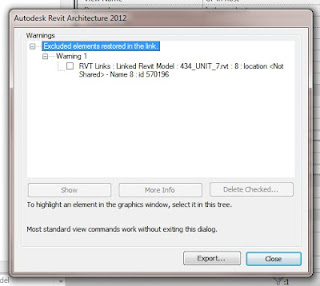
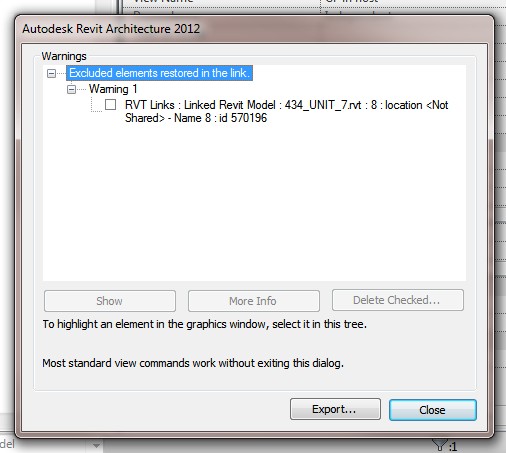
Interesting message when linking a Group to a new RVT file… basically, if you have a Model Group in your project that has Excluded Elements (either deliberately or due to some unavoidable issue) and you then Link that Group, the excluded elements will be restored in the Link.

Excluded elements are also restored for Attached Detail Groups if you choose to link them as views, but you won’t get the nice little message.

This could be one way of recovering the excluded data without having to create a new instance or use the ‘Restore All Excluded’ command on an existing instance…

Do you need to clean up your Revit files for transmission?
It is a common task to remove as much from a model as possible prior to sharing it with your consultants for the purpose of linking into their model or sometimes you want to lighten up a model that was sent to you for the same purpose. Delete Sheets, Views. and Revit Links does just what it says. You can select which of the three options you chose using the provided check-boxes.
This tool should only be used on models detached from central as it can be quite destructive.

Download at:
Delete Sheets, Views, and Revit Links | case apps

Nice post by Ben Malone over at BIMopedia.  He shows you how to install, activate, and use the free Tools4Revit family browser.  I like the fact that I can add my single local network-located Families folder and it will go ahead and index the families for me…

My PC has been busy upgrading and indexing over 5000 files to add to the Browser, so it will be interesting to see how well it performs.  I have had to do some minor babysitting to clear some warnings / dialogs and let the process continue…

Read more at:
BIMopedia Online – Benjamin Malone

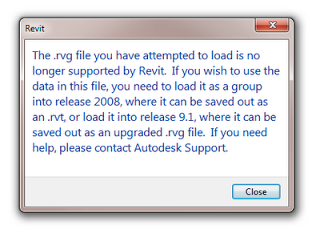
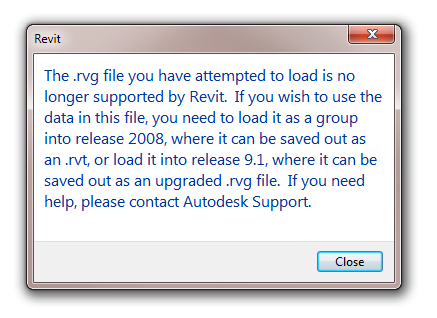
I saw this message from Revit today and I wanted to share it with you:

RVG files used to be Revit’s way of saving Groups out, until RVT became the standard for saving Groups.  From the message, it looks like this occurred circa version 9.

Text-only:
The .rvg file you have attempted to load is no longer supported by Revit. If you wish to use the data in this file, you need to load it as a group into release 2008, where it can be saved out as an .rvt, or load it into release 9.1, where it can be saved out as an upgraded .rvg file. If you need help, please contact Autodesk Support.

So, if you have any old-school RVG files kicking around, you probably should upgrade them before it becomes too much of a pain to do so!

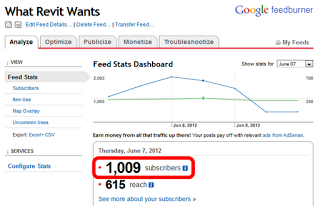
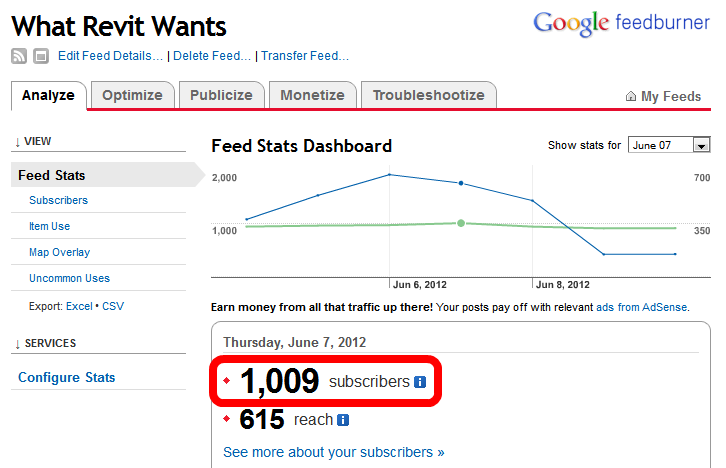
What Revit Wants finally hit 1000 subscribers on 7 June!  Interestingly, I also made my 1000th post during the past week. Thanks for all of your comments too, I enjoy the interaction.  I hope you are enjoying the blog.

There are 75 posts in my Drafts folder – so there is plenty of Revit goodness still to come 🙂

And let me know if there is something interesting you would like me to post – message me on Twitter @lukeyjohnson .

“From an industry perspective, we have really been expanding BIM across the lifecycle, starting with architects when we first moved Revit, and then with the engineering disciplines, and now we are pushing out from the design disciplines into construction with the MEP fabrication application MAP that we acquired last year,” Lynch said.

“And from a technology standpoint,” Lynch continued, “Autodesk is very clear about our direction to increase the services we deliver through the cloud, through infinite computing and mobility. Vela is all cloud based and runs on mobile devices and is tightly aligned with our focus on mobility to the cloud.”

via
Acquisition of Vela Systems Puts Mobile BIM On Autodesk’s Fast Track | ENR: Engineering News Record | McGraw-Hill Construction

If you want to know more about Vela:
Vela Systems provides Field Management Software for construction. Unlike carrying pads of paper and tubes of drawings on the jobsite, Vela Systems combines mobile technologies and BIM at the point of construction with reporting for management.
http://www.velasystems.com/