Most of you already know how highly I recommend Harry Mattison.  He is completely at peace with the Revit API, and he knows instinctively how to solve Revit coding challenges that are out of reach for most of us.

For less than $150, you can learn the Revit API from the master, at https://www.udemy.com/revitapi/

Harry was an employee of Revit Technology Corporation and Autodesk from 1998 to 2012 and spent four of those years developing and testing new Revit APIs in areas such as the Family Editor, Massing, Analysis Visualization, Dynamic Model Update, and Views & Schedules.

I have personally started reviewing the classes, and the level of expertise targeted by this course is very appropriate — intermediate to advanced Revit users, with a comprehension of basic programming techniques.  Not too basic, and not too complicated 🙂
Daniel Stine hosted the interestingly named RTC class:
Mastering Materials: Getting What You Want from Revit

In a recent Cadalyst article, he gives a few good material tips.  Here are just 3 of them:

1) Material Assets
Think of a material as a container. Some of the information represents elements you can touch and see when the building is complete, while some does not. Assets are modules, if you will, that better define a material. These modules are optional and can be added or deleted as needed; however, most materials have an appearance asset, which cannot be deleted.

2) Material Transparency in Elevations (vs 3D views)
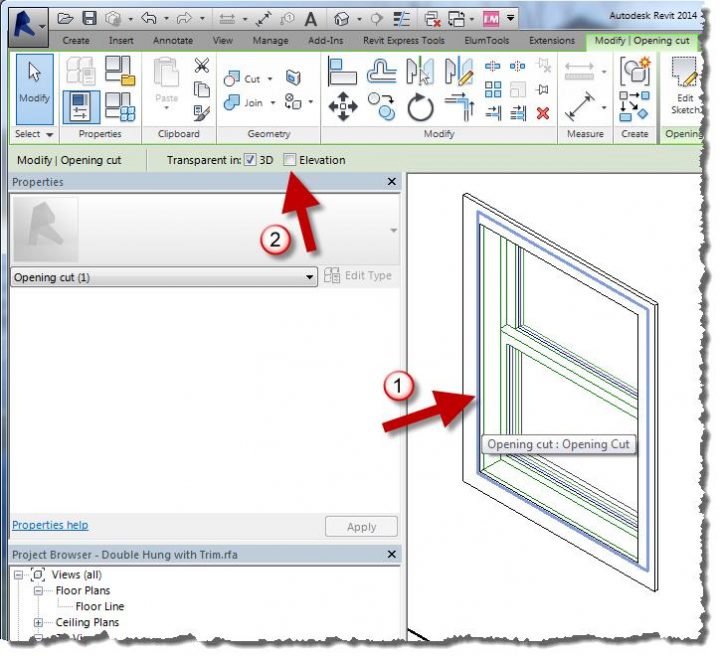
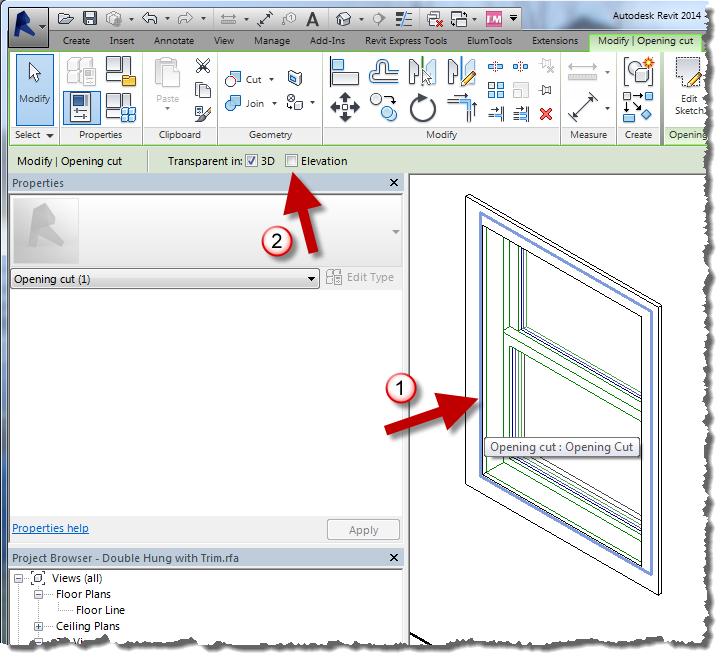
In any elevation view, materials are not transparent, as you can see in the left-hand image below (regardless of what Visual Style is set to). Even turning off the glass material in a view’s Visibility Graphics Overrides (VG) will not allow you to see through the “opening,” as seen in the second image. The trick here is to edit the opening in the family so it is transparent in elevation, as shown in the third image.

To achieve that, simply select the opening and check Elevation on the Options toolbar.

3) Self Illumination
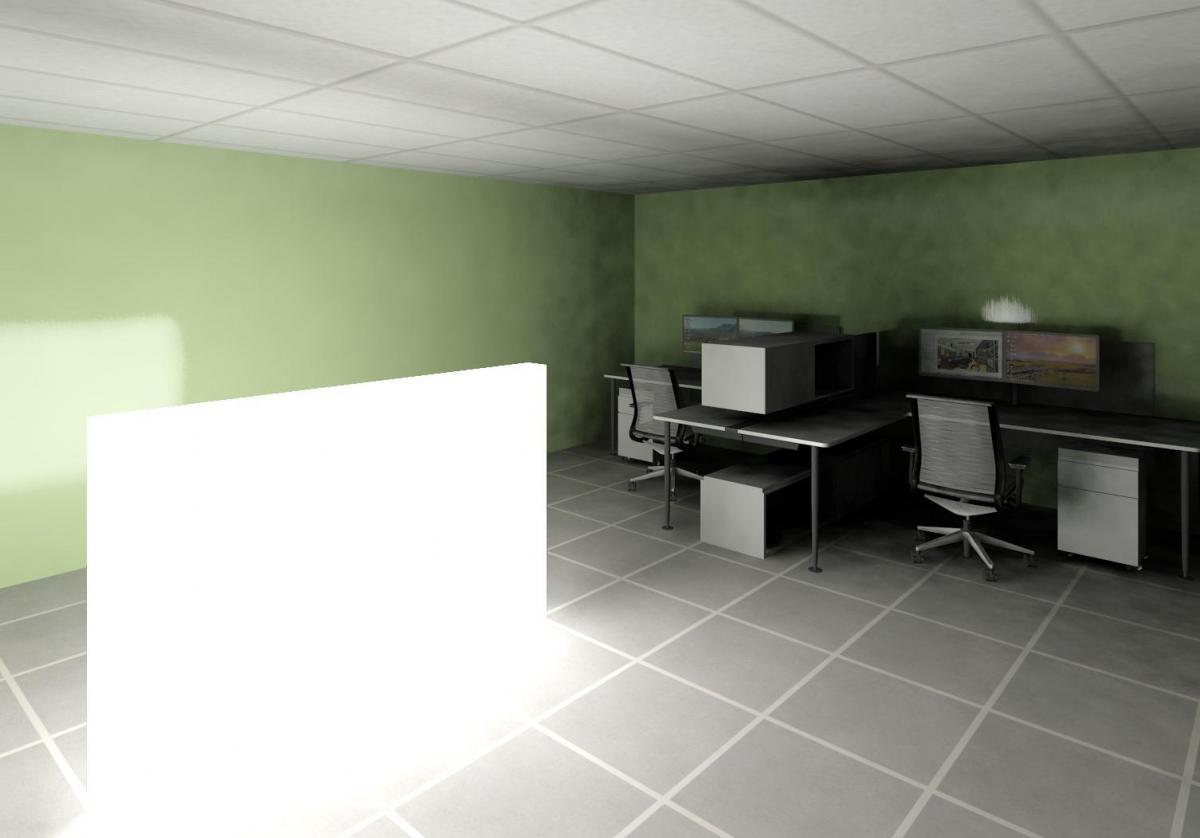
 A surface with a self-illuminating material will actually add light to a scene. In the image below, the self-illuminating low wall in the center of the room is the only light source. This material can also be used to get a very white surface when nothing else seems to be working.

Read more / via
http://www.cadalyst.com/cad/revit/understanding-autodesk-revit-materials-17422

In our case, we had to add local PC “Users” permissions for Full Control to this file:
“C:ProgramDataAutodeskApplicationPluginsADSK-IFCExportUI2014.bundlePackageContents.xml”

I recommend that you review each PackageContents.xml in the ProgramData location to check for appropriate permissions.

Key lines from journal:
‘ 0:< Autodesk Revit 2014 
‘ 0:< 64-bit load point = C:Program FilesAutodeskRevit 2014 
‘ 0:< this journal = C:UsersljohnsonAppDataLocalAutodeskRevitAutodesk Revit 2014Journalsjournal.0008.txt 
‘ 0:< ::0:: Delta VM: Avail -54 -> 8387401 MB, Used +8 -> 186 MB, Peak +39 -> 218 MB; RAM: Avail -15 -> 12989 MB, Used +13 -> 241 MB, Peak +14 -> 242 MB 
‘ 0:< Exception occurred 
‘C 24-Sep-2013 09:05:39.639;   0:< ExceptionCode=0xe0434352 ExceptionFlags=0x00000001 ExceptionAddress=000007FEFD17940D 
‘ 0:<   System (MB) [Available /  Total ]  [Revit Memory Usage (MB)   ] 
‘ 0:< RAM Statistics:    12989 /    16291       241=InUse      242=Peak  
‘ 0:< VM  Statistics:  8387402 /  8388607       186=InUse      218=Peak  
‘ 0:< Unconverted MessageBox “An unrecoverable error has occurred.  The program will now be terminated.  All of your data has been recently saved, so there is no need to create recovery files.” 

Basic fix method found at:
Other possible solutions:
  • Delete Autodesk, Inc. folder
  • Delete cascade
  • Make a new user profile and see if that works
As per:

Just hold down Ctrl button while scrolling with mouse wheel… I have tested this (non exhaustively) on Revit 2013 and Windows 7, and it works fine on the following dialogs:

  • the Properties Palette (wow!)
  • the data section of the Type Properties (Edit Type) dialog
  • Family Types
  • the Family Parameters part (lower section) of the Family Category and Parameters dialog
  • IFC Export and Import Options dialogs
  • Fill Patterns settings
  • Sheet Issues/Revisions

Thanks to this tweet for the heads-up:

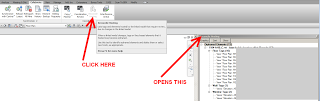
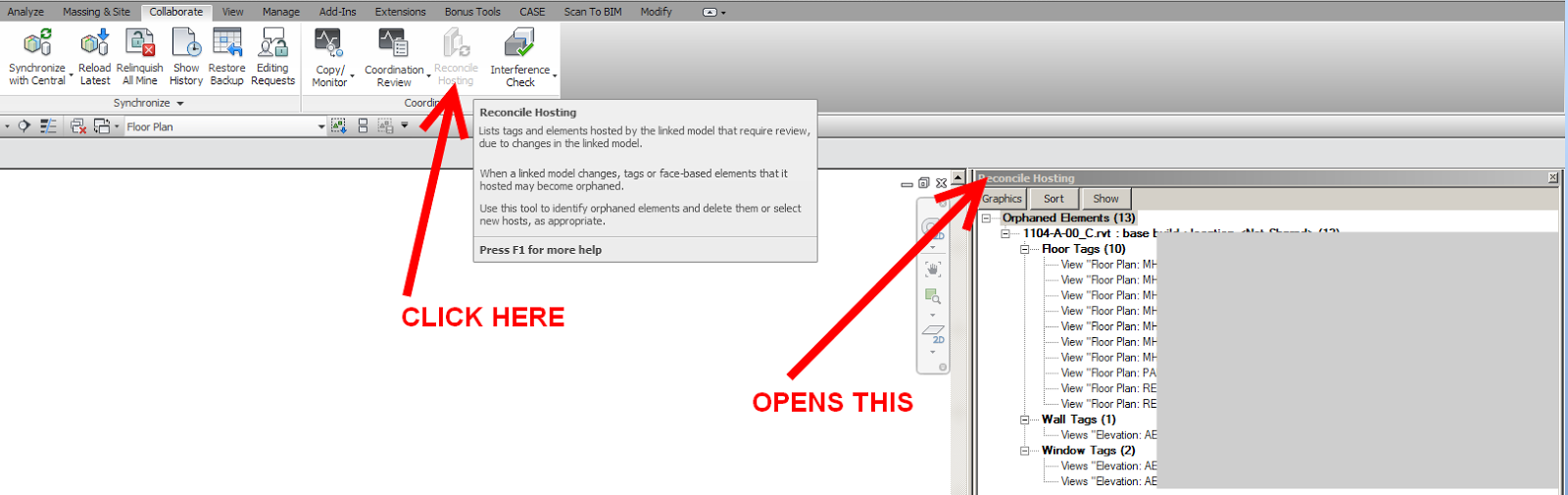
Have you ever used Reconcile Hosting?  When you click the appropriate button in the Ribbon, a new UI panel appears (see image below).  You can also assign a Keyboard Shortcut to this panel, although it doesn’t appear as a checkbox item in the View — User Interface list.

You can use the “Sort” button to change the way the list is sorted, and the Show button will take you directly to the appropriate place in the Model to view and “Pick New Host”.

Simply viewing the Reconcile Hosting panel gives you the View Name and Element ID of the orphaned elements.

The panel can be closed by using the X in the top right corner.

Read more:
Reviewing Orphaned Elements from Linked Models – WikiHelp

See below a series of links on IPD, VDC and BIM generally.  Interestingly, this information comes from a contract / legal perspective:

Article Moving Design-Build closer to IPD
PDF IPD Framework
PDF Integrated Project Delivery: The Game Changer
PDF IPD Teams: Creation, Organization and Management
PDF Using a design-build contract for Lean Integrated Project Delivery
PDF Building Information Modeling: Look Both Ways Before You Leap
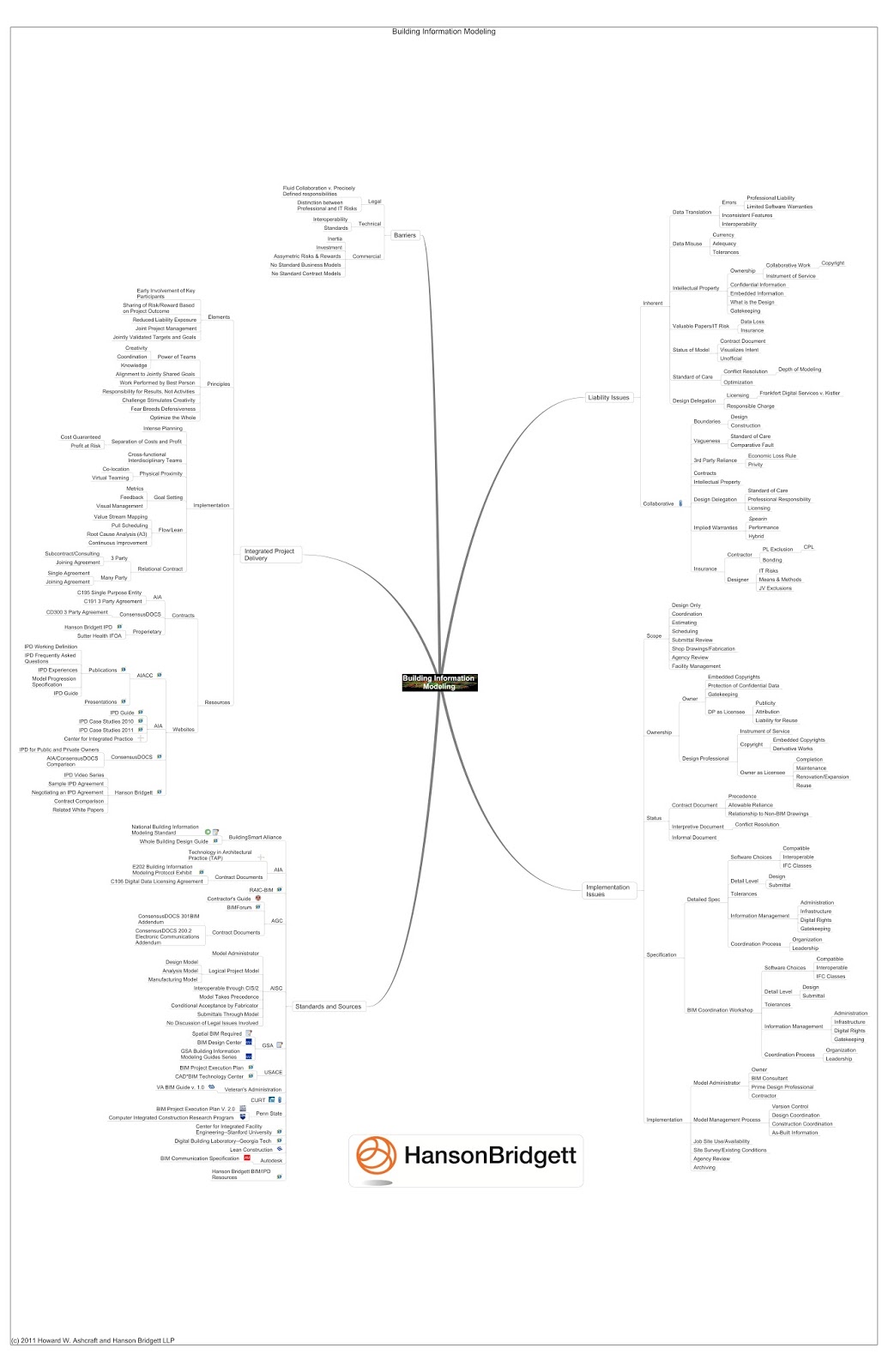
PDF Diagram of BIM Elements
PDF Diagram of BIM Elements (Interactive)
PDF How IPD Can Help Your Project Succeed
PDF Every marriage—and project—needs a honeymoon
PDF Comparison of Integrated Project Delivery Agreements (Summary)
PDF Motivation and Incentives in Relational Contracts
PDF Negotiating an Integrated Project Delivery Agreement
Video IPD Video Series – Part 1
Video IPD Video Series – Part 2
Video IPD Video Series – Part 3
Video IPD Video Series – Part 4
Video IPD Video Series – Part 5
Video IPD Video Series – Part 6
PDF Comparison of Integrated Project Delivery Agreements
PDF IPD Standard Agreement – Profit Deferred Until Final Completion
PDF Rethinking the “G” in GMP: Why Estimated Maximum Price Contracts Make Sense on Collaborative Projects
PDF Executive Summary of IFOA – Integrated Form of Agreement
PDF Alternative Project Delivery Methods for Public Works Projects in California
PDF BIM/IPD
PDF Managing Integrated Project Delivery
PDF Building Information Modeling: A Framework for Collaboration

via
This Page

As most of you probably know, the call for RTC2013 abstracts has gone out.  Here are some bits and pieces from RTC2012 that you can check out online.

Reconstructing the AEC process (Jay Zallan):
PDF Download Here

PowerPoint Download Here

http://cad-vs-bim.blogspot.com/2012/07/rtc-usa-2012-reconstructing-aec.html
Various re-caps of RTC2012:

James Vandezande / HOK
Brian Mackey / Mackay Consulting
Aaron Maller / Beck Group
Paul Aubin / Consulting Services
Lonnie Cumpton / BIM9
Robert Manna / Stantec
Aaron Vorwerk / D|C|CADD
Jeffrey Pinheiro / Fletcher Thompson (here here and here)
Erik Lewis / Devenney Group Ltd.

Links from:
http://www.architecture-tech.com/2012/07/rtc-usa-feedback.html

Revit Add-Ons: RTC NA 2012 Wrap Up – With an Eye Towards Add-ons

Who’s afraid of the Big Bad BIM?: RTCUSA Day 2 recap