Revit MEP users have had access to Embedded Schedules for a while now. However, the Revit 2013 OneBox version gives everyone the ability to easily utilise Embedded Schedules.  Have you used them yet?

Embedded Schedules are available for the following Categories: Rooms, spaces, duct systems, piping systems, or electrical circuits (do you know of any others??)

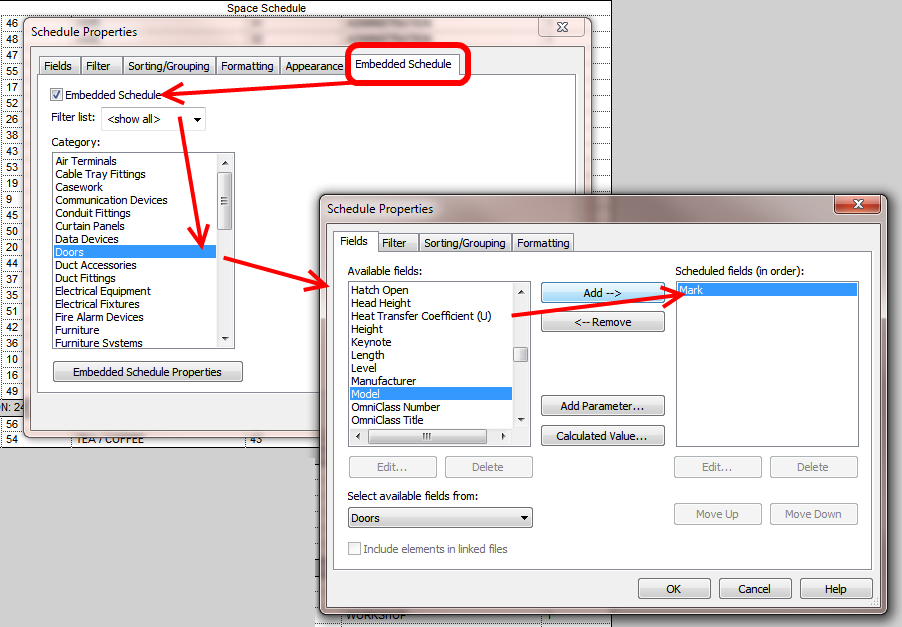
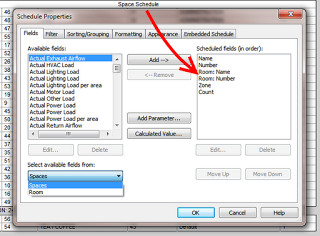
Architecturally, it makes the most sense to use a Room Schedule or a Space Schedule.  If you opt to use a Space Schedule, this means you will need to add Spaces to your model (Subscription users may want to take advantage of the Space Naming utility).  Once that is done, you can then Schedule Rooms IN the Space Schedule (first image below), and then create an Embedded Schedule for Doors, for example.  This will show you which Doors are in which Rooms.

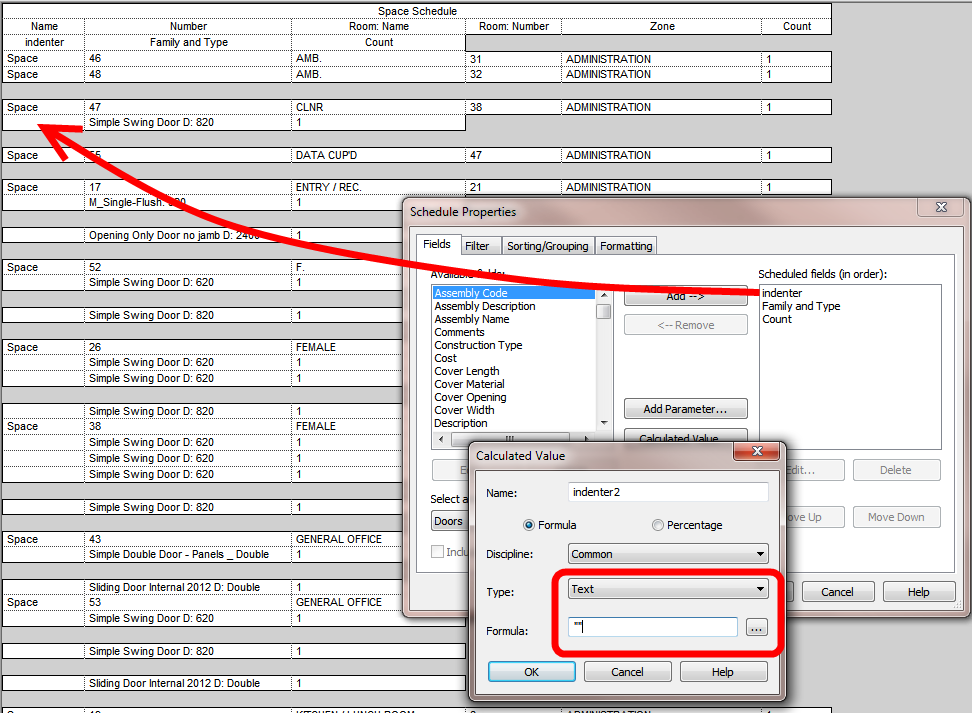
Check out the images below.  In the third one, I use a calculated text value of “” to ‘indent’ the Embedded Door Schedule, to make things a little bit easier to understand.

A nice little benefit of adding Spaces is that you can also take advantage of Zones (HVAC Zones).  Architectural users may re-appropriate Zones as a way to sort and group Spaces when doing a multi-building, single file RVT model.
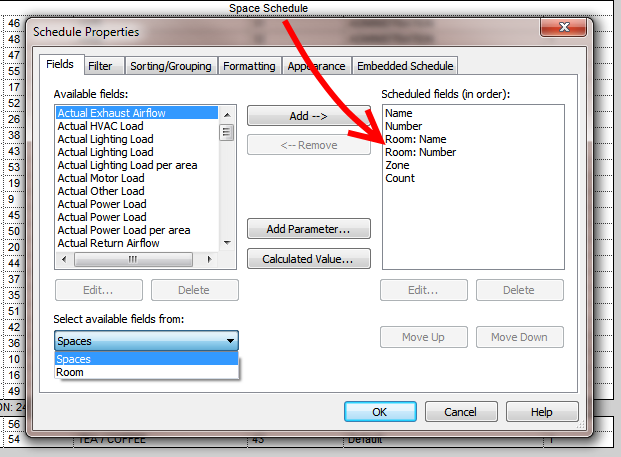
Room details added to Space Schedule

Embedded Door Schedule

A little trick to indent the Embedded Schedule

Read more at:
http://wikihelp.autodesk.com/Revit/enu/2013/Help/00001-Revit_He0/0004-Introduc4/0042-MEP_Esse42/0059-Embedded59/0060-Creating60

Pre-2013 OneBox RAC users can add Embedded Schedules in RME2012 and then re-open in RAC, as per:
https://wrw.is/2011/11/embedded-schedule-workaround-for-revit.html
Currently includes links to the following pages:

via
Upgrade Information for Autodesk Revit 2013 – WikiHelp

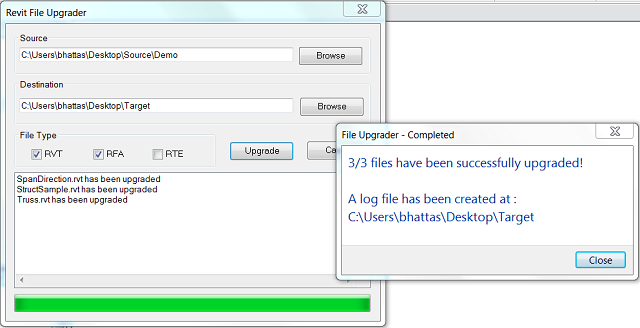
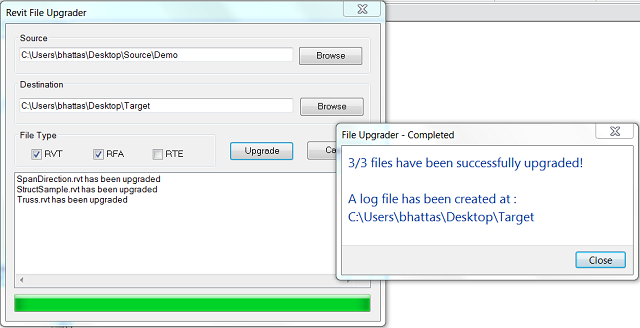
You may also be interested in the File Upgrader add-in on Autodesk Exchange.

I actually don’t need to transmit RVT files too often (yet).  However, I often want to archive a ‘snapshot’ of all the data associated with a project.  eTransmit for Revit makes this possible – and relatively easy.  I recently used it to archive a project, and the resulting folder contained 235 files!

Obviously, you need to be on Subscription to download.  Here are the links:

eTransmit for Autodesk Revit 2012 Extension 2012-05-31

eTransmit for Autodesk Revit 2013 Extension 2012-05-10

One interesting error that I came across was:
A file with the same name but a different path has already been transmitted.

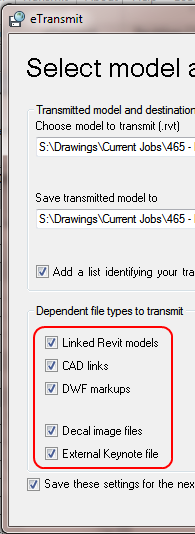
Here are items eTransmit currently includes:

PS – I remember how excited I was when I first saw eTransmit for AutoCAD!  I’m not that old, am I?

Looks like the BIM (model) of the Earth is going to be built by computers, not people:
Google is using a new technology to automatically generate  3D buildings from 45-degree angle aerial photography made by overlapping passes of aircraft. Each airplane has five cameras: four that point at 45 degrees, and one that points down.

Read more at:
Here’s why Google got rid of SketchUp – WorldCAD Access

You want to make a Keynote Schedule (or Legend) that is manually populated (you pick which Keynotes show in the Schedule).  Given that your filtering options are limited, here is one way:

SHORT VERSION
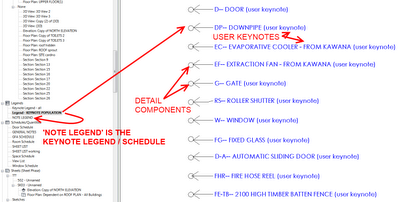
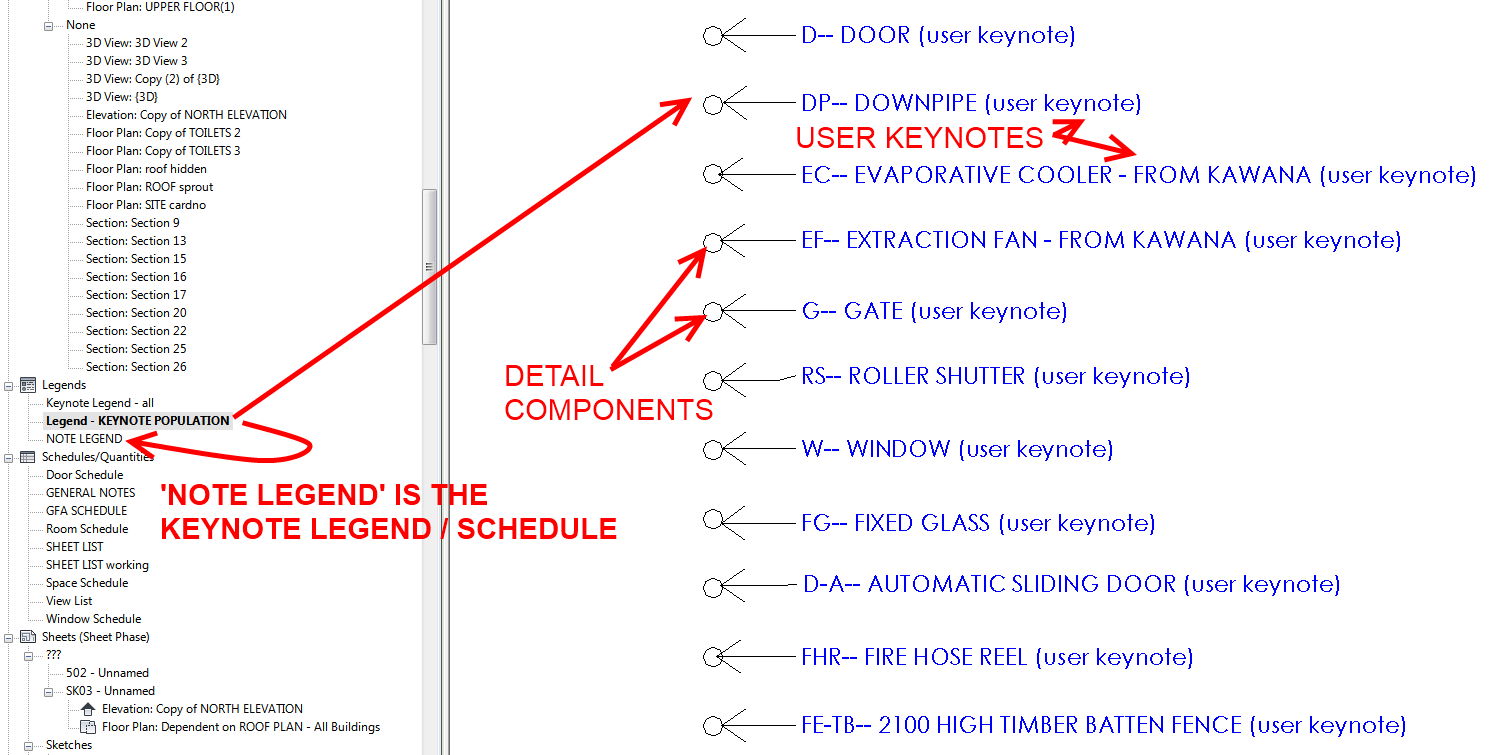
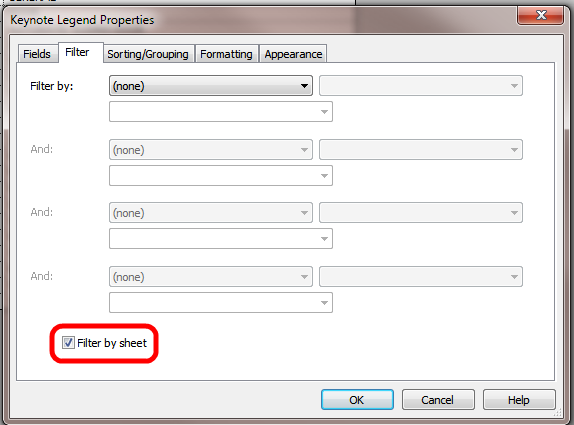
Place Detail Components in a Legend View, tag them with User Keynotes, and use a Keynote Schedule filtered by Sheet.  Place Legend View and Keynote Legend (Schedule) on the sheet…

STEP BY STEP

  1. Create a Detail Component family with some geometry in it (eg. a circle) and load it into your project
  2. Create a Legend View in your project, call it KEYNOTE POPULATION view or something
  3. Place a bunch of instances of the Detail Components from point 1 into the Legend View
  4. Using Keynote Manager, create a list of notes that you want in your Keynote Schedule, preferably under a suitable TopLevel note
  5. Apply the appropriate Keynote file to your project
  6. Start tagging the Detail Components in the Legend View using a USER Keynote – select each item in your list of notes from your Keynote file
  7. Create a Keynote Legend and select ‘Filter by Sheet’
  8. Place the Legend View AND the Keynote Legend on the Sheet that you want the Legend to appear on
  9. Turn off Model and Annotation elements using the master switch in V/G of the Legend View
  10. The manually selected (user) Keynotes have been shown, but the actual Detail Components in the Legend View are hidden!


Extra tips:
The Legend View is used so it can be placed on multiple sheets.  You will need to place the Legend View AND the Keynote Legend on each sheet that you want these notes to show on (because we are utilising the ‘Filter by Sheet’ setting).

Create a View Template (2013) for KEYNOTE POPULATER ON/OFF and apply it to the Legend View.  Using this Template, you can quickly switch the Model and Annotation categories On and Off for these tricky Legend Views.

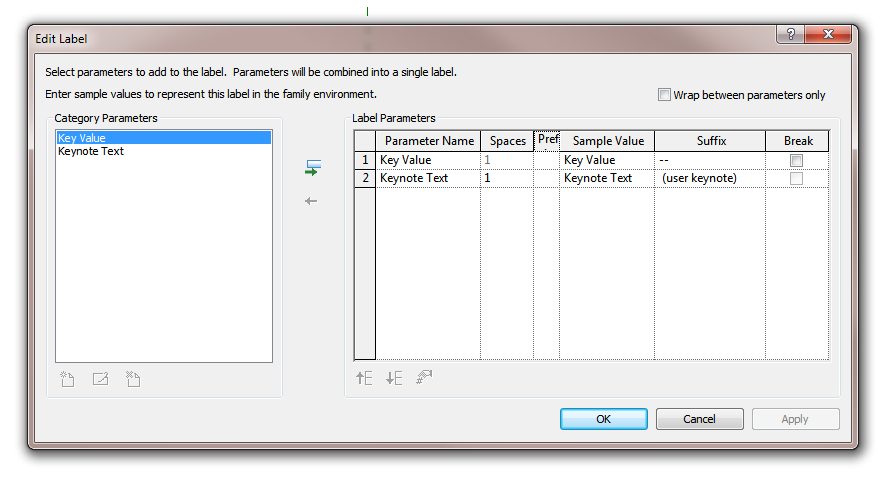
Make a Keynote Tag that actually includes the Key Value and Keynote Text, with a suffix like ‘user keynote’.  This is just to make your life easier while tagging in the Legend View.

Keynotes are one of the least-understood and most-ignored tools in Revit … but they can be awesome if used correctly.

On a slightly unrelated note – Keynote Schedule and Keynote Legend are interchangeable terms (to me).  The actual term is really ‘Keynote Legend’, but it looks exactly like a Schedule, so … confused yet?  These are different to KEY Schedules …

Related posts:

Note Blocks – What are they??

How to add symbols to Schedules and Text in Revit

Copy Spreadsheet tool updated

RFO user revittotd has come across an interesting anomaly:

view full screen version

via thread at
The Trouble with Tribbles…

… will soon be available on their Facebook page, according to this post:

In the Mastering Revit books, we’ve gotten some great people to so some great chapters and essays for us in years past and we’re going to be digging those out in the next few weeks and posting them via Facebook online – free for you to read and distribute. It’ll be some seriously cool stuff, so keep your eyes peeled.

So, check Facebook 

via
Arch | Tech: What? A blog post?!?

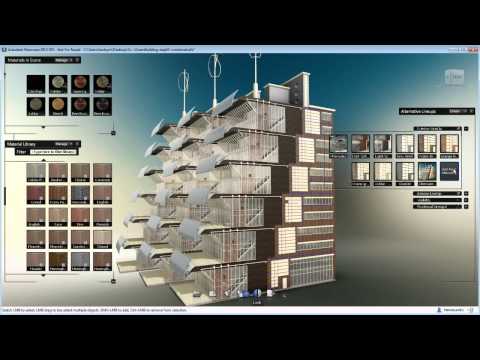
Have you tried Showcase yet?

Like Shades of Grey, I’m relatively excited about Showcase:
One of my brightest hopes for Revit 2013 is Showcase, which is a totally separate application.  Could this finally be the viewer that works ?  I’ve tried Design Review & Navis Works Freedom,  Quicktime FBX plugin, Tekla Bimsight … People are doing clever things with Game Engines, but I need a quick and easy way of bringing a lightweight export from the model into meetings.  
via
Shades of Grey: BROAD BRUSH & FINE DETAIL

Evidently, you need a pretty decent system to make everything smooth, as Neil Thompson says
@jrostar it eats ram more than revit on full render.

A few links:
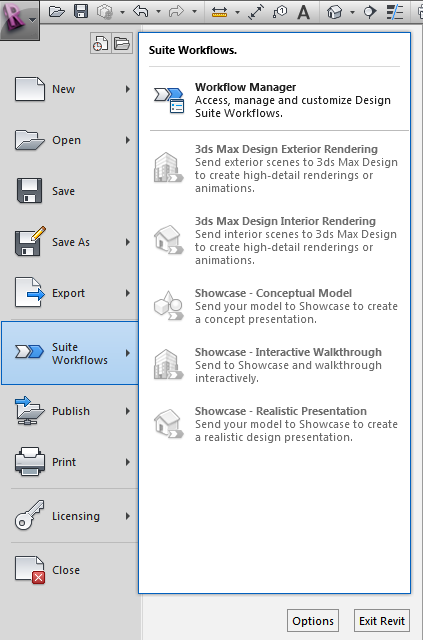
Suites Workflow Manager – WikiHelp

Revit Workflows in the Autodesk Building Design Suite – WikiHelp

Installation notes:

I really tried to get Showcase working without installing the whole Building Design Suite, but I haven’t figured it out yet! Here are some of the steps I tried:

  1. Install Revit, Showcase and Max (separate downloads, not from BDS media)
  2. Activate all products using a Suite license
  3. Extract the folder WorkflowInstaller from your extracted Suite archive – Content subfolder.
  4. Close all Autodesk programs
  5. Run the file AutodeskBuildingDesignSuiteWorkflows.msi from the appropriate subfolder (x64 or x86)
  6. Open Revit – Suite Workflows still not visible 🙁

Direct download Showcase 2013 (use this method):
http://trial.autodesk.com/SWDLDDLM/2013/SHOWCASE/ESD/Autodesk_Showcase_2013_Multilingual_Win_64bit.exe

Direct download 3dsMaxDesign 2013 (use this method):
http://trial.autodesk.com/SWDLDDLM/2013/MAXDES/ESD/Autodesk_3ds_Max_Design_2013_EFGKJS_Win_64bit.exe
http://trial.autodesk.com/SWDLDDLM/2013/MAXDES/ESD/Autodesk_3ds_Max_Design_2013_EFGKJS_Win_32bit.exe

AutoCAD Design Suite Standard 2013
http://trial.autodesk.com/SWDLDDLM/2013/DSSTD/ESD/AutoCAD_Design_Suite_Standard_2013_English_Win_32bit.part1.exe
http://trial.autodesk.com/SWDLDDLM/2013/DSSTD/ESD/AutoCAD_Design_Suite_Standard_2013_English_Win_32bit.part2.rar

Some notes about Workflows:

Need to install 3dsMax to make it work:
Revit Workflows in the Autodesk Building Design Suite – WikiHelp

Install Workflows – WikiHelp
BDSP 2013extContentWorkflowInstallerx64
“C:ProgramDataAutodeskWorkflowsProducts.xml”

What is Autodesk DirectConnect? – WikiHelp

Interesting Twitter exchange between Ian Keough (father of Dynamo) and Aaron Maller (Malleristic Revitation):

Ian:
I’m beginning to think that any BIM data stored locally is a dumb idea. Anything you want to share should just live in the cloud.

Aaron:
@ikeough Its a cute vision, except for all of the people who need data without cloud access. Many jobsites dont have access.

Ian:
@Twiceroadsfool You have a cell phone? That’s cloud access.

Aaron:
@ikeough Are we talking about every person on a jobsite using their personal cell phones? Or assuming every job can afford a 3g ipad?

Aaron:
@ikeough Im a fan of the cloud, dont get me wrong. But im responsible for real jobs that wont have access.

Ian:
@Twiceroadsfool Actually I was talking about sitting at your machine working on a Revit or a Navisworks models.

Aaron:
@ikeough I dont see a good enough ROI in the models in the cloud, unless the site can access. Too much hassle, not enough reward. JM2C. 🙂

Have an opinion?  Add your reply on Twitter or using the comments form below.