Railings: When you create a railing in an Autodesk Revit 2013 project, new railing types are available that include top rail and handrail properties. When you upgrade a project, if the new rail (top rail and handrail) properties do not display in the railing Type Property dialog, duplicate the existing railing type, and the new rail properties will be available in the duplicated type.
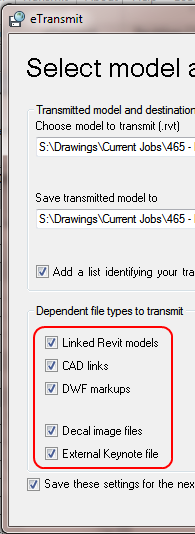
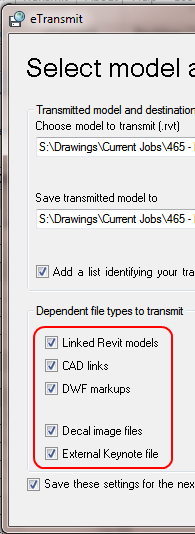
I actually don’t need to transmit RVT files too often (yet). However, I often want to archive a ‘snapshot’ of all the data associated with a project. eTransmit for Revit makes this possible – and relatively easy. I recently used it to archive a project, and the resulting folder contained 235 files!
Obviously, you need to be on Subscription to download. Here are the links:
Looks like the BIM (model) of the Earth is going to be built by computers, not people: Google is using a new technology to automatically generate 3D buildings from 45-degree angle aerial photography made by overlapping passes of aircraft. Each airplane has five cameras: four that point at 45 degrees, and one that points down.
You want to make a Keynote Schedule (or Legend) that is manually populated (you pick which Keynotes show in the Schedule). Given that your filtering options are limited, here is one way:
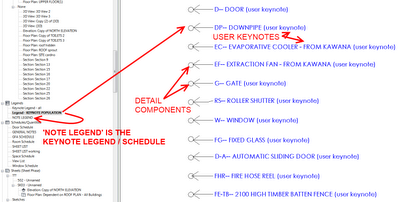
SHORT VERSION Place Detail Components in a Legend View, tag them with User Keynotes, and use a Keynote Schedule filtered by Sheet. Place Legend View and Keynote Legend (Schedule) on the sheet…
STEP BY STEP
Create a Detail Component family with some geometry in it (eg. a circle) and load it into your project
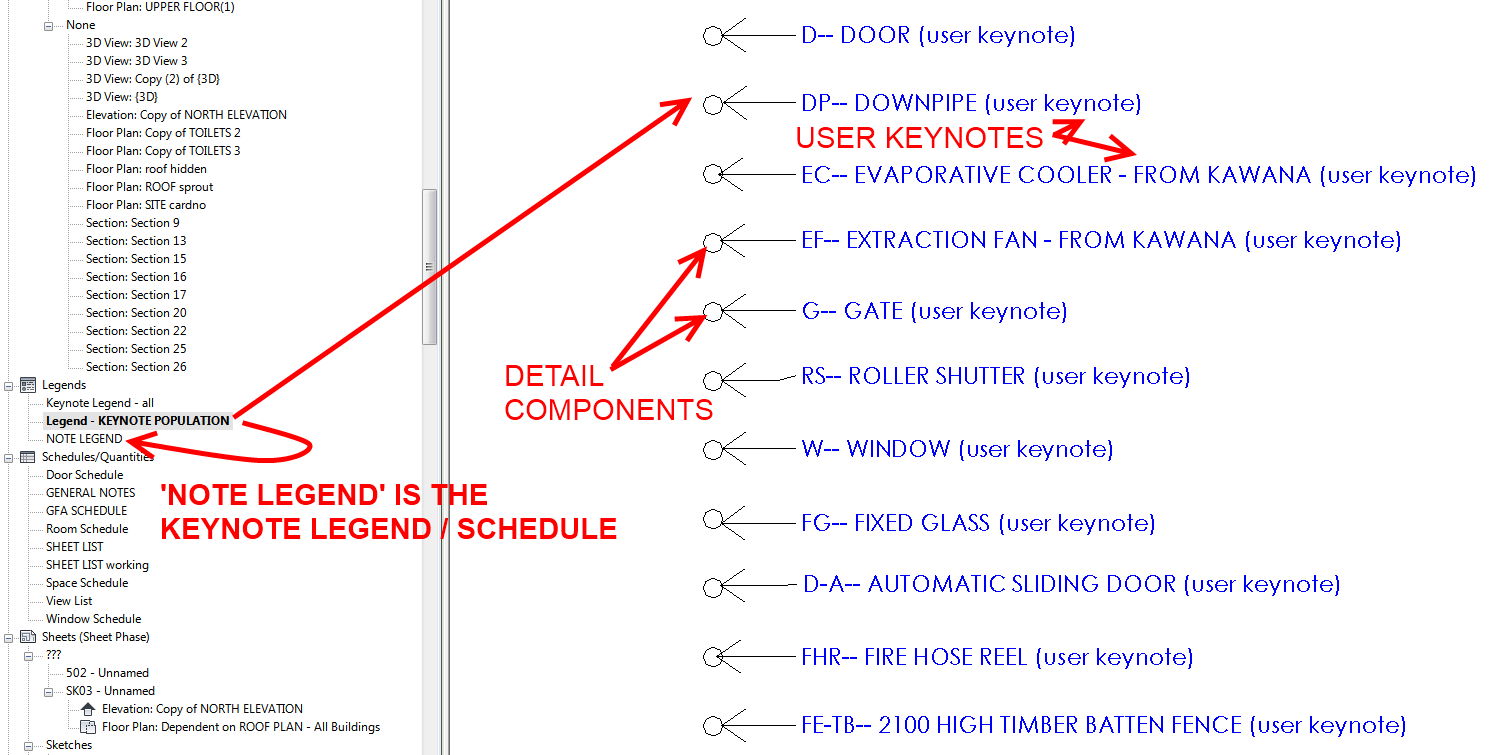
Create a Legend View in your project, call it KEYNOTE POPULATION view or something
Place a bunch of instances of the Detail Components from point 1 into the Legend View
Using Keynote Manager, create a list of notes that you want in your Keynote Schedule, preferably under a suitable TopLevel note
Apply the appropriate Keynote file to your project
Start tagging the Detail Components in the Legend View using a USER Keynote – select each item in your list of notes from your Keynote file
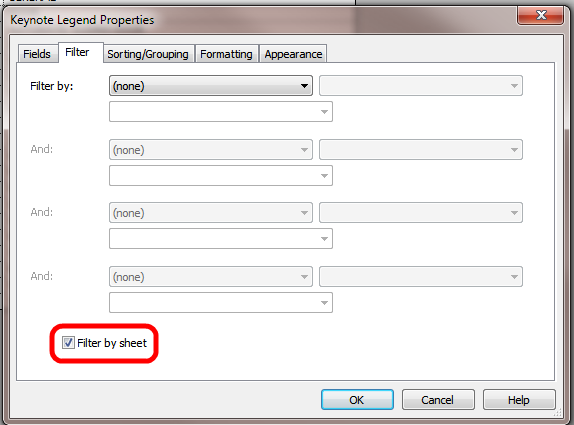
Create a Keynote Legend and select ‘Filter by Sheet’
Place the Legend View AND the Keynote Legend on the Sheet that you want the Legend to appear on
Turn off Model and Annotation elements using the master switch in V/G of the Legend View
The manually selected (user) Keynotes have been shown, but the actual Detail Components in the Legend View are hidden!
Extra tips: The Legend View is used so it can be placed on multiple sheets. You will need to place the Legend View AND the Keynote Legend on each sheet that you want these notes to show on (because we are utilising the ‘Filter by Sheet’ setting).
Create a View Template (2013) for KEYNOTE POPULATER ON/OFF and apply it to the Legend View. Using this Template, you can quickly switch the Model and Annotation categories On and Off for these tricky Legend Views.
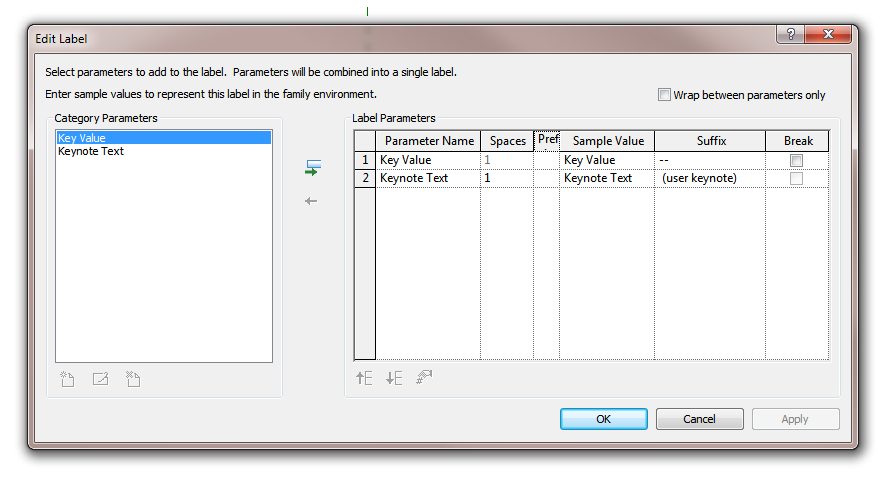
Make a Keynote Tag that actually includes the Key Value and Keynote Text, with a suffix like ‘user keynote’. This is just to make your life easier while tagging in the Legend View.
Keynotes are one of the least-understood and most-ignored tools in Revit … but they can be awesome if used correctly.
On a slightly unrelated note – Keynote Schedule and Keynote Legend are interchangeable terms (to me). The actual term is really ‘Keynote Legend’, but it looks exactly like a Schedule, so … confused yet? These are different to KEY Schedules …
… will soon be available on their Facebook page, according to this post:
In the Mastering Revit books, we’ve gotten some great people to so some great chapters and essays for us in years past and we’re going to be digging those out in the next few weeks and posting them via Facebook online – free for you to read and distribute. It’ll be some seriously cool stuff, so keep your eyes peeled.
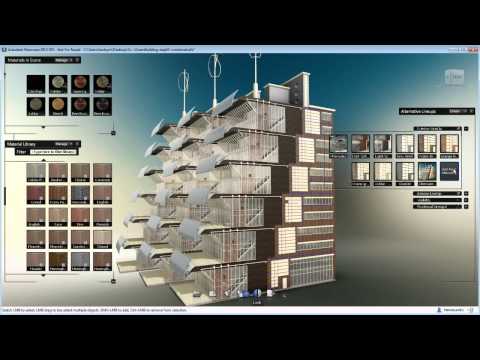
Like Shades of Grey, I’m relatively excited about Showcase: One of my brightest hopes for Revit 2013 is Showcase, which is a totally separate application. Could this finally be the viewer that works ? I’ve tried Design Review & Navis Works Freedom, Quicktime FBX plugin, Tekla Bimsight … People are doing clever things with Game Engines, but I need a quick and easy way of bringing a lightweight export from the model into meetings. via Shades of Grey: BROAD BRUSH & FINE DETAIL
Evidently, you need a pretty decent system to make everything smooth, as Neil Thompson says @jrostar it eats ram more than revit on full render.
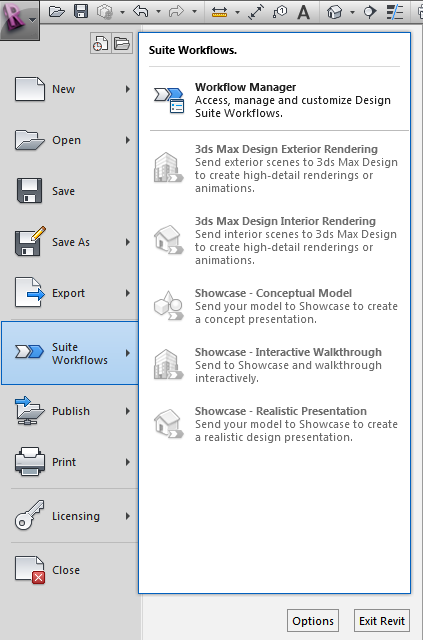
I really tried to get Showcase working without installing the whole Building Design Suite, but I haven’t figured it out yet! Here are some of the steps I tried:
Install Revit, Showcase and Max (separate downloads, not from BDS media)
Activate all products using a Suite license
Extract the folder WorkflowInstaller from your extracted Suite archive – Content subfolder.
Close all Autodesk programs
Run the file AutodeskBuildingDesignSuiteWorkflows.msi from the appropriate subfolder (x64 or x86)
Open Revit – Suite Workflows still not visible 🙁
Direct download Showcase 2013 (use this method): http://trial.autodesk.com/SWDLDDLM/2013/SHOWCASE/ESD/Autodesk_Showcase_2013_Multilingual_Win_64bit.exe
Direct download 3dsMaxDesign 2013 (use this method): http://trial.autodesk.com/SWDLDDLM/2013/MAXDES/ESD/Autodesk_3ds_Max_Design_2013_EFGKJS_Win_64bit.exe http://trial.autodesk.com/SWDLDDLM/2013/MAXDES/ESD/Autodesk_3ds_Max_Design_2013_EFGKJS_Win_32bit.exe
AutoCAD Design Suite Standard 2013 http://trial.autodesk.com/SWDLDDLM/2013/DSSTD/ESD/AutoCAD_Design_Suite_Standard_2013_English_Win_32bit.part1.exe http://trial.autodesk.com/SWDLDDLM/2013/DSSTD/ESD/AutoCAD_Design_Suite_Standard_2013_English_Win_32bit.part2.rar
The webcast addresses two main areas: an introduction to Revit programming for beginners, including a quick walkthrough of basic concepts, and a discussion of some of the new functionality provided by the Revit 2013 API, which will be of interest to both beginners and experienced developers. The two parts are roughly equal in length.