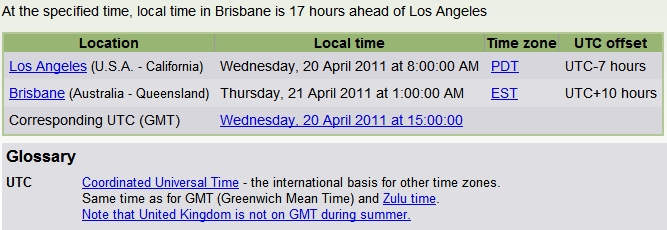
Start – Thursday 21 April 2011, 1 am

Finish – Thursday 21 April 2011, 7 am

Converted using http://www.timeanddate.com/worldclock/converter.html

Event name and details:
The Make Your Most Amazing Ideas Happen Virtual Event 
On April 20, 2011, we’ll host our live virtual event, showcasing the entire line of 2012 Autodesk products — including comprehensive new design suites. Join us and discover how our latest software can help you accelerate the creation and delivery of your most amazing ideas.

Are your renders taking ages?  Trying to output a big rendered walkthrough?  No matter how fast your PC is, these things can take time.  Why not enlist a few of the other computers in your office to help produce that high-resolution animation?

Distributed rendering (or Parallel Rendering) is possible when using high end visualization products, including 3D Studio (now part of the Building Design Suite Premium).

In pure Revit (without using 3D Studio), the solution is a little bit more crude.  However, it does work.

Here are the basic steps:

  1. Set up your walkthrough.
  2. Save the Project or Save to Central.
  3. Get your other computers running and open the same walkthrough on all of these PCs.
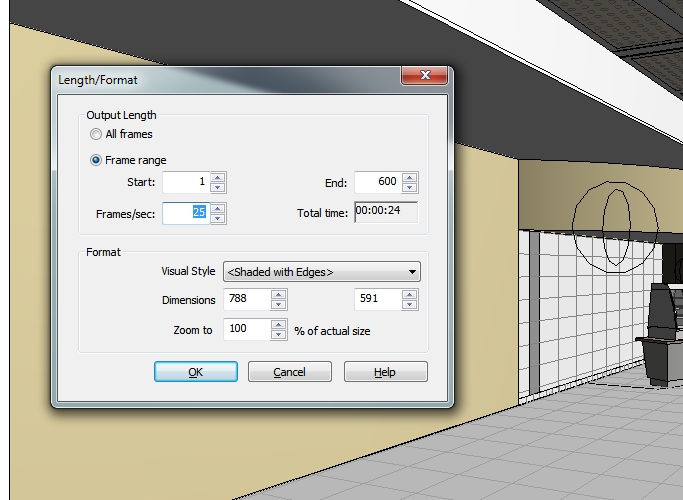
  4. On PC#1 in Revit, go to Export – Animation – Walkthrough, and pick a set number of frames for that PC to output.  For example, frames 1 to 600 out of 1800.
  5. Make sure you choose BMP for the output, and when naming the file, just put in 1- (this will make sense later.
  6. On PC#2, export frames 601 to 1200 to BMP.  Name it 601-.
  7. On PC#3, export frames 1201 to 1800 to BMP.  Name it 1201-.
  8. Using Advanced Renamer, rename all the files to suit the appropriate frames. (see associated post)
  9. Put all the BMPs in one folder on the server or on one of the PCs.
  10. Using Avisynth and VirtualDub, join the BMPs into an AVI. (see associated post)
  11. Then, either use some video compression software, or do some post-processing.

There you go, you have successfully done some distributed or parallel rendering in Revit!

  1. Download Avisynth and install it.
  2. Download VirtualDub and unzip / install it.
  3. You need to have a set of BMP files with sequential numbering.  Refer to this post for how to do that.
  4. In the folder containing the bitmaps, create a text file.  Call it READ.AVS (it must have AVS extension).
  5. Open it in Notepad and put the following line into the file:
    ImageSource(“%04d.bmp”, start = 1, end = 1800, use_DevIL = true)
  6. The above syntax is for files with 4 digit filenames, starting at 0001.bmp and ending at 1800.bmp (obviously, if you have more or less frames, change the 1800 value accordingly).
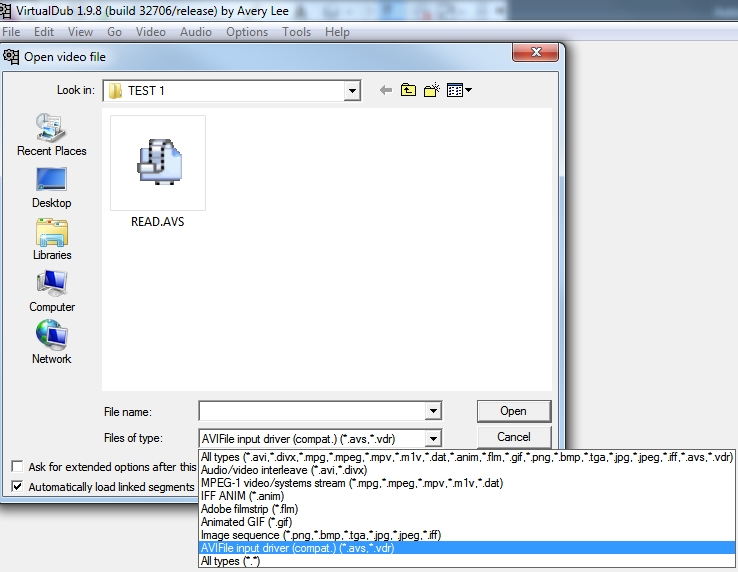
  7. Open VirtualDub
  8. Open the READ.AVS file that you created.
  9. Now you should be able to save this file from VirtualDub to an AVI.  Here is some quick settings:
    Video – Direct Stream Copy
    Audio – No audio
  10. Go File – Save as AVI
  11. Put your AVI somewhere with plenty of disk space – it could become huge.

You may also want to refer to the master post entitled Distributed Parallel Rendering in Revit.
  1. Download and install Advanced Renamer
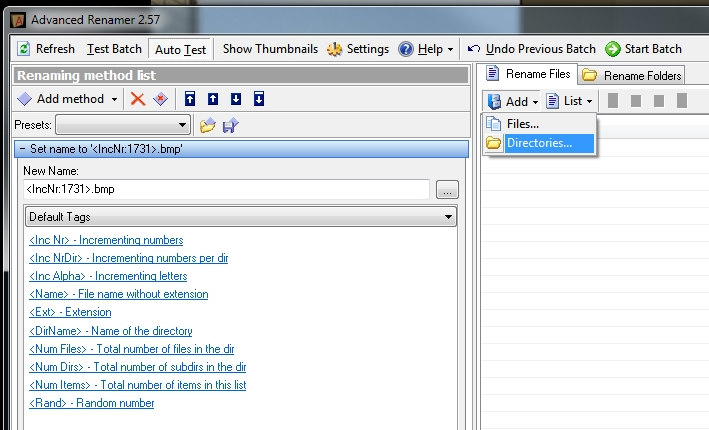
  2. Open Advanced Renamer.  Add – Directory and choose the folder that contains the sequential set of files.
  3. Add method.  Choose ‘New Name’ from the dropdown list.
  4. In the entry box, use a name like the following:
    .bmp
  5. This will create 4 digit sequential filenames ending in BMP.  The first file name will be 1731.bmp
  6. Click ‘Start Batch’ (you can use ‘Test Batch’ if you want to check the results of the rename process first).

These sequential bitmaps can then be joined into a AVI file.  Refer to the main post entitled Distributed Parallel Rendering in Revit.

Citrix readiness has resulted in a few file locations being changed in Revit 2012 products.

 
Journal file locations
For 2012 products:

  • Windows XP: %USERPROFILE%Local SettingsApplication DataAutodeskRevitJournals
  • Windows Vista or Windows 7: %LOCALAPPDATA%AutodeskRevitJournals

Who moved my Cheese (Files) ? – Important File location changes for Revit 2012 – The Revit Clinic
This post from The Revit Clinic includes a link to a VBScript utility that ‘gathers’ your journal files together…and it also includes the following info about the revit.ini  and UIState.dat locations in Revit 2012.

Revit.ini location
“The active revit.ini file is no longer located in the Program files directory. A number of files have been relocated to a new UserDataCache subfolder in the Program directory (C:Program FilesAutodeskRevit Architecture 2012ProgramUserDataCache). These files are “template” files and are copied into the user data “roaming” folder on the first launch of Revit, per user. From then on, these files will be loaded from and saved to the user data “roaming” folder. Revit.ini can be customized and pushed to users by an Administrator by editing or replacing the copy in the UserDataCache folder prior to the users launching Revit for the first time.”

UIState.dat
C:UsersusernameAppDataRoamingAutodeskRevitAutodesk Revit Architecture 2012

Thanks to The Revit Clinic for this information.

blog.bimkicks.com | REVIT Journal File Locations CHANGED in 2012
This post focuses on the Journal file location differences.

Autodesk – Autodesk Revit Architecture Services & Support – Location of journal files
Autodesk’s explanation of the Journal file locations in 2012.

Autodesk – Autodesk Revit Architecture Services & Support – How to download a previous release of an Autodesk Design & Creation Suite:

Scenario

You are an active Subscription Member and have upgraded to an Autodesk Design & Creation Suite, and would like to download a previous release of the Suite, or one of Autodesk software components within the Suite.

Solution

As a Subscription Member, you can download and activate the latest release, or previous releases, of eligible Autodesk products. You can activate one release of a product, suite, or the components of a suite, per license, purchased on Subscription.

Generally, if you purchased a license on Subscription for the first release of a Design & Creation Suite, then you can download and activate a previous release of the Autodesk software components within the Suite.

To download the product software for which you are eligible, follow the instructions for How to download a previous release of Autodesk software.

What happens behind the scenes in Revit?  The Revit Command Prompt utility developed by Jose Guia can help you learn.

Here is a direct link to the addon:
http://blog.bimkicks.com/file.axd?file=2011%2f3%2fRevCmdPrompt.zip

To install:

  1. Download the ZIP
  2. Extract anywhere
  3. RIGHT CLICK the INSTALL.cmd file and select “Run As Administrator”
  4. Restart Revit.
  5. Under Add-Ins, External Tools, you will have a new option called Command Prompt

Via:
blog.bimkicks.com | REVIT COMMAND PROMPT – aww yeah!!!!!!!