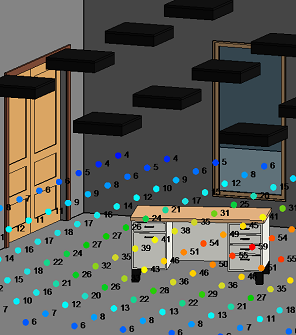
There is a GetSatisfaction page for Autodesk Seek at this link.  What is GetSatisfaction?  it “is a simple way to build online communities that enable productive conversations between companies and their customers.”

There is a specific page for Seek related Revit topics here.

From the main GetSatisfaction page, you can search for products or companies that have related support pages.

Community-powered support for Autodesk Seek

Here is slightly nasty, anti-BIM trick: 

If you are trying to override a dimension in Revit with a different dimension, it can be a pain.  Yes, you can mess with the ’rounding’ to try and get it right, or you can override with a decimal point, but what if you just want to show something that is totally different to the actual dimension without having a little dot floating around?

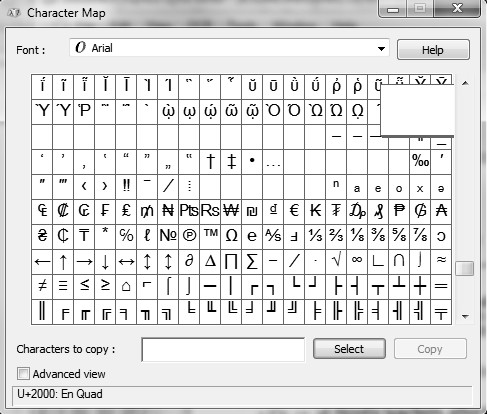
  1. Open up the ‘Character Map’ (Start – Accessories – System Tools – Character Map).  
  2. Scroll down until you see a bunch of blank boxes
  3. Copy one of the blank characters using the buttons at the bottom of the dialog.

  4. Go to Revit.
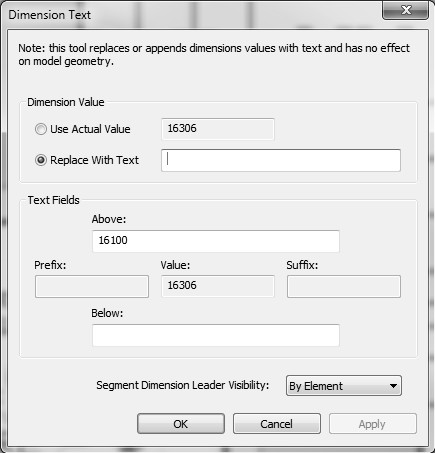
  5. Double click on the dimension you want to change.
  6. Paste the white space character into the ‘Replace with text’ box.
  7. Type the dimension you want in the ‘Above:’ part
  8. Drag the dimension into the correct location.

Like I said, this isn’t really ‘Best Practice’.  Use this workaround with care!

What is the Revit Mindset? Great question! I have been telling everyone I taught Revit to for years that it’s the ability to clear your mind of any preconceived “knowledge” or “understanding” of Revit and then layout a plan of attack before even beginning a project. You could spend an entire day simply planning out your direction and needs for the project. I assure you it will payoff in the days, weeks, or months to come.

quote from Adam Thomas at:
The Revit Mindset | ArchDesignLabs:

I personally agree with the concept of ‘planning out your direction and needs’ – it can make a big difference to give it some thought before getting too stuck into a Revit project.

There is huge amounts of data available to Revit users.  Some of you may already be aware of the portal slash blog directory slash aggregator site that I have set up at http://www.revitprofessionals.com/

Don Rudder has recently created a paper.li about Revit (and RTC) at http://paper.li/AYBABTM/1308511210#

Then there is the Revit Hate site that I have posted about previously, but happily there is also a Revit Love site that you can check out.  These sites bring together comments from Twitter and Facebook for easy reading.

Do you use a different Revit Portal or aggregator site?  Feel free to comment.

Some cool ideas from the June 2011 issue of AUGIWorld, article entitled ‘Revit, in a Database’ by Paul Crickard:

Once a Revit model has been exported to a database, the things
that can now be done with it are limited only by your imagination.
Build web-based or stand-alone front ends to access and modify
your model—without knowledge of the Revit API. Bring existing
data into a database and join it with the Revit model.

In this article he discusses some of the potential connections between MS Access and MS Excel, and the benefits of such interoperability.

I have posted numerous times about how to view the Revit database using various methods.  To start with, perhaps you would be interested in this post:
What Revit Wants: HOW-TO View the Revit Database (2011 Secret #14)

And, yeah, I twisted the title of this post a little bit 🙂
You are experiencing problems with the installation of an Autodesk product, and you want to enable verbose logging in order to troubleshoot the issue or submit the log files to the Autodesk Product Support Team.

You can configure the Microsoft Installer (MSI) to turn on verbose logging for this installation. Follow these steps:

  1. Click Start menu (Windows) > Run.
  2. In the Run dialog box, enter regedit and click OK.
  3. In the Registry Editor, browse to the following folder:

    HKEY_LOCAL_MACHINESoftwarePoliciesMicrosoftWindowsInstaller

    Note: Windows 7 does not include this key and you will need to manually add the Installer key to the registry. Right-click on the Windows subkey and choose New > Key and then rename New Key #1 to Installer.

  4. Right-click an empty area in the right pane. Click New > String Value.
  5. Enter Logging for the name.
  6. Double-click Logging.
  7. Enter voicewarmup in the Value Data box and click OK.
  8. Close the Registry Editor, and run the installation again.


The log files created using this method are located in the %TEMP% folder and are named MSI#####.log, where ##### is a 5-digit number.

Read more
Autodesk – Autodesk Revit Architecture Services & Support – Enabling verbose logging for installation issues